How to Pay for Premium: Subscriptions, Top-Ups, Crypto and Redeeming Your Plan
The Free Chart is free to use, and Premium is optional. Getting Premium removes all ads, unlocks unlimited indicator alerts, auto-syncs your layouts to the server, allows up to 5 screenshots per tr
The Free Chart is free to use, and Premium is optional. Getting Premium removes all ads, unlocks unlimited indicator alerts, auto-syncs your layouts to the server, allows up to 5 screenshots per trade, and expands Conference Rooms. This guide walks through both ways to pay — Subscription and Top up balance — and covers common payment issues, including what to do if the crypto payment page says you are blocked.
Quick tip before you start: choose the option that matches how you want to pay:
- Use Subscription if you want to pay by card, Apple Pay or Google Pay and have your plan renew automatically.
- Use Top up balance if you want to pay with Crypto (USDT / USDC), PayPal, a one-time card payment, or if you want the Daily plan ($0.25/day) instead of committing to a full month.
If you use Top up balance, remember there are two steps: top up your balance first, then click Redeem to activate your plan. Topping up alone adds funds to your wallet, not to your Premium time.
How to open the Premium dialog
Sign in to your account, then open the payment dialog in either way:
- Click Premium (or Upgrade) in the chart header.
- Or go directly to /plan.
At the top of the dialog you will see two tabs: Subscription and Top up balance.
Option 1: Pay with a Subscription (Card and Wallets)
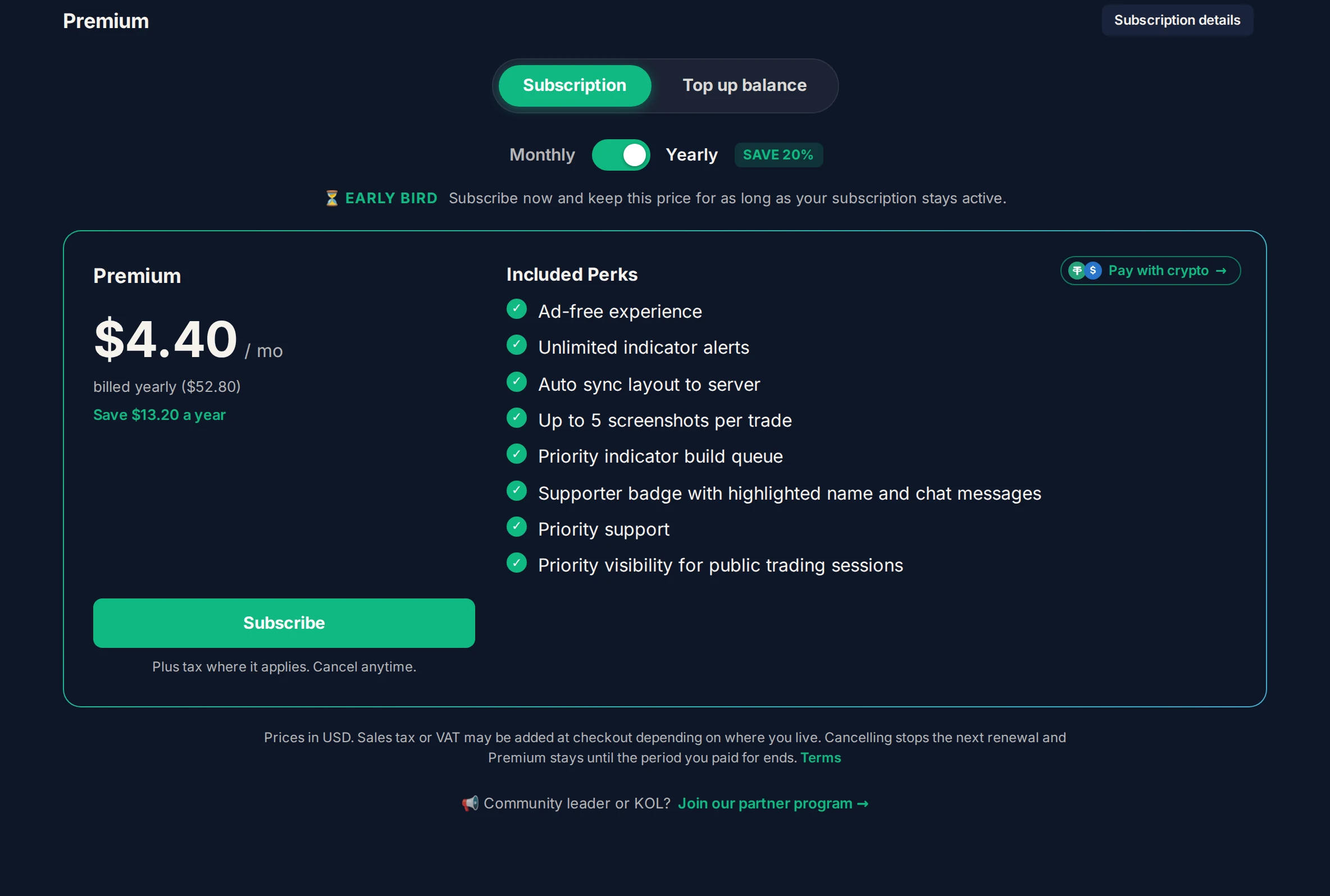
A subscription bills your card or digital wallet automatically each month or year and activates Premium immediately after payment.
- Stay on the Subscription tab.
- Pick your billing period: Monthly ($5.50/month) or Yearly ($52.80/year, which works out to $4.40/month and saves $13.20 a year compared to paying monthly).
- Click Subscribe.
- Enter your billing country and payment details in the Checkout form.
- Sales tax / VAT: if sales tax or VAT applies in your billing country, it is calculated and shown clearly before you pay.
- Currency (
Pay in): if the form switches to your local currency, you can change Pay in back to USD (or keep your local currency). Paying in USD avoids extra currency conversion fees when your card supports USD.
- Complete the payment. Your Premium plan usually turns on within a few seconds (at most a few minutes) and ads disappear on your next page load.
Managing or cancelling a subscription
You can cancel at any time:
- Open Premium → Subscription tab → click Manage or cancel.
- Cancelling only stops the next renewal. You keep Premium until the end of the period you already paid for.
- Note that subscription payments are non-refundable (see our Terms of Service).
Option 2: Top Up Balance (Crypto, PayPal, or One-Time Card)
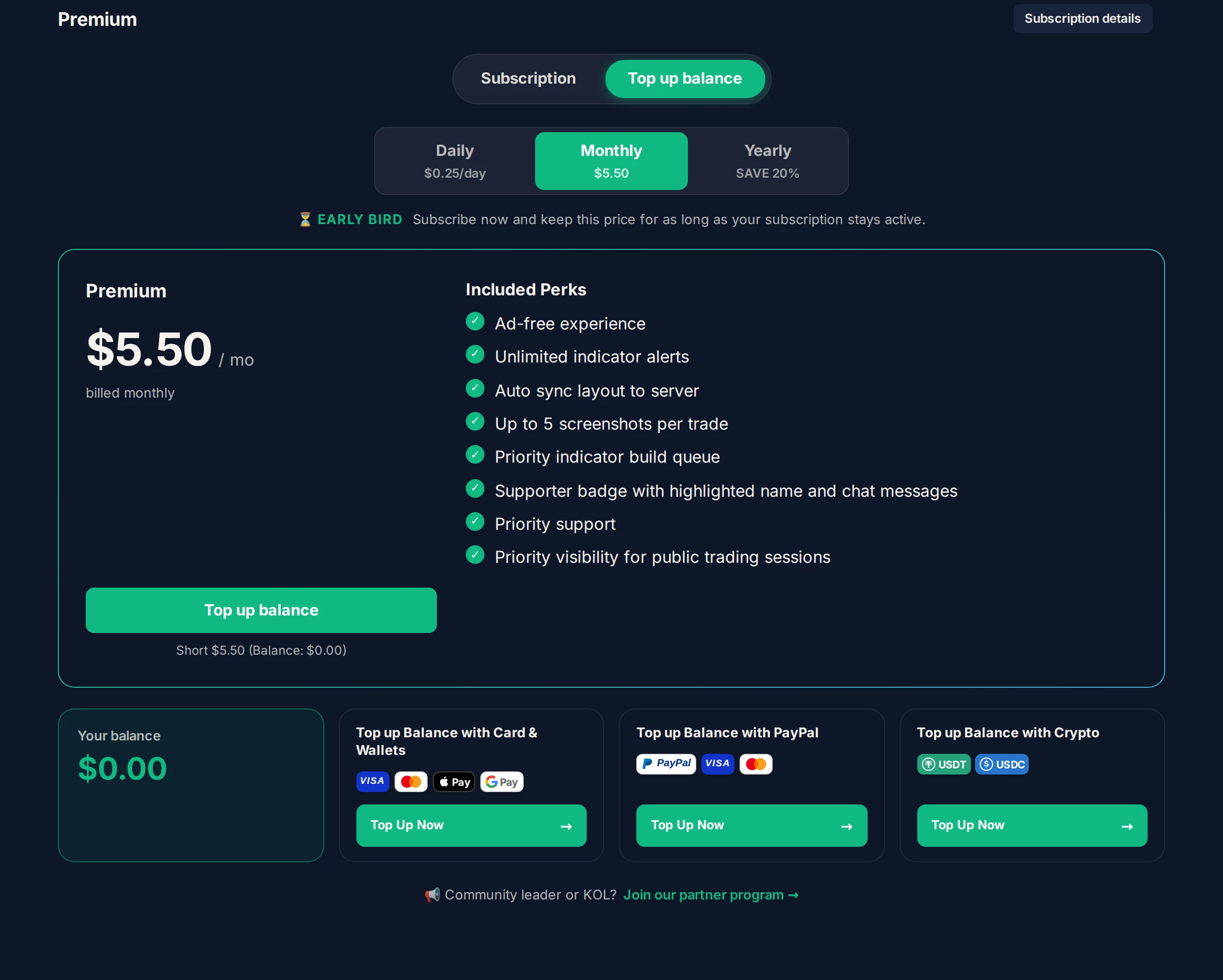
Topping up adds USD credit to Your balance. Your balance never expires, nothing is charged to your card automatically, and you can use it for Daily, Monthly, or Yearly Premium plans — or for paid community indicators.
Step 1: Add funds to Your balance
- Open Premium and switch to the Top up balance tab (you can also click Pay with crypto on the top right of the Premium card).
- Under the plan card, choose one of the three payment tiles:
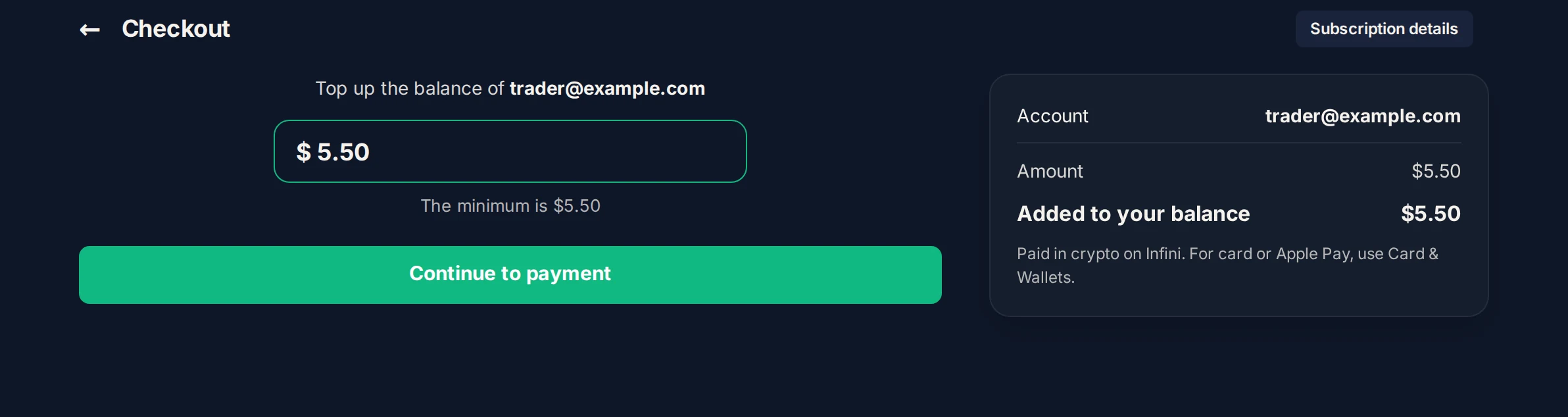
- Top up Balance with Crypto (USDT / USDC via Infini): enter the USD amount you want to add (minimum $5.50), then click Continue to payment. Complete the crypto transfer in the Infini tab that opens. Your balance updates automatically once the network confirms the transfer. If your browser blocked the new tab, click Open payment page again.
- Top up Balance with Card & Wallets (one-time via Dodo): enter the USD amount (minimum $5.50) and pay inside the Checkout form. Sales tax or VAT, if any, is paid on top and is not added to your balance.
- Top up Balance with PayPal: opens the PayPal payment page in a new tab. Pay using the same email address you signed in with on The Free Chart so your balance can be matched to your account (usually within 10 minutes).
Step 2: Click Redeem to activate Premium (important)
Many users finish Step 1, see money in their balance, and wonder why ads are still showing. Topping up only adds funds to Your balance — you must redeem a plan to turn Premium on.
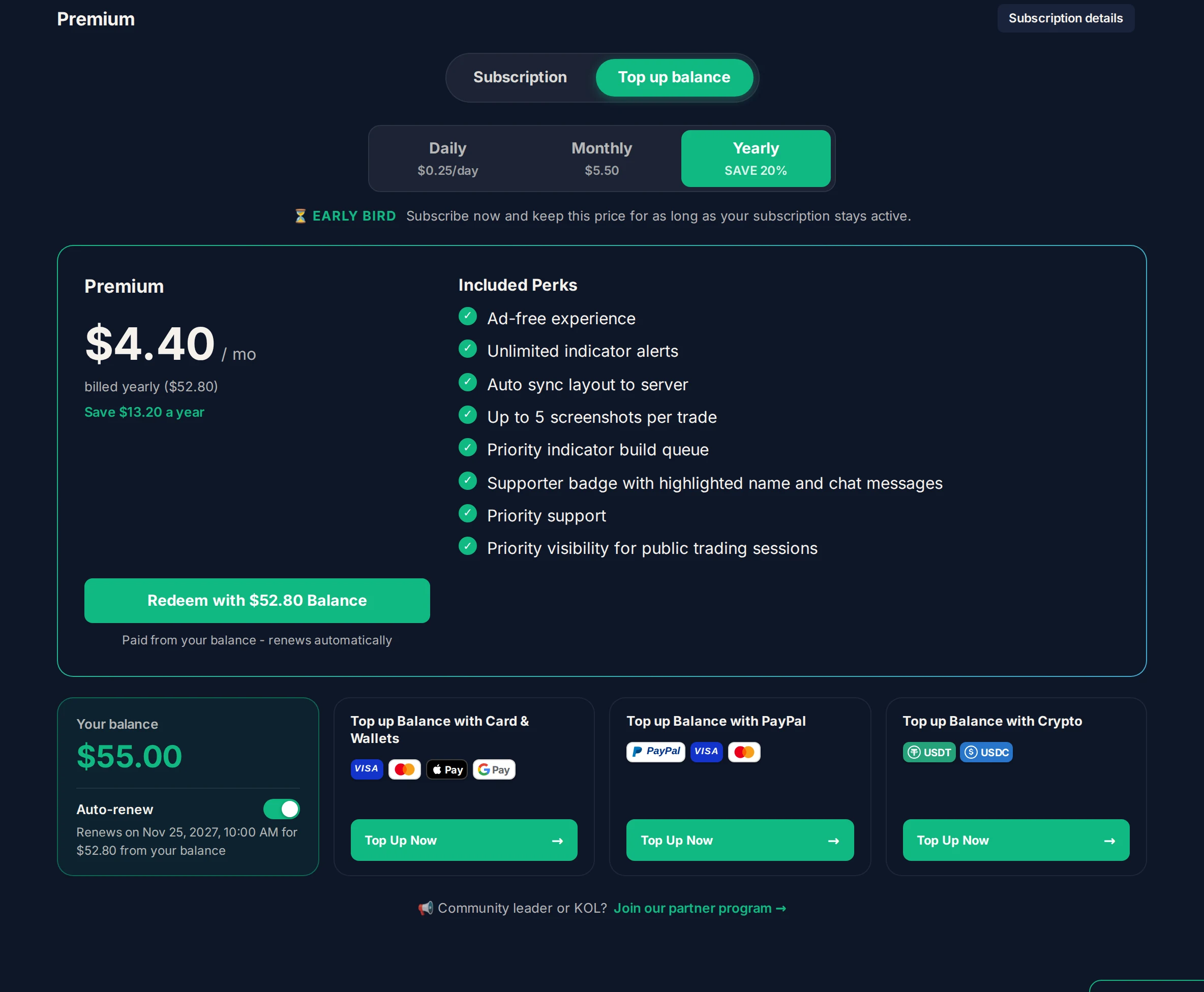
- Stay on the Top up balance tab and check that Your balance shows the updated amount.
- Choose the plan you want at the top of the card:
- Daily ($0.25/day — pick any number of days from 1 to 29).
- Monthly ($5.50).
- Yearly ($52.80).
- Click Redeem with $X Balance (or Pay $X from balance for Daily).
- Once you see "Thank you for your support! Your supporter tier is active.", reload the page. Premium is now active.
Auto-renew from balance
When you redeem a plan from your balance, Auto-renew appears under Your balance. By default it renews from your remaining balance when the period ends, and never charges your card or wallet. You can switch Auto-renew off at any time if you only want a one-time period.
Note: if you already have an active card Subscription, you cannot redeem a Premium plan from your balance at the same time. Your balance remains available for indicators and future plans after your subscription ends.
Checking your payment history
To check your active expiry date and past transactions, click the Premium until ... line inside the Premium dialog to open Subscription details.
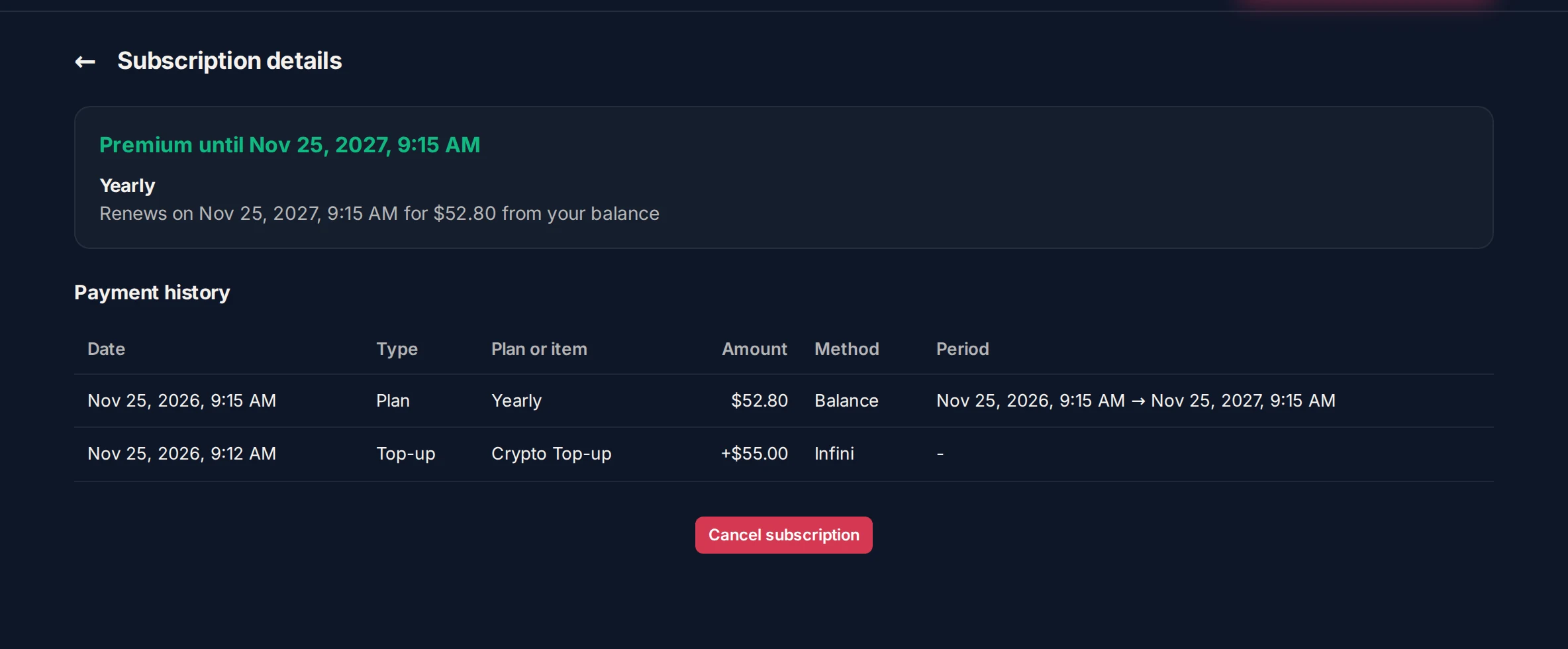
Troubleshooting common payment issues
1. "Sorry, you have been blocked — You are unable to access infini.money"
When paying with crypto, The Free Chart creates the order and redirects you to our crypto payment provider (Infini, at checkout.infini.money). Infini uses Cloudflare regional and security filtering, which blocks direct access from certain countries or IP ranges (for example, restricted regions such as Belarus or some VPN/proxy exit IPs).
This block comes from Infini's Cloudflare filter, not from The Free Chart. Your order is safe and nothing was charged.
How to fix it:
- Turn on a VPN and connect to a server in another region (for example, Europe or Singapore).
- Return to Premium → Top up balance → Top up Balance with Crypto and start the payment again.
- If you still see the blocked page even with a VPN, or you cannot use a VPN, contact us via Payment support (Telegram) or [email protected] and we will help you complete your crypto payment directly.
2. I topped up my balance, but Premium is still not active
Check Your balance on the Top up balance tab. If your funds are sitting there, you just need to finish Step 2: select Daily, Monthly, or Yearly and click Redeem with $X Balance (or Pay $X from balance).
3. My payment went through, but my balance has not updated yet
- Crypto (Infini): wait for the blockchain confirmation — it usually takes a few minutes, depending on network congestion.
- PayPal: make sure you paid with the exact email address you use to sign in to The Free Chart, and allow up to 10 minutes.
- Card & Wallets (Dodo): most payments settle in seconds, though some banks take 2–10 minutes to confirm.
If your balance has still not updated after 10 minutes, message us with your account email and transaction receipt / transaction hash so we can credit it right away.
4. Card declined or unexpected currency conversion
- If your bank declines international charges, try switching Pay in between USD and your local currency, or try another card.
- If card payments are unavailable in your country, use Top up Balance with Crypto or Top up Balance with PayPal instead.
Need help with a payment?
- Click Payment support in the bottom-right corner of the Premium dialog to reach us directly on Telegram.
- Or email [email protected] with your account email and a screenshot or transaction ID.
No comments yet. Login to start a new discussion Start a new discussion