How to Use Alerts: Price Alerts and Indicator Alerts
You don't have to watch the screen all day waiting for price to reach your level or for an indicator to cross. On The Free Chart you can set price alerts and indicator aler
You don't have to watch the screen all day waiting for price to reach your level or for an indicator to cross. On The Free Chart you can set price alerts and indicator alerts that run on our servers around the clock and notify you in the app or on Telegram, even when your browser is closed.
This guide covers both kinds of alerts: how to create them, how to pick the right trigger mode, how to connect Telegram in one tap, and how to manage your alerts from the Alerts panel.
Where your alerts live
Click the Alerts bell icon in the right-hand toolbar (near the bottom, just above the Object Tree). On a phone, open the ☰ menu and tap Alerts.
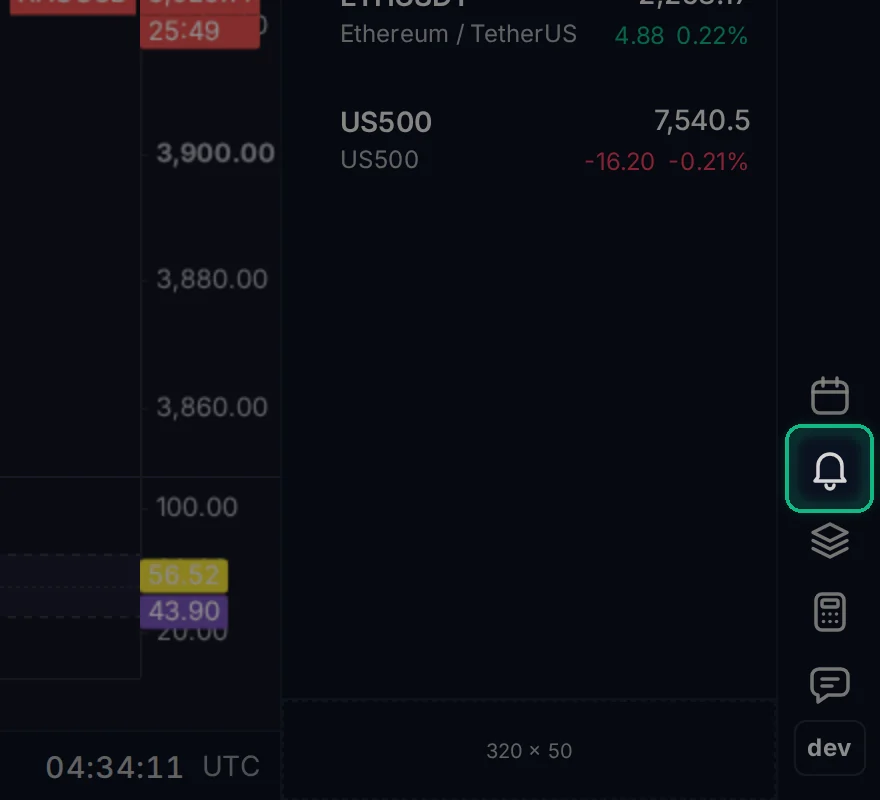
The panel has two tabs:
- Alerts: every alert that is currently running (Active) or Paused.
- Triggered: alerts that have already finished (one-time alerts that fired, or alerts that passed their expiration time).
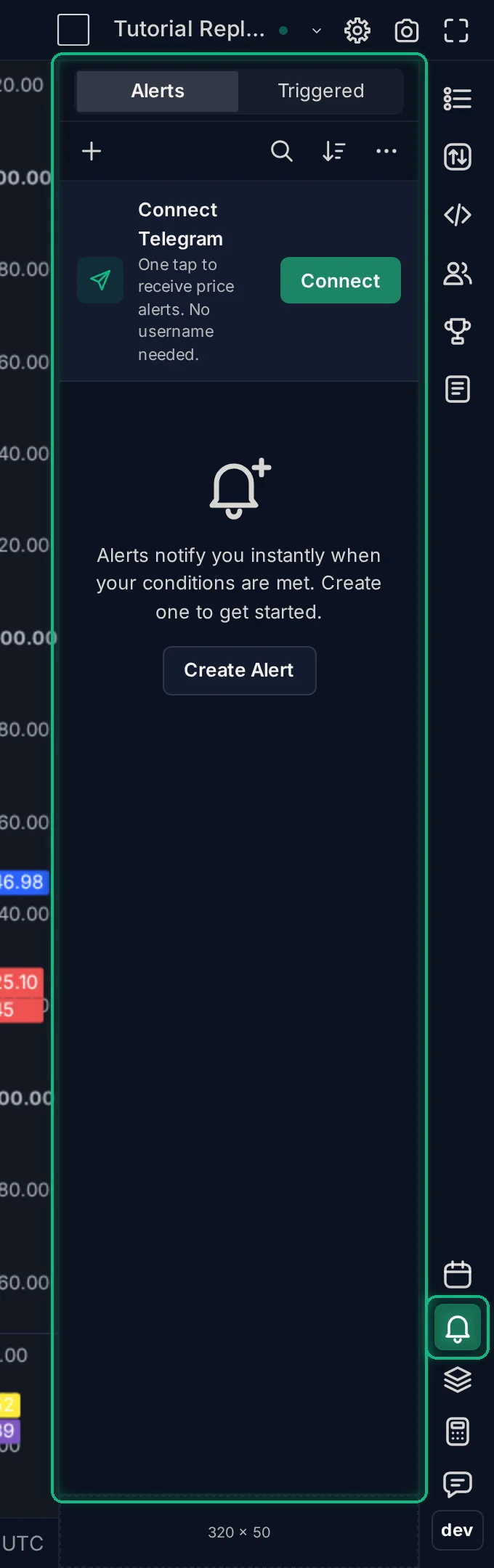
When an alert fires while you're away, a badge on the bell shows how many alerts have triggered since you last looked. Opening the panel clears the badge.
You need a free account to create alerts.
Part 1: Price Alerts (Standard Alerts)
A price alert watches a single price level on the symbol and broker currently shown on your chart. There are two ways to create one.
Method 1. One click from the price scale
This is the fastest way when you already see the level on your chart:
- Move your cursor to the price level you want to watch.
- Click the
+button that appears next to the price scale on the right. - Click Add alert at [price].
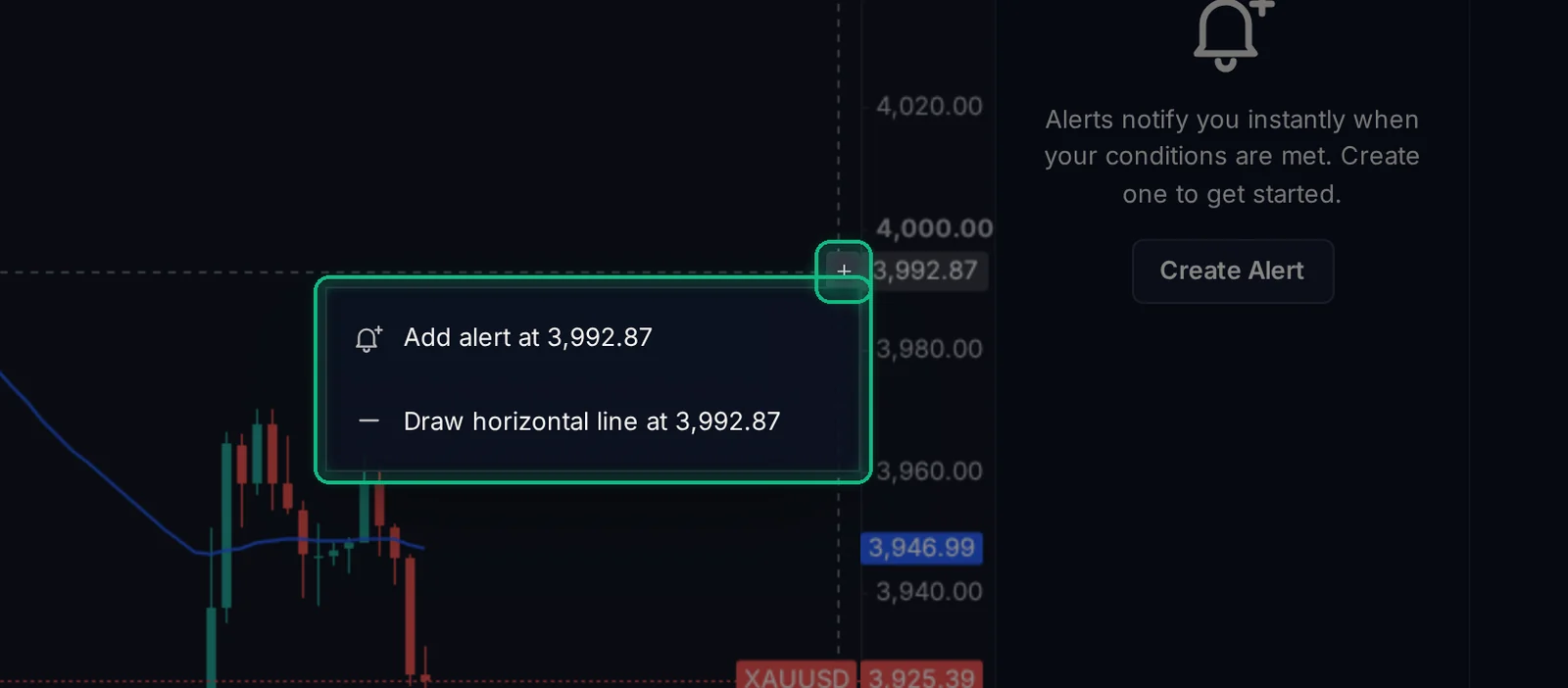
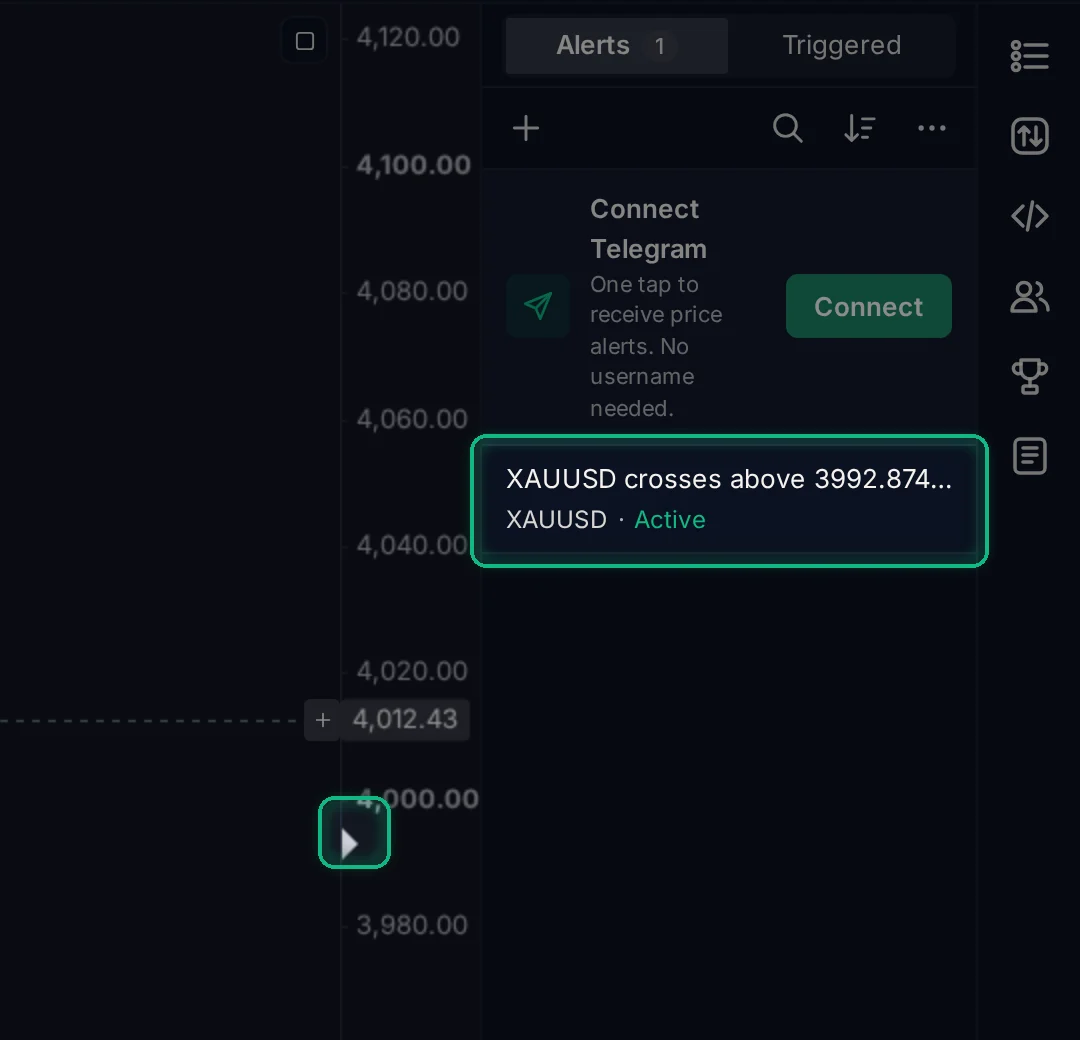
The alert is created right away as a Once only price alert (Crossing up if the level is above the current price, or Crossing down if it is below). A small triangle marker appears on the price scale at that level.
Method 2. From the Create Alert window
Use this when you want to type an exact price, repeat the alert, set an expiration date, or write a custom message:
- Open the Alerts panel on the right and click
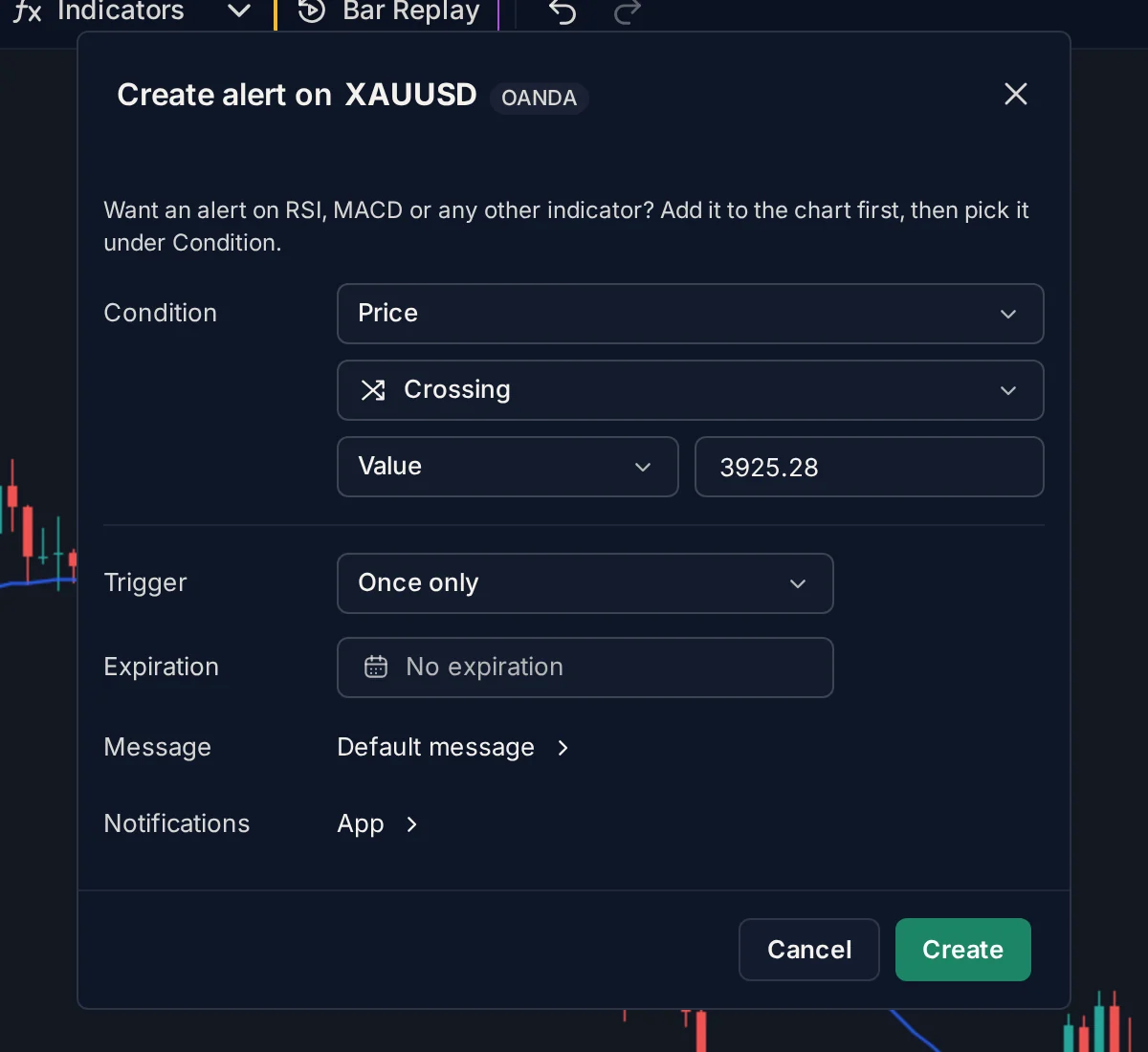
+(Create alert). - Check the title at the top (for example, Create alert on XAUUSD OANDA). The alert always uses the symbol and broker of the chart you opened it from.
- Under Condition:
- Leave the first box set to Price.
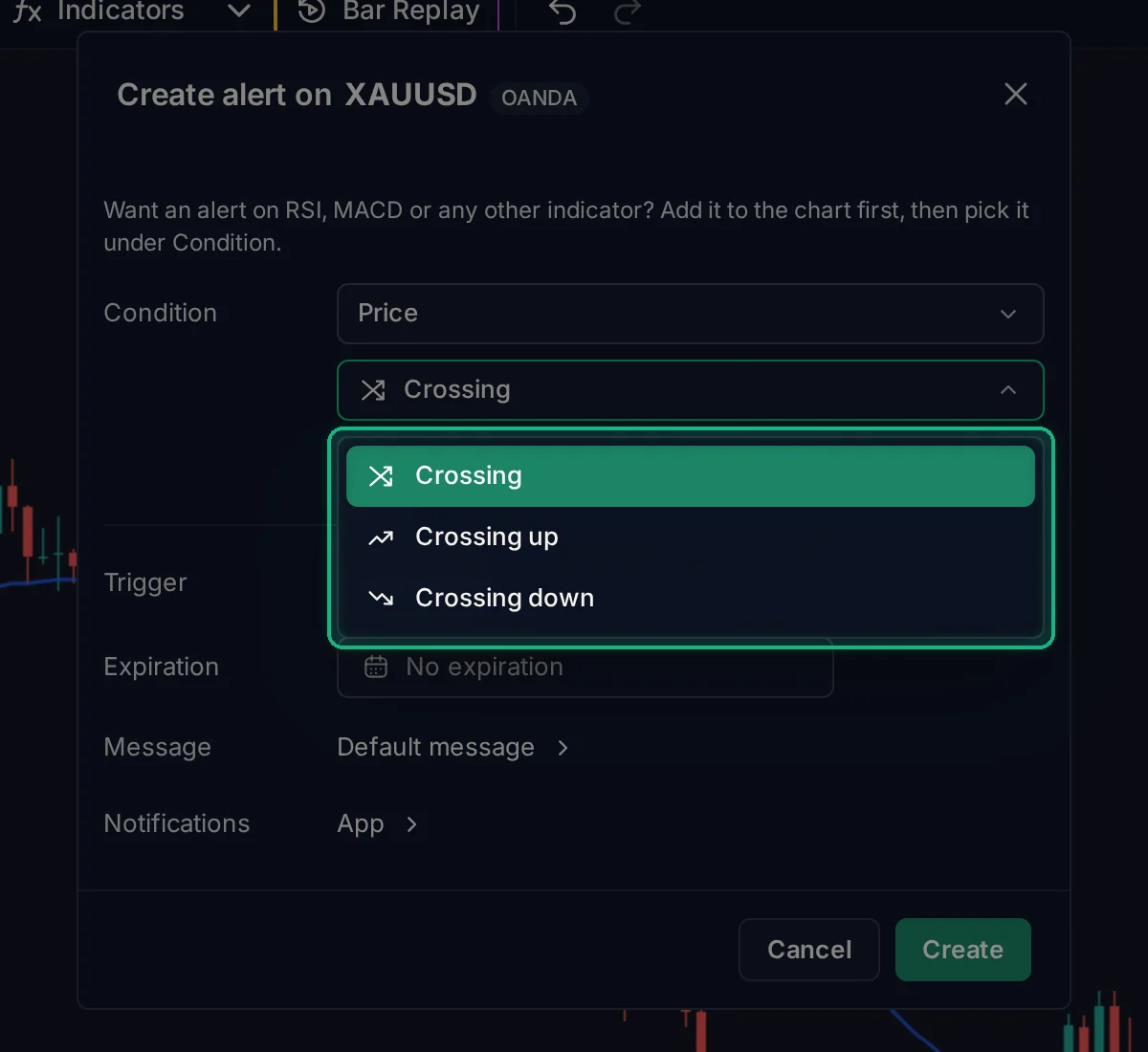
- Pick how price should reach your level:
- Crossing: fires when price crosses the level from either direction.
- Crossing up: fires only when price moves up through the level.
- Crossing down: fires only when price moves down through the level.
- Leave the second box set to Value and enter your target price.
- Pick your Trigger mode (explained in detail below), optional Expiration, Message, and Notifications.
- Click Create.
Price alert markers on the chart
Every active price alert for the current symbol appears as a small triangle on the right price scale:
- Edit from the chart: double-click the triangle on a computer (or tap it once on a phone) to open the alert and change its price or settings.
- Show or hide markers: open Settings → Alerts (or click
⋯→ Alerts settings… in the Alerts panel) and toggle Alert lines.
Part 2: Indicator Alerts
An indicator alert watches any built-in Technical indicator (such as EMA, RSI, MACD, Bollinger Bands, or Stochastic) or any custom / Marketplace script that plots numeric lines.
Step 1. Add the indicator to your chart first
The alert window reads the indicators that are currently on your chart, along with their exact inputs (for example, an EMA with length 50 vs length 200).
- Press
/or click Indicators in the top toolbar and add the indicator you want to use. - Make sure the indicator is visible on the chart (not hidden with the eye icon in the legend).
- If you want to change its settings (such as RSI length or Bollinger Band multiplier), adjust them on the chart before opening the alert window.
Note: Indicators that only draw shapes or boxes on the canvas without plotting numeric values cannot be used as alert conditions and are listed at the bottom of the dialog with the reason why.
Step 2. Build the indicator condition
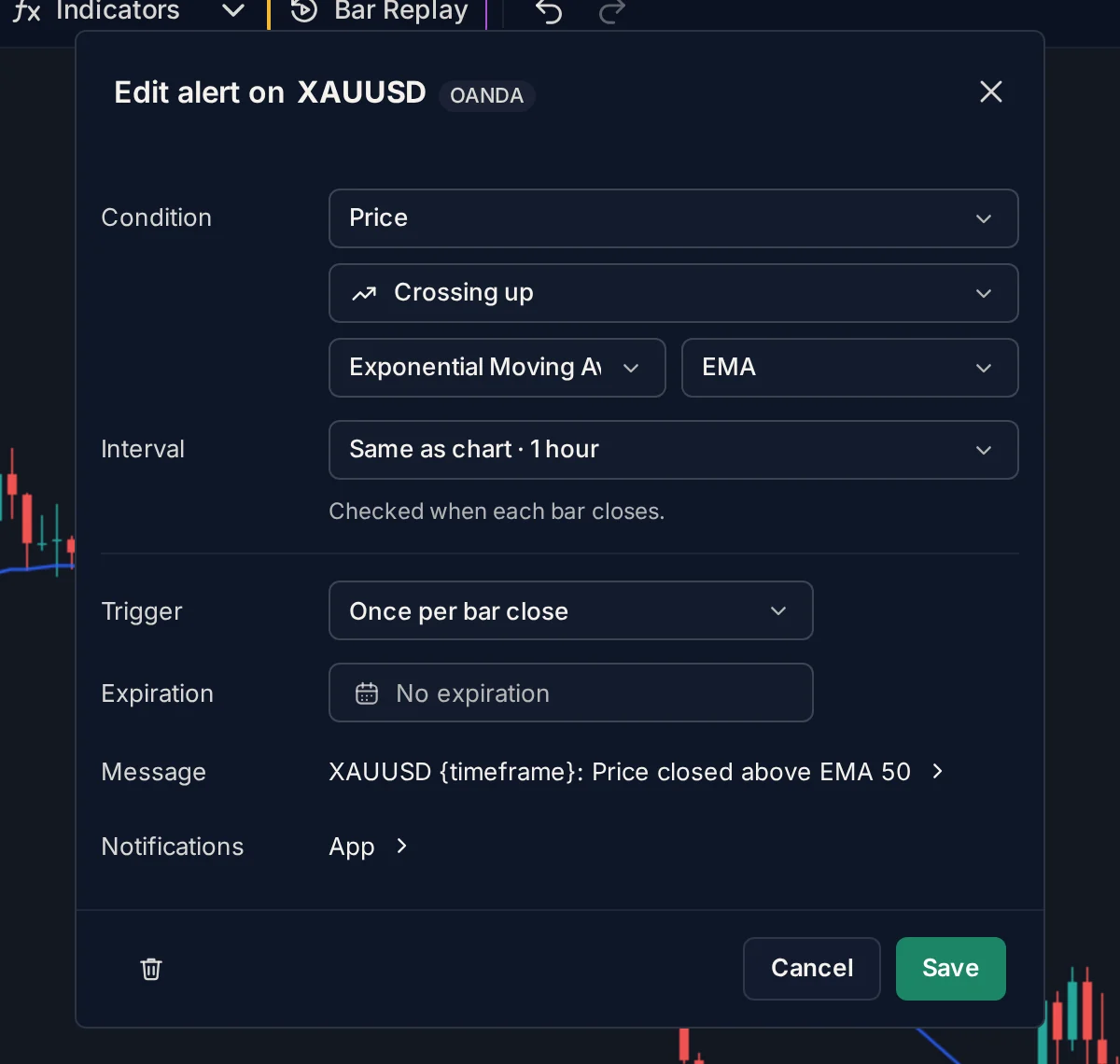
Click + in the Alerts panel to open Create alert, then set up Condition:
- Left side (what to watch):
- Select your indicator from the first dropdown (or keep Price if you want to compare Price against an indicator).
- In the Plot dropdown right next to it, choose which line of the indicator to watch (for example,
RSI,MACD, orUpper).
- Operator:
- Choose Crossing, Crossing up, or Crossing down.
- Right side (what to compare it with):
- Value: compare the indicator line against a fixed number.
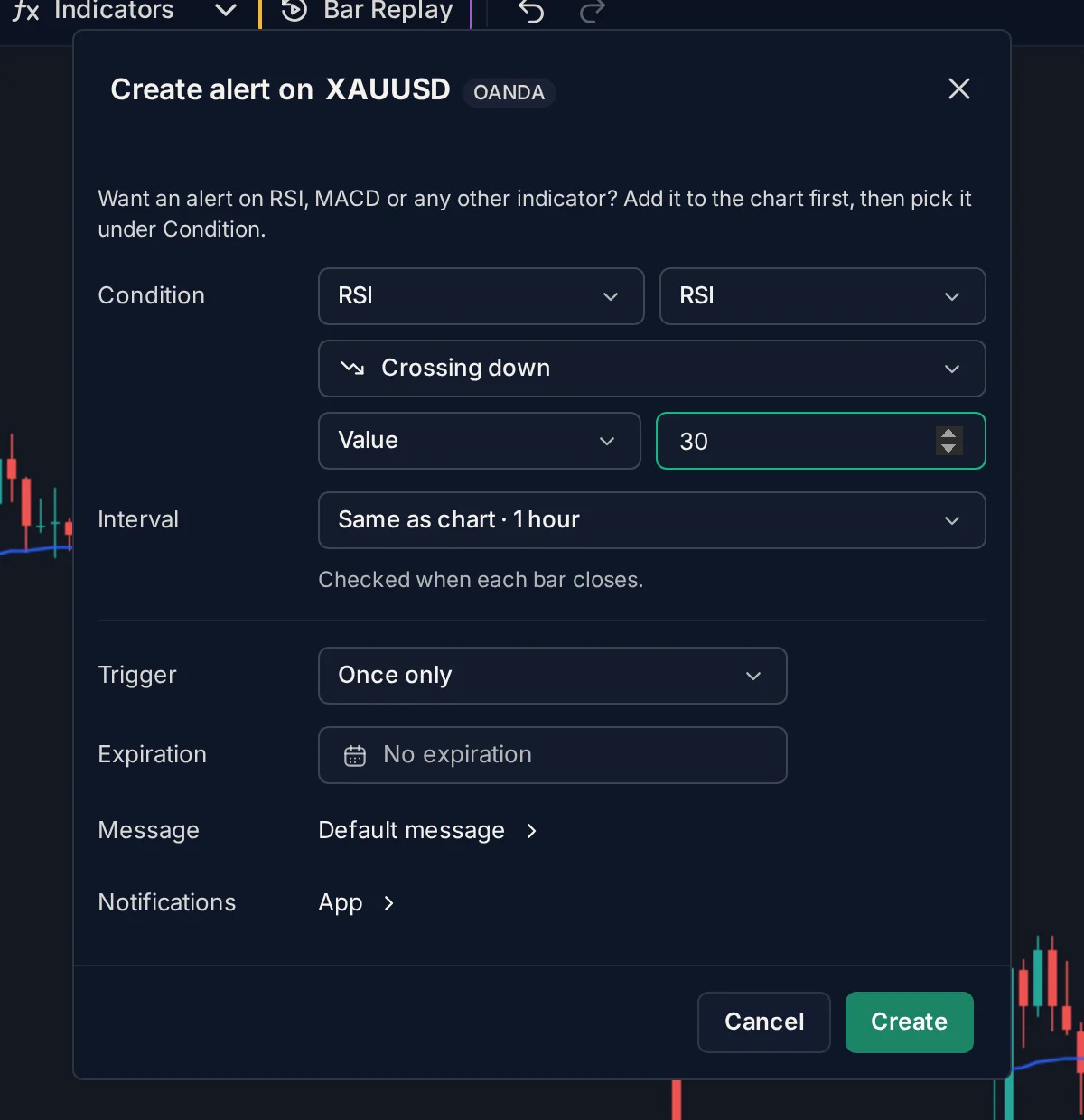
Example:
RSICrossing down30(entering oversold), orMACDhistogram Crossing up0. - Price: compare the indicator line against the candle close price.
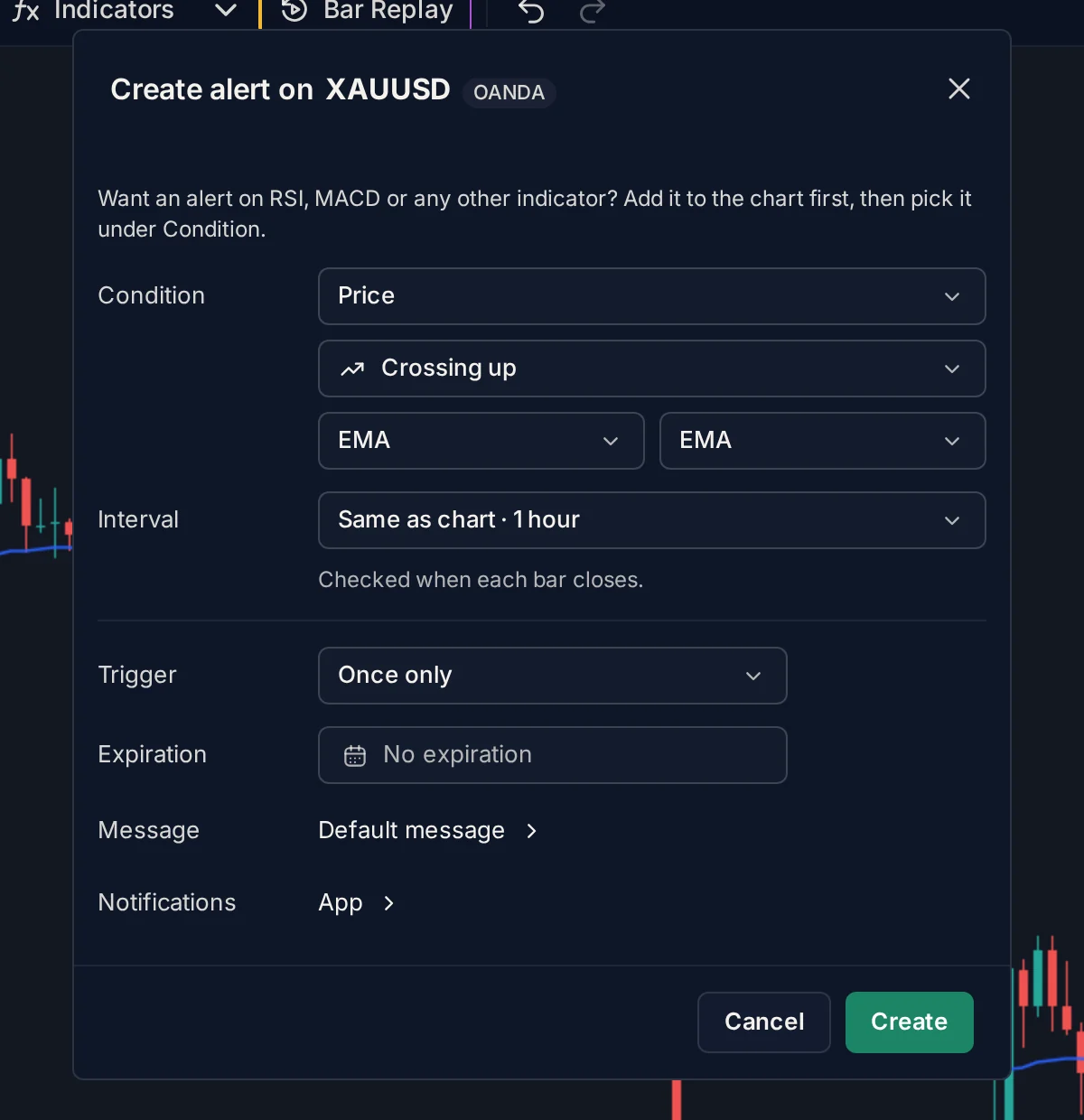
Example:
EMA (50)Crossing belowPrice, orPriceCrossing upBollinger Bands · Upper. - Another line of the same indicator: for multi-line indicators, pick the same indicator on the right side and choose its other plot.
Example:
MACD · MACDCrossing upMACD · DEA(signal line crossover).
- Value: compare the indicator line against a fixed number.
Example:
Step 3. Pick the Interval
Under Interval, choose the timeframe the indicator should be calculated on. By default it selects Same as chart (for example, 15 minutes or 1 hour), so the alert matches what you see on screen.
Active indicator alert limit
- Free accounts: up to 5 active indicator alerts at the same time (across built-in Technicals and custom scripts).
- Paid Supporters: unlimited active indicator alerts.
- Price alerts: no limit on any account.
Part 3: Trigger Modes, Messages, and Connecting Telegram
Whether you create a price alert or an indicator alert, the bottom half of the window controls when it fires and how it notifies you.
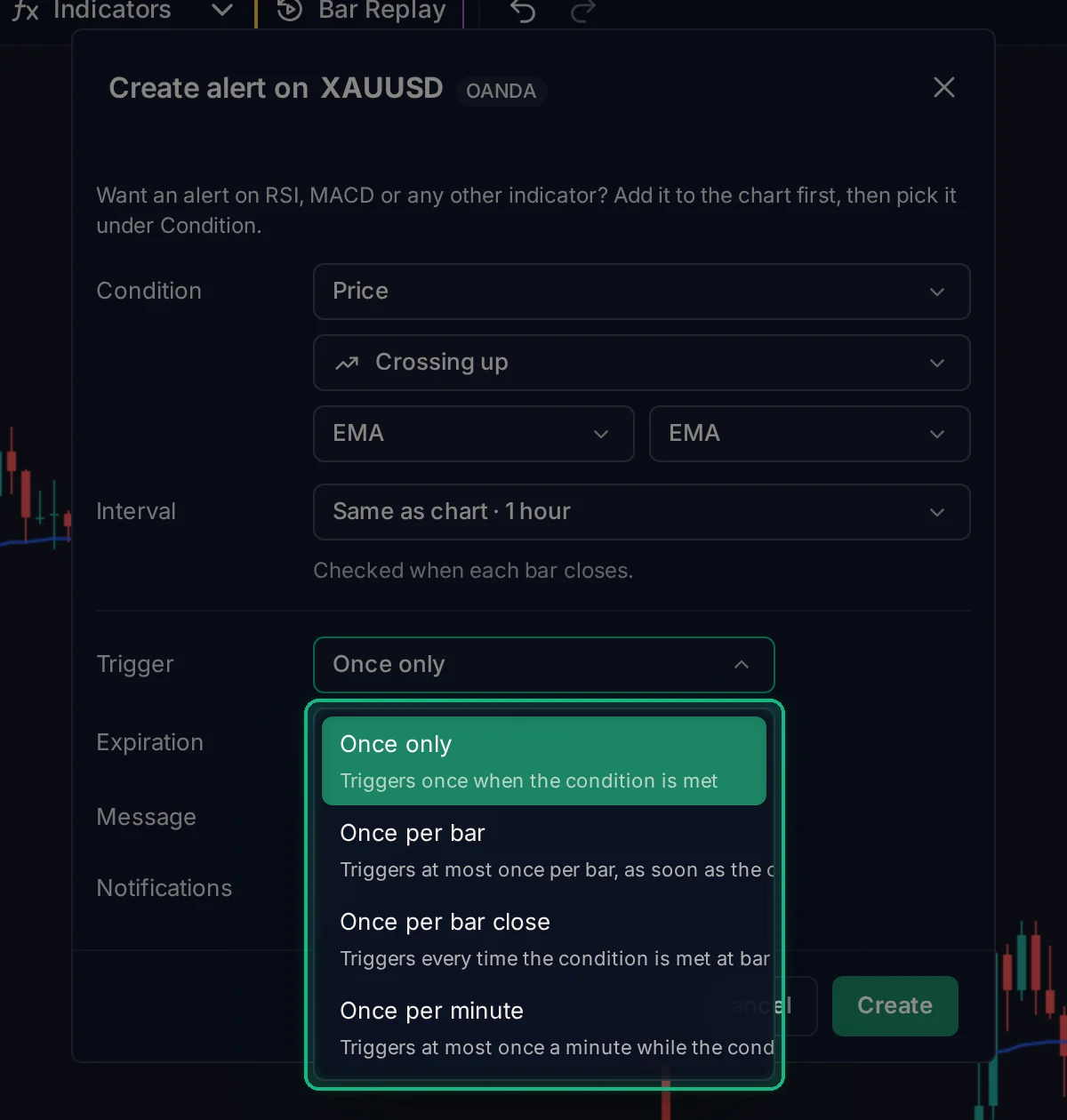
1. Trigger: when and how often it fires
- Once only: fires the first time the condition is met, then stops and moves to the Triggered tab.
- Once per bar: fires as soon as the condition is met during a live candle, at most once per candle of the chosen Interval.
- Once per bar close: waits for the candle to close and checks the condition on the final closed values. This is the classic choice for indicator traders who want confirmed candle closes rather than intrabar spikes.
- Once per minute: keeps the alert active and fires at most once every 60 seconds while the condition happens.
2. Expiration
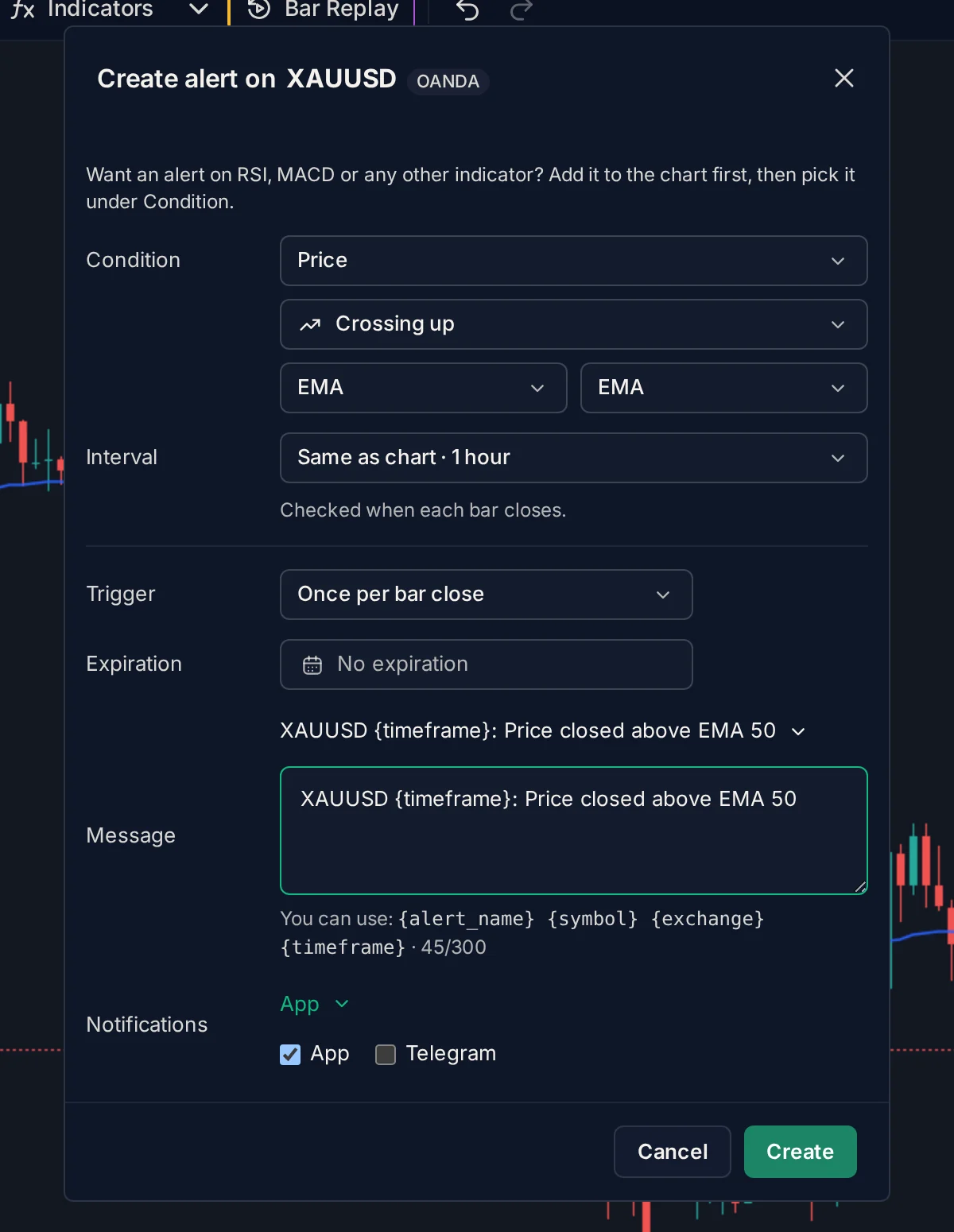
Leave it on No expiration to keep the alert running until it triggers or you pause it, or pick a date and time for it to expire automatically.
3. Custom Message and Placeholders
Click Default message next to Message to write your own note (up to 300 characters), such as "Check 15m structure before entering long".
You can include dynamic placeholders that are filled in when the alert triggers:
- Price alerts:
{symbol},{condition},{price_level},{current_price},{alert_name} - Indicator alerts:
{alert_name},{symbol},{exchange},{timeframe}
4. How to Connect Telegram (One-Tap Setup)
Under Notifications, you can choose where each alert is delivered:
- App: plays a sound and shows a toast banner when you have the chart open.
- Telegram: sends an instant message to your Telegram account, whether your browser is open or closed.
If you haven't linked Telegram yet, it only takes one tap and no username is required:
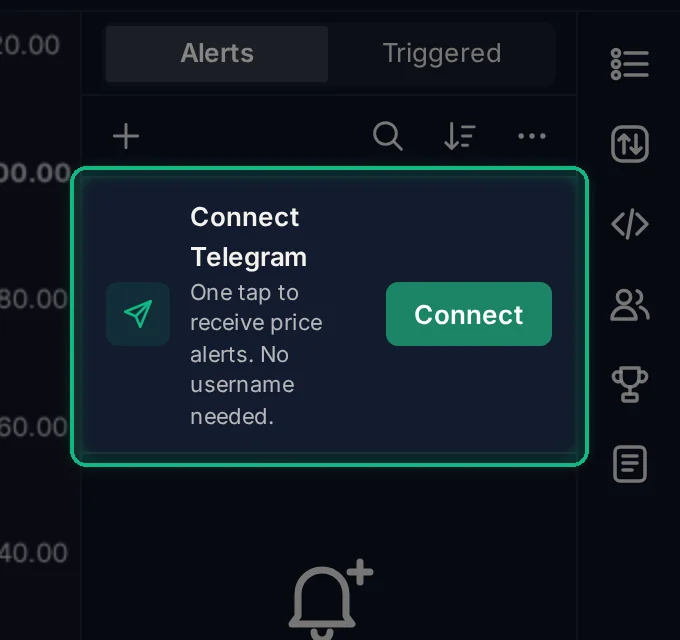
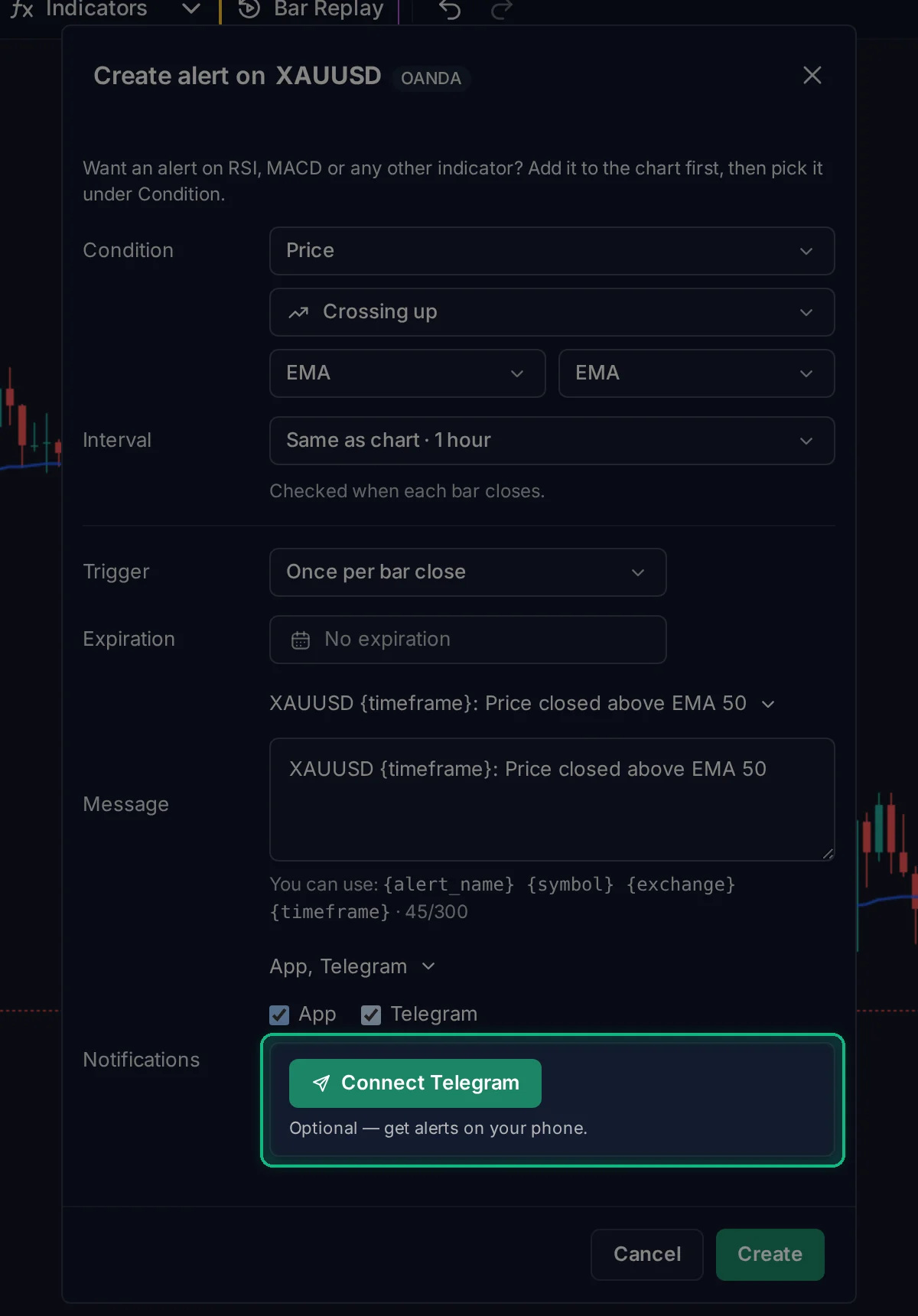
- Find the Connect button in either place:
- At the top of the Alerts panel on the right (Connect Telegram → Connect).
- Inside the Create alert window: click Notifications, check Telegram, and click Connect Telegram right below it.
- Click Connect: a new tab (or the Telegram app on your phone/computer) opens our official bot (
@thefreechart_bot) with a one-time link token.- Tip for mobile browsers: if your browser blocks the pop-up, tap the Telegram did not open? Tap here link that appears right under the button.
- Press Start in Telegram: tap Start at the bottom of the Telegram chat. You do not need to type your username or copy any code.
- Automatic confirmation: within a few seconds, the chart detects the link automatically and replaces the banner with a green ✓ Telegram connected badge.
Once connected, Telegram is checked by default for new alerts so every price and indicator alert goes straight to your phone.
Part 4: Managing Your Alerts
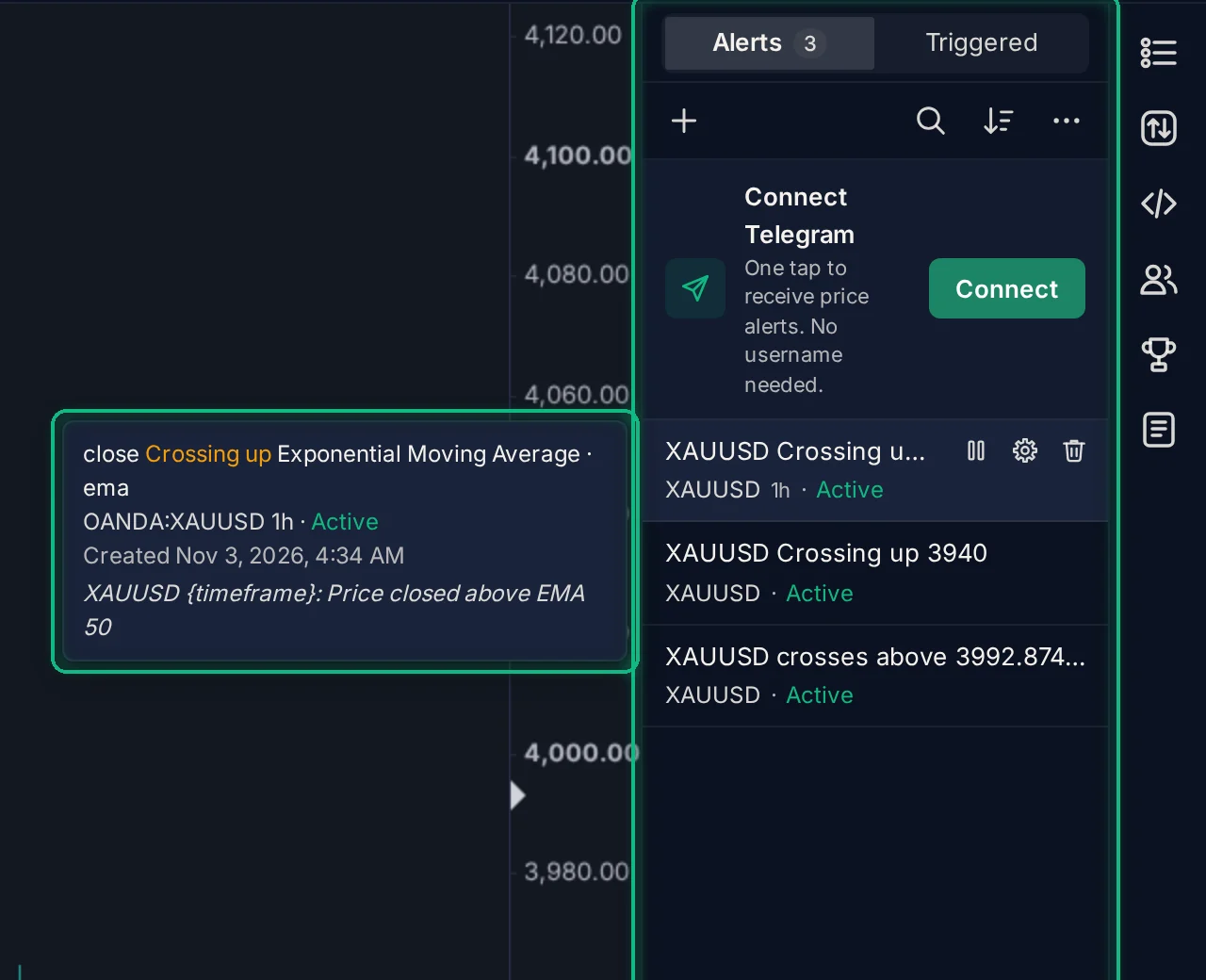
Every alert you create can be controlled from the Alerts panel on the right:
- Hover over an alert on desktop to see its full detail card (condition, broker, creation date, expiration, how many times it has triggered, and message).
- Pause (
⏸) / Restart (▶): pause an active alert temporarily, or restart a paused, triggered, or expired alert with one click. - Edit (
⚙or click the row): change the condition, price, trigger mode, expiration, or message and click Save. Saving a paused or triggered alert makes it active again. - Delete (
🗑): remove the alert permanently (also available at the bottom-left of the Edit window).
Search, filter, and bulk actions
At the top of the Alerts panel:
- Search (
🔍): filter your list by symbol or alert name. - Sort: switch between Sorted by newest and Sorted by symbol.
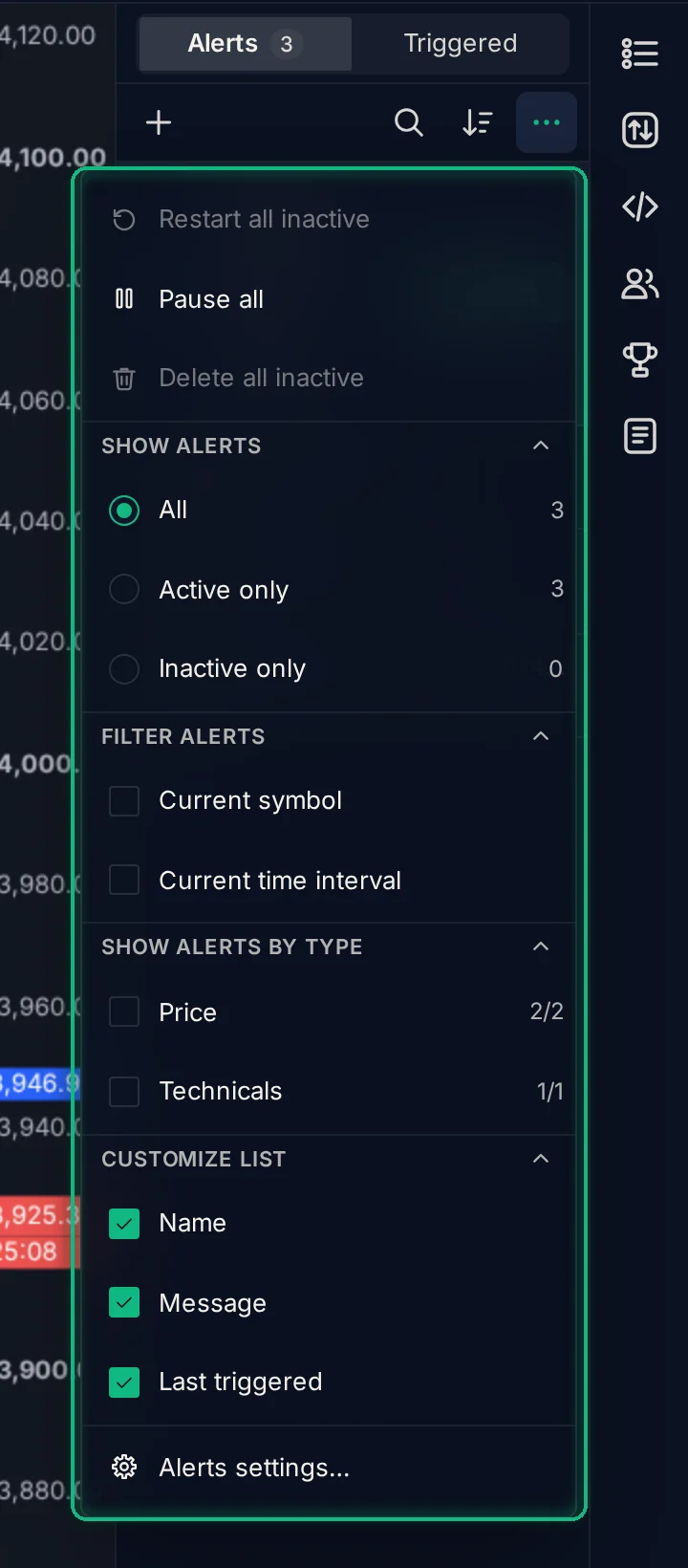
- More (
⋯menu):- Bulk actions: Restart all inactive, Pause all, or Delete all inactive alerts in one step.
- Show alerts: show All, Active only, or Inactive only.
- Filter alerts: show only alerts for the Current symbol or Current time interval on your focused chart, or filter by Price vs Technicals.
- Customize list: toggle the alert's Name, Message, and Last triggered timestamp on each row.
Quick tips
- Use "Once per bar close" to filter out noise. If a wick pokes through a moving average or RSI level mid-candle and pulls back before the close, Once per bar close won't fire a false alarm.
- Pair a price alert with an indicator alert. Set a one-click price alert near a key support or resistance zone to get an early heads-up, and an indicator alert on your entry timeframe to confirm momentum.
- Connect Telegram once. You'll get every price and indicator alert on your phone without keeping a browser tab open.
Ready to set your first alert? Open a chart, click the bell icon on the right, and press +.
No comments yet. Login to start a new discussion Start a new discussion