How to Use the Trading Simulator: Replay and Live
The Trading Simulator lets you practice with a paper account that behaves like a real broker: spread, commission, swap, margin and stop-outs included. It works in two modes: R
The Trading Simulator lets you practice with a paper account that behaves like a real broker: spread, commission, swap, margin and stop-outs included. It works in two modes:
- Replay: trade on past market data. You pick a day, the future is hidden, and you move the market forward one candle at a time.
- Live: trade the market as it moves right now, with prices from the real feed. Your orders keep running on our servers even after you close the tab.
Both use the same order panel, so once you know one, you know the other. This guide walks through each step with screenshots.
Part 1: Practice on past data with Replay
Step 1. Open Bar Replay
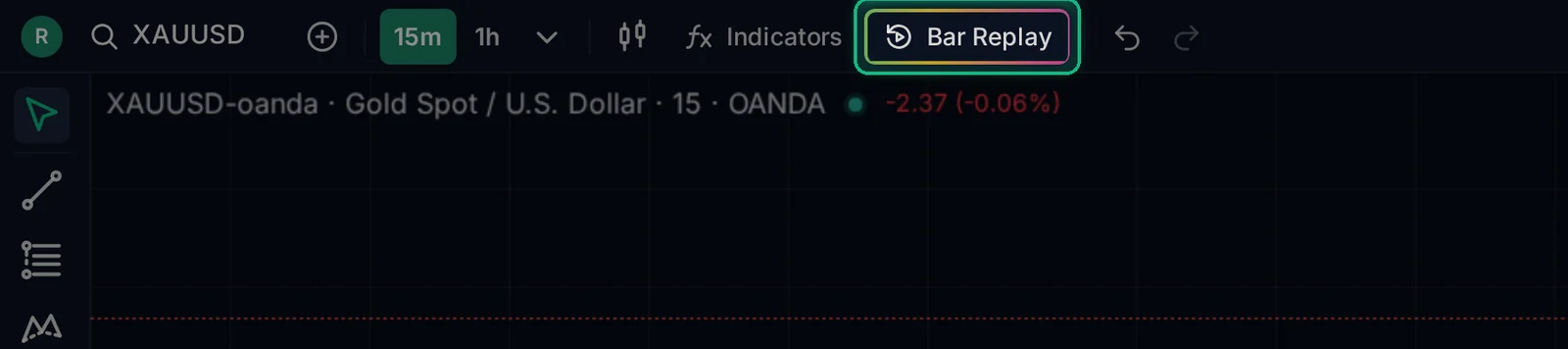
Open any chart and click Bar Replay in the top toolbar.
Step 2. Pick the candle where you want to start
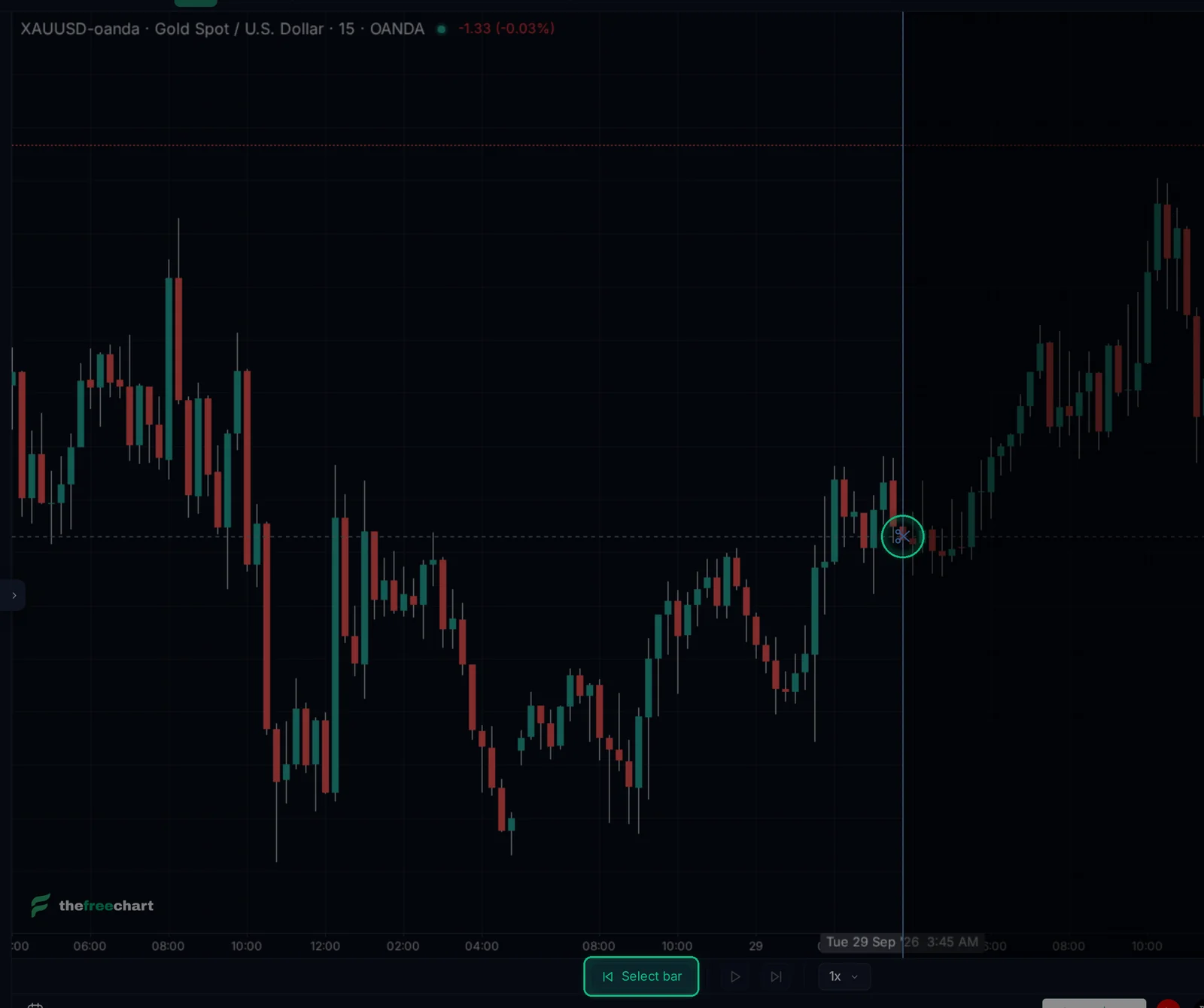
A vertical line follows your mouse and Select bar lights up at the bottom. Click the candle where your practice should begin. Everything to the right of it is hidden, just like the real future.
Tip: pick a day you don't remember. If you already know what happened next, the practice is worth much less.
Step 3. Move the market forward
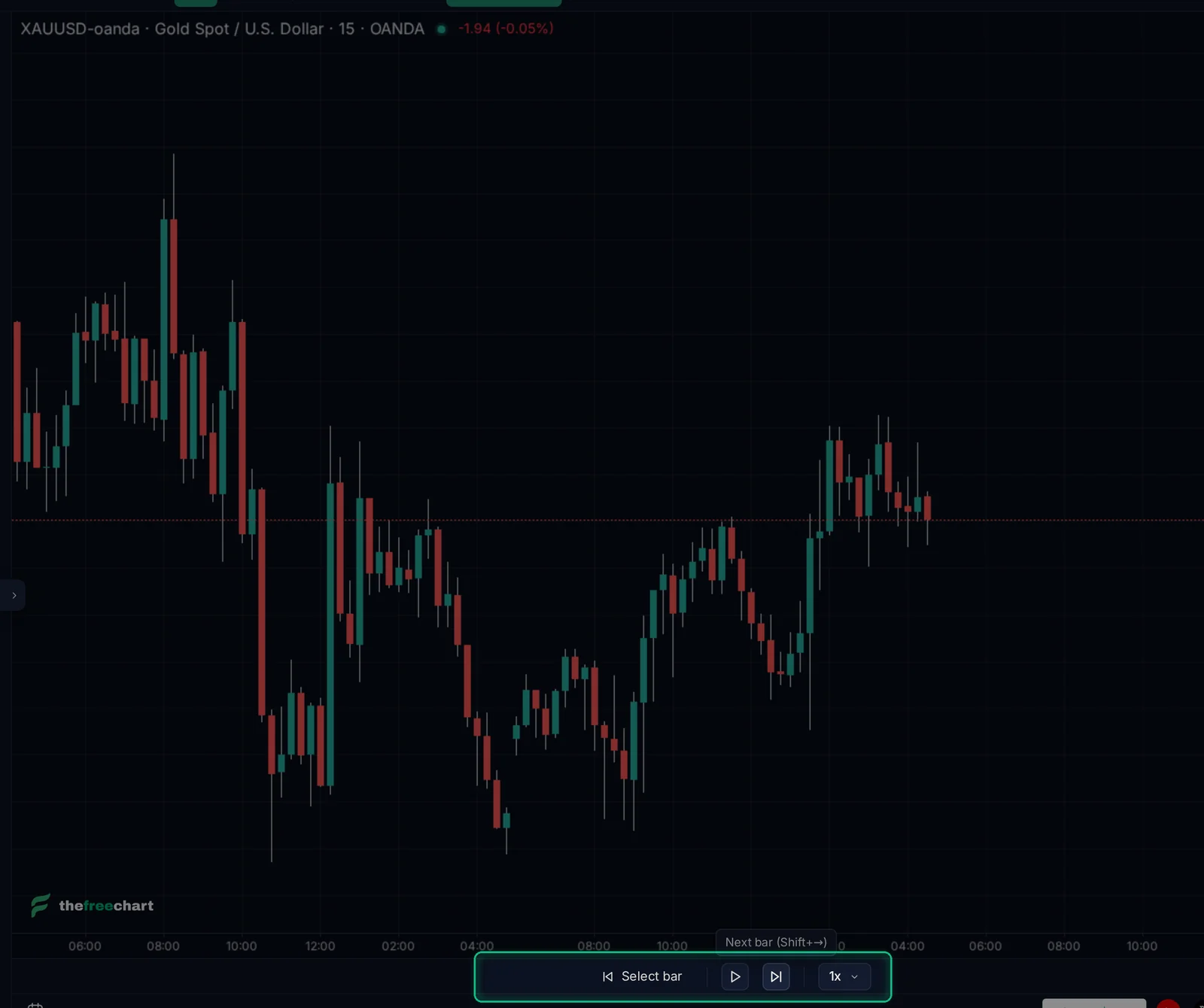
The replay bar at the bottom of the chart has everything you need:
- Next reveals one candle. Shortcut:
Shift + →. - Play / Pause runs the candles automatically. Shortcut:
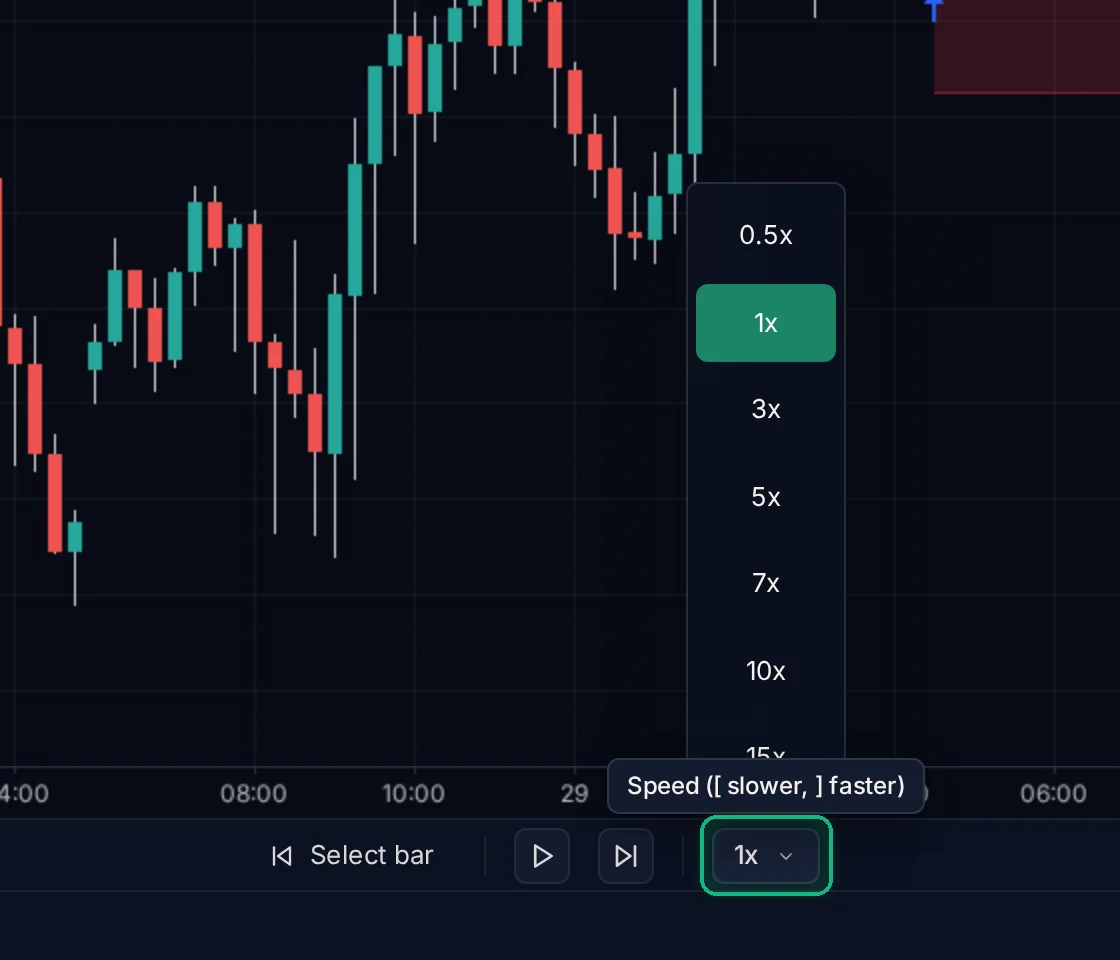
Shift + ↓. - Speed sets how fast Play runs, from 0.5x up. Shortcuts:
[slower,]faster. - Select bar jumps to a different starting candle.
Step 4. Start a replay trading session
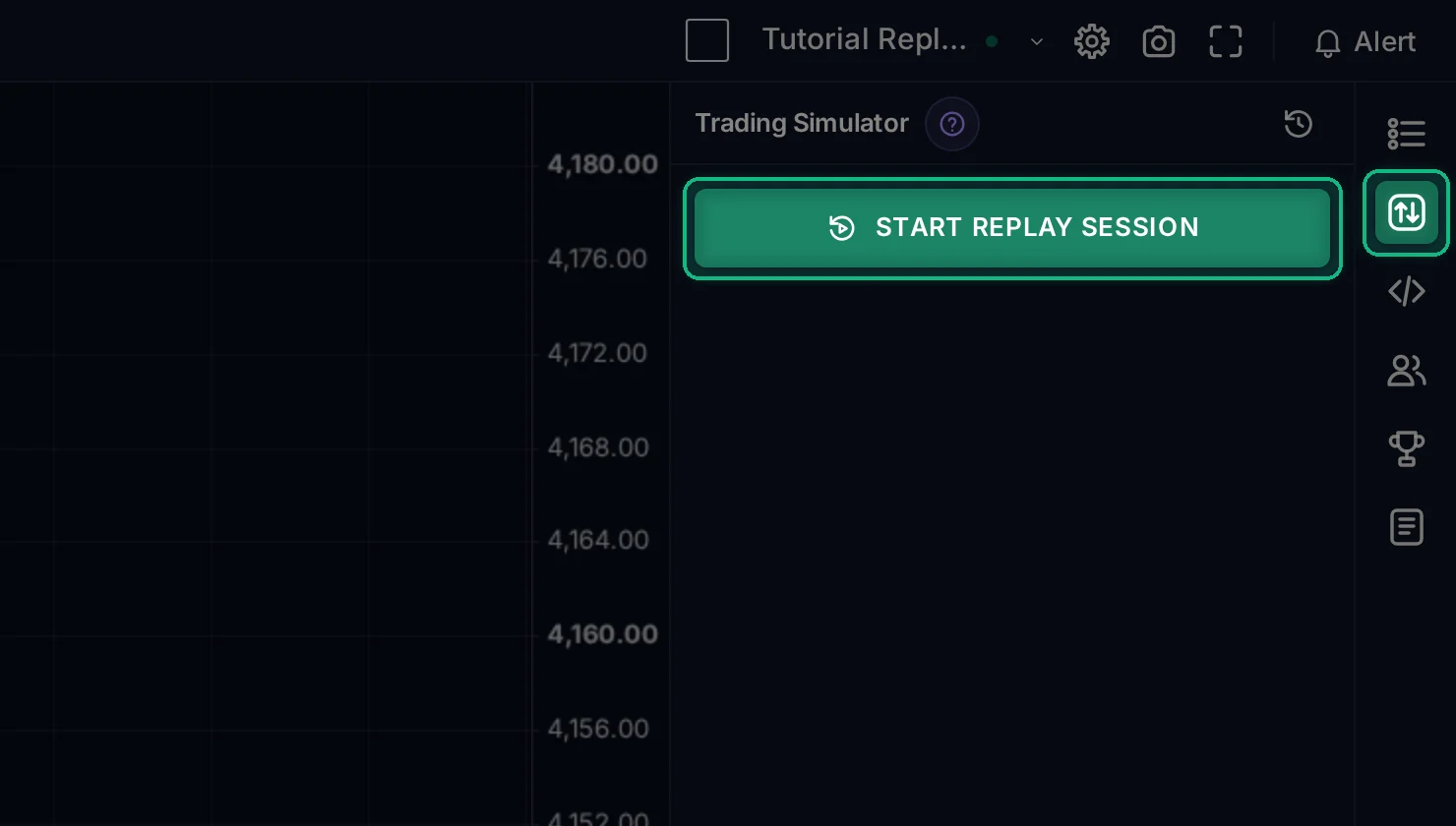
Open the Trade panel from the icon bar on the right, then click Start Replay Session.
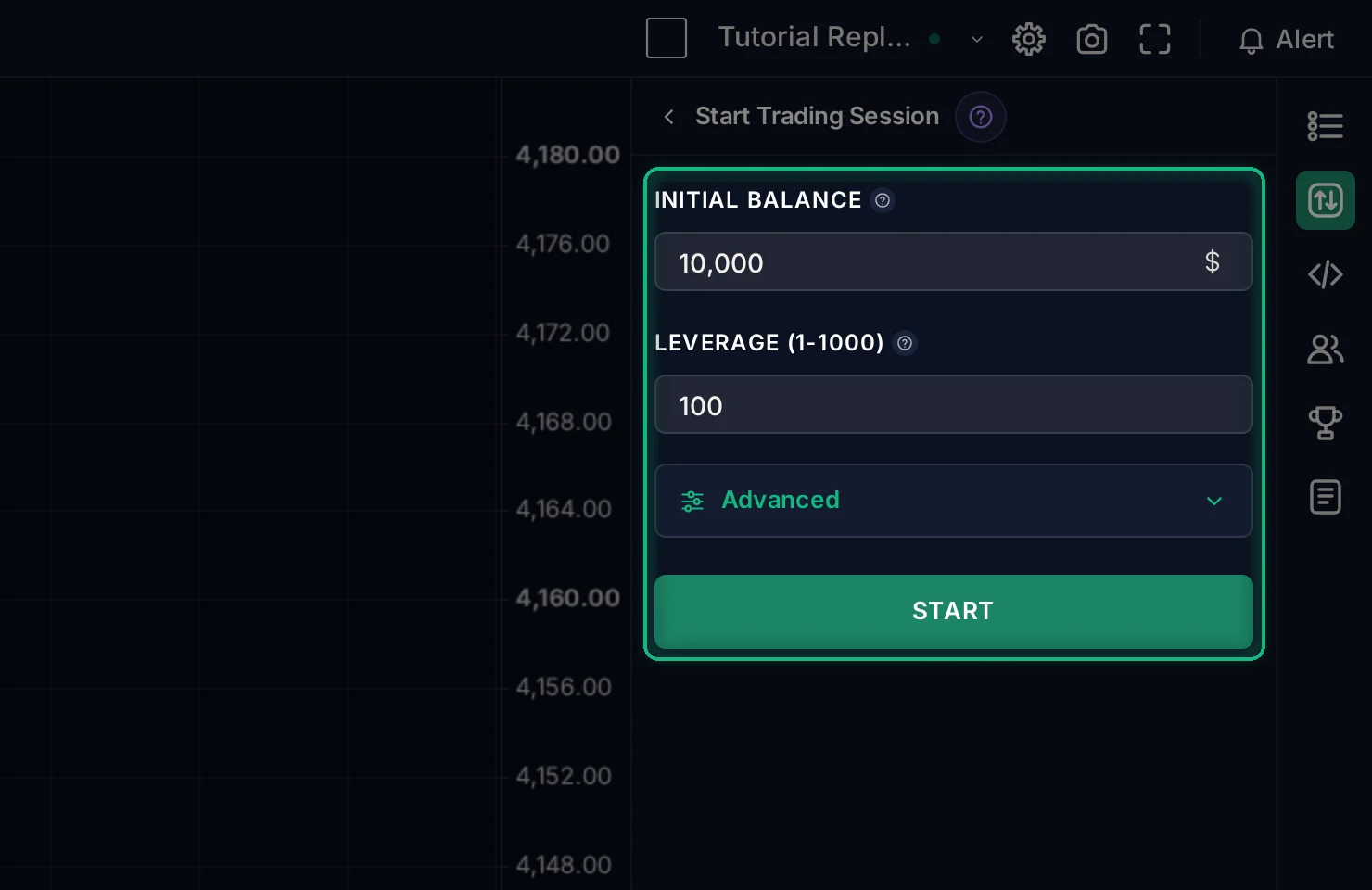
Set your starting account:
- Initial balance: the paper money you start with, for example $10,000.
- Leverage: from 1 to 1000. Higher leverage means less margin per trade, and a faster stop-out when you are wrong.
- Advanced (optional): the minimum lot size and lot step, the spread, the commission and the overnight swap. Use the numbers your real broker charges, so your results match what you would really get.
Click Start.
Step 5. Place an order
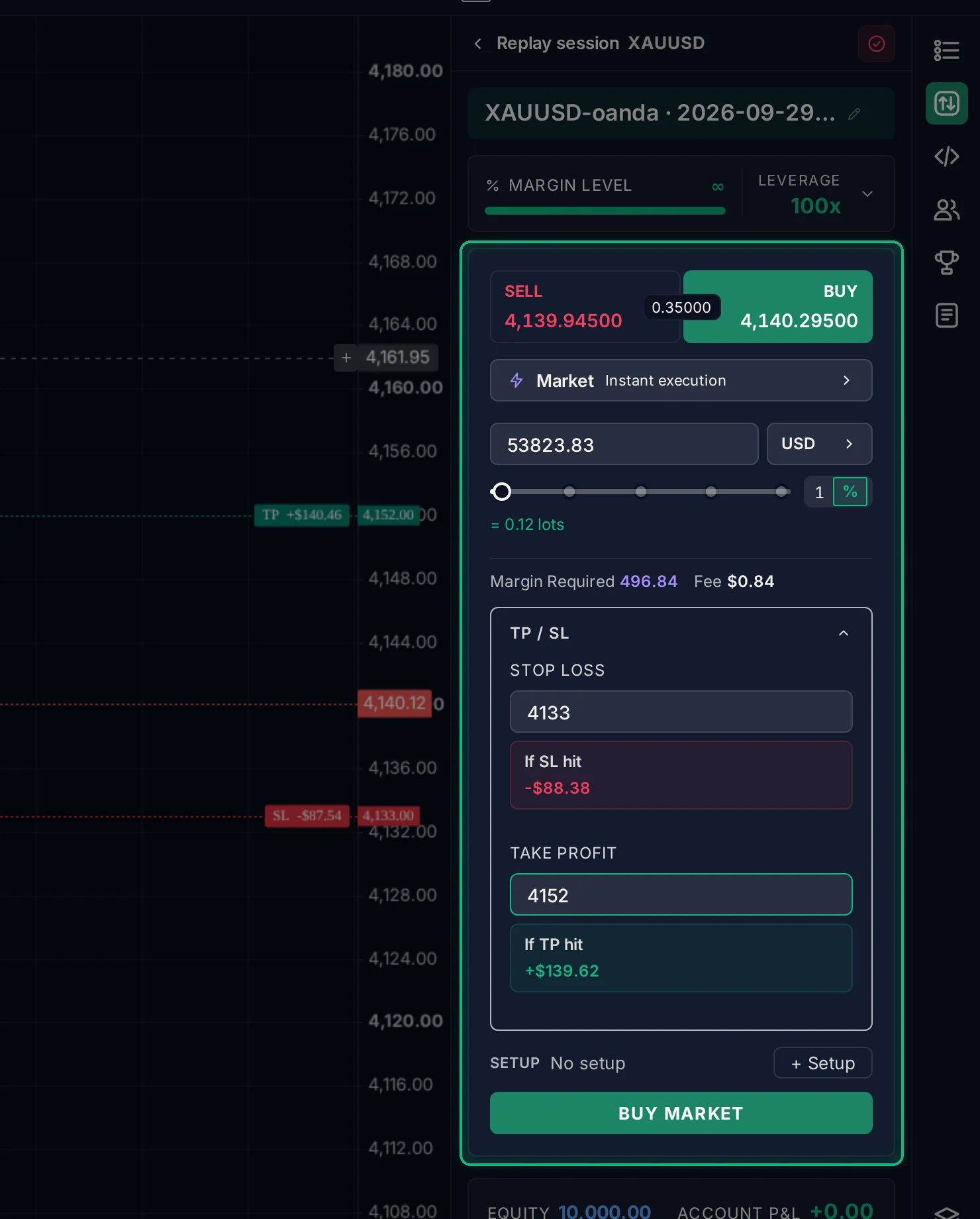
The order panel works like a broker's order ticket:
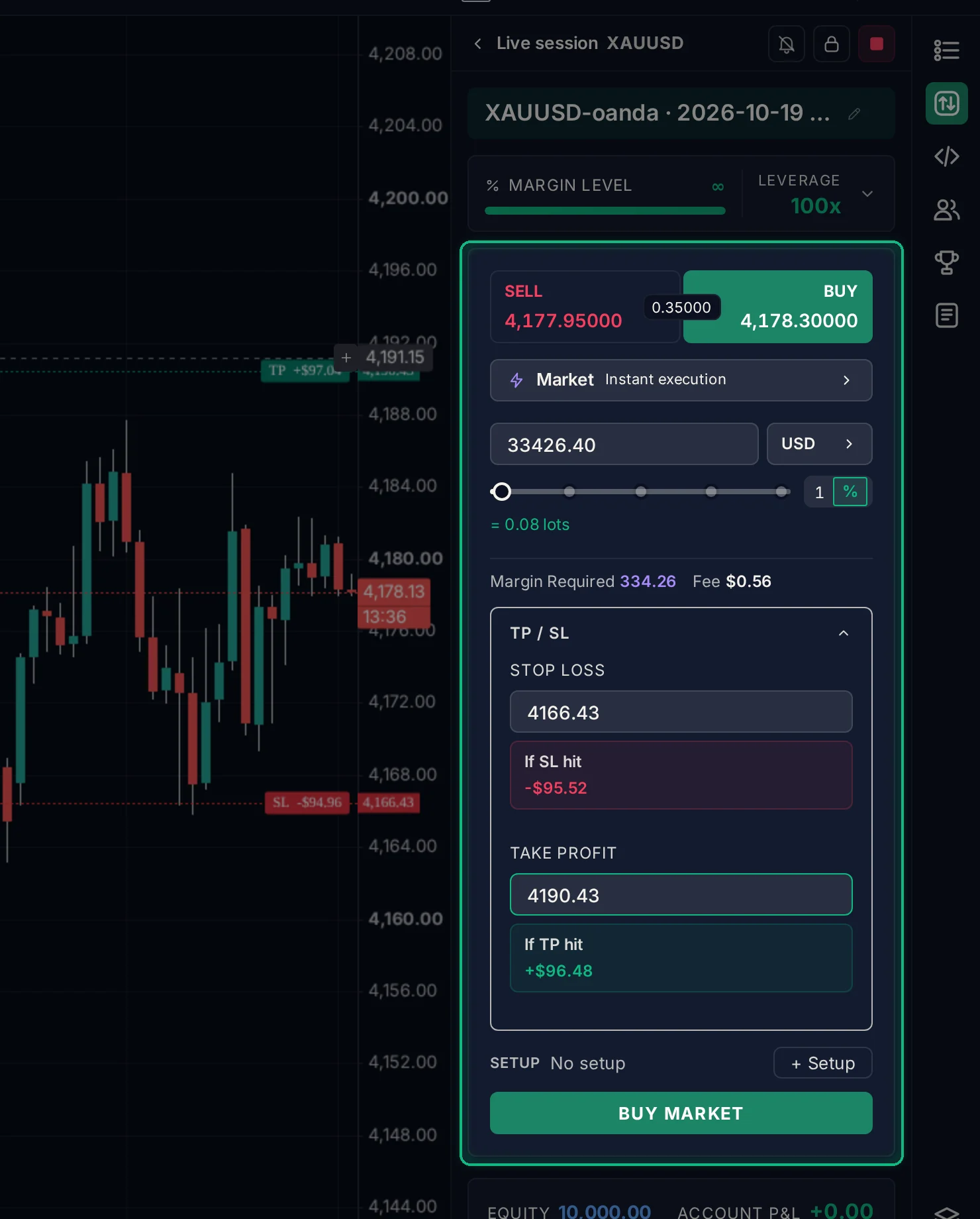
- Pick a side. Click Sell or Buy. The number between them is the current spread.
- Pick an order type. Market fills right away. Limit waits for a better price. Stop Limit waits for a breakout.
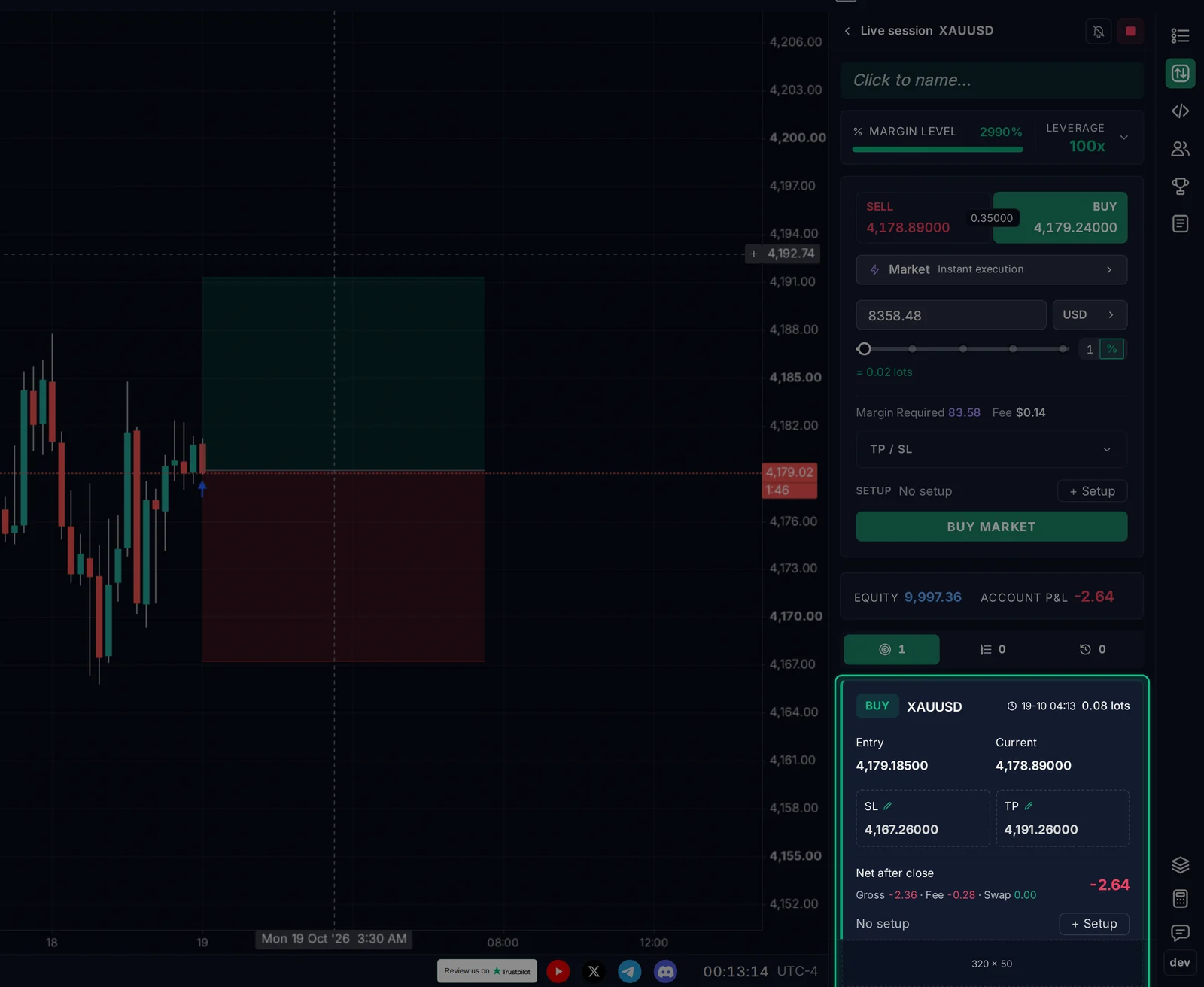
- Set the size. Type an amount in USD (or switch the unit to lots), or drag the % slider. With a stop loss set, the % is how much of your balance you risk if the stop is hit. Without a stop loss, it is how much of your balance goes into margin. Below it you see the size in lots, the margin required and the fee.
- Add TP / SL. Open TP / SL and enter a stop loss and a take profit. The panel shows what you would lose or gain if each one is hit, after costs, and both levels appear on the chart.
- Optionally, click + Setup to tag the trade with the setup you are practicing. You can filter by it in your journal later.
- Click Buy Market (or Sell Market).
Step 6. Watch and manage the position
Your position appears on the chart as a green (profit) and red (loss) zone, and as a card under the order panel. The card shows the entry price, the current price, your SL and TP, and the net result after costs (gross P&L, fees and swap).
- Click the pencil next to SL or TP to move them.
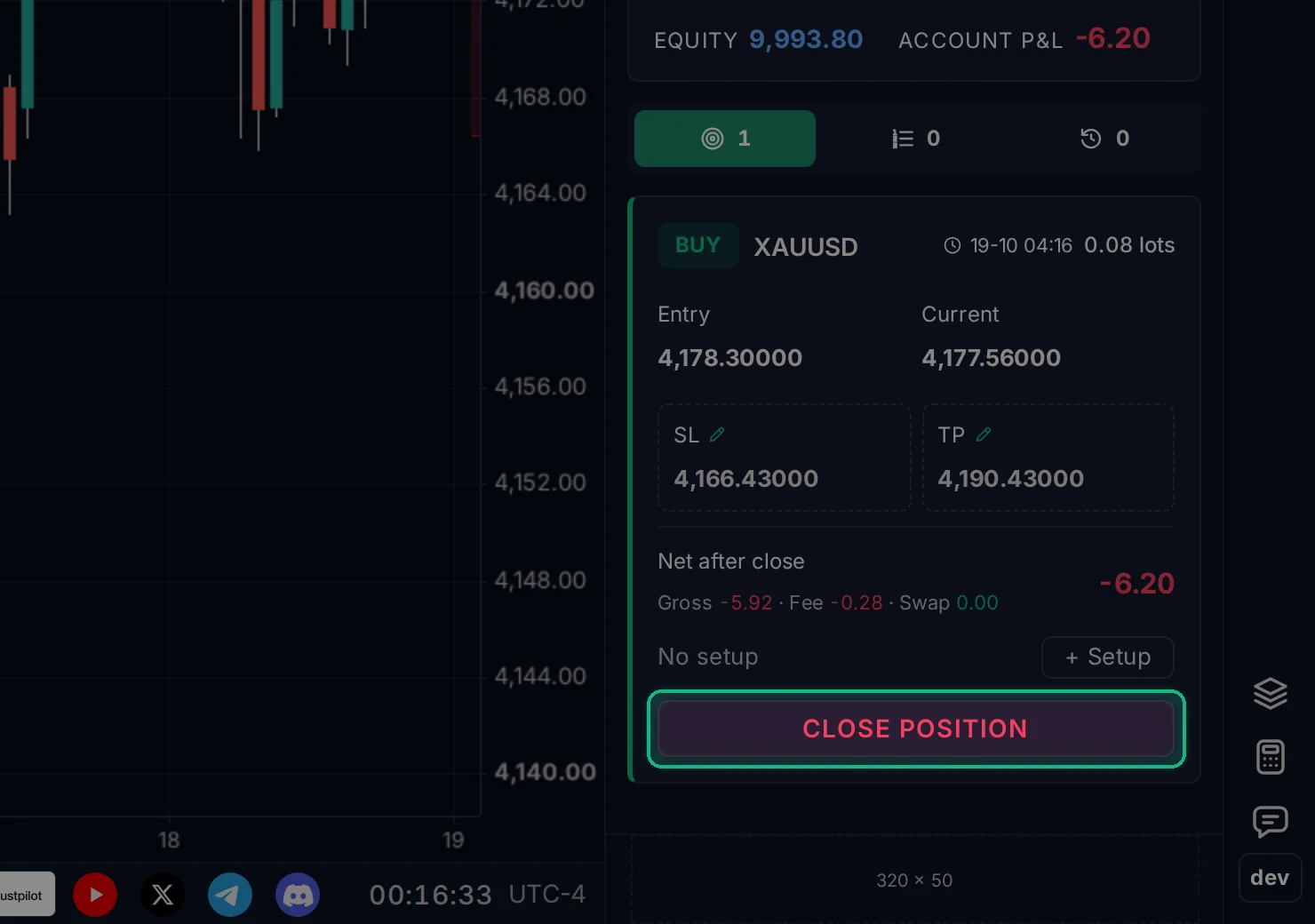
- Click Close Position to exit at the current price.
- You can open as many positions as you like in one session.
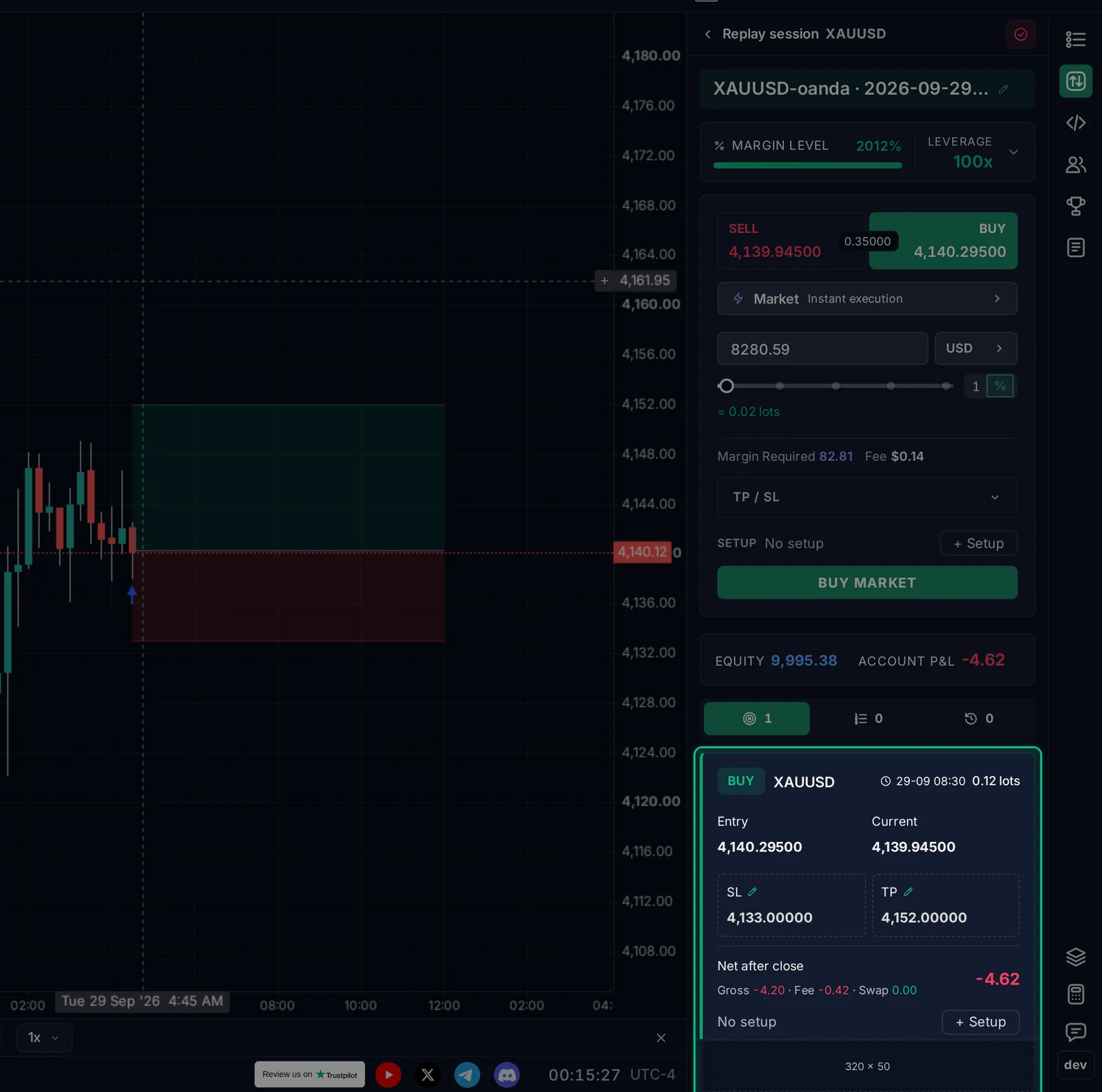
Now press Play (or keep clicking Next) and let the market decide. Equity and P&L update on every candle.
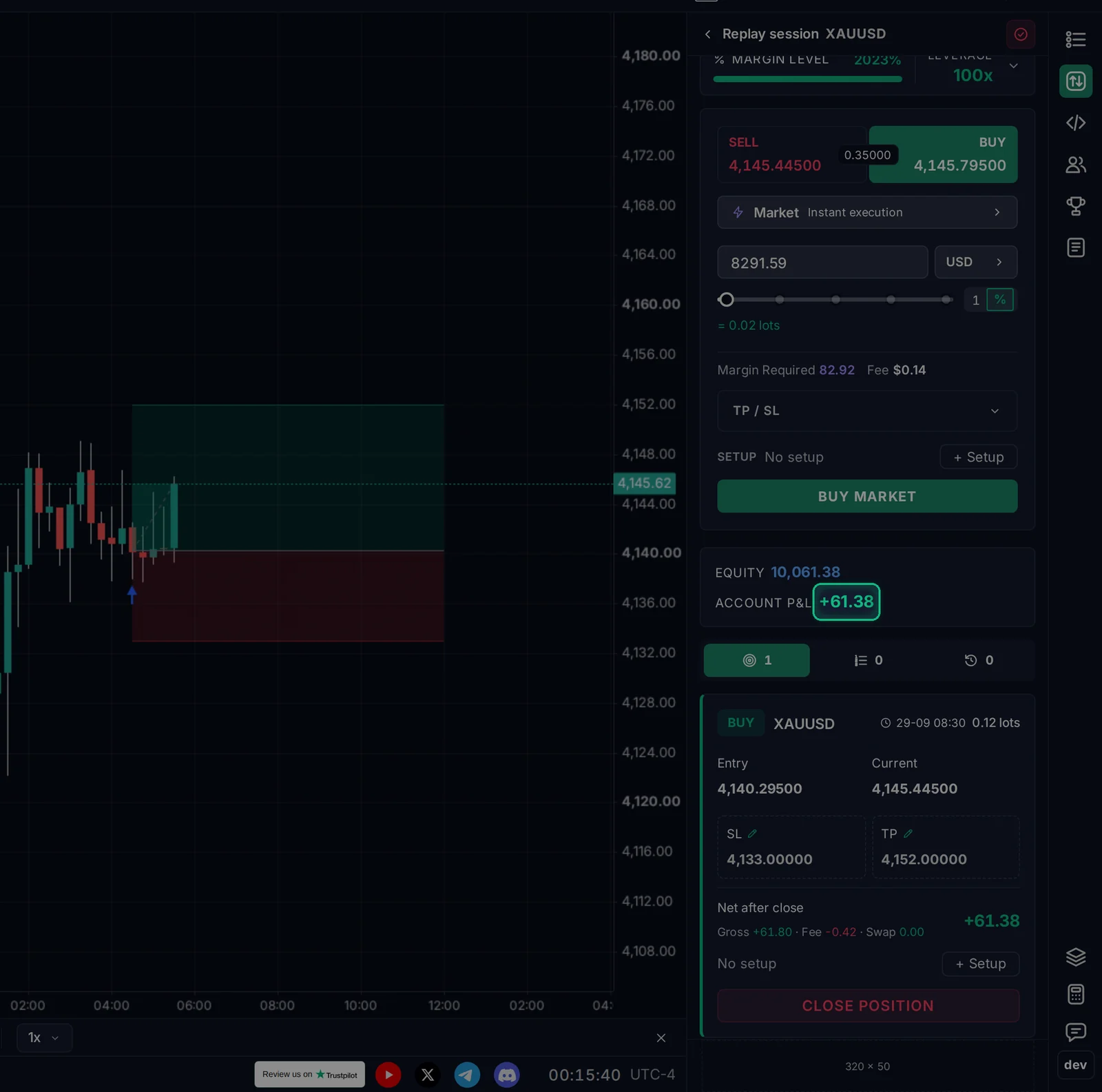
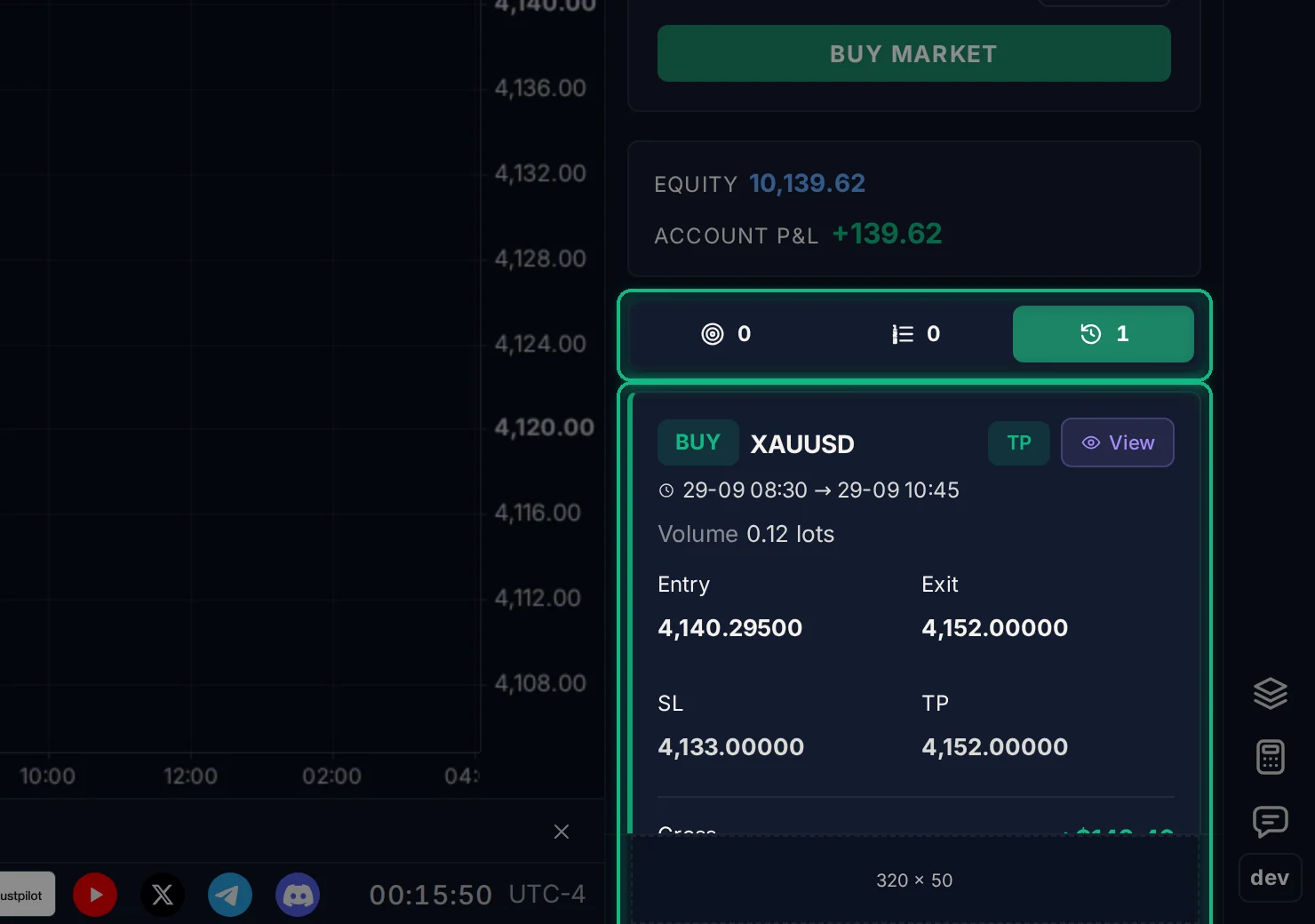
When price reaches your take profit or stop loss, the position closes by itself. Closed trades move to the History tab, which shows why each one closed (TP, SL or manual), the entry and exit prices and the result. Click View to see that trade on the chart.
Step 7. Complete the session
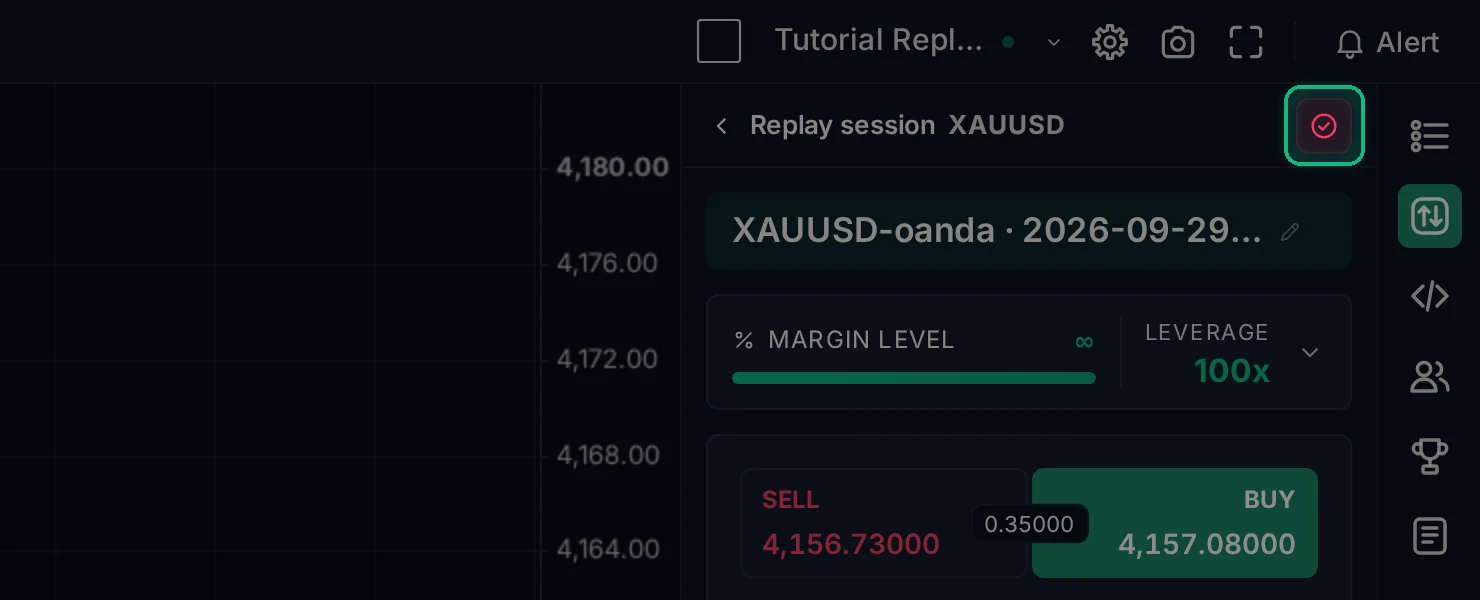
When you are done, click the Complete session button at the top of the panel and confirm.
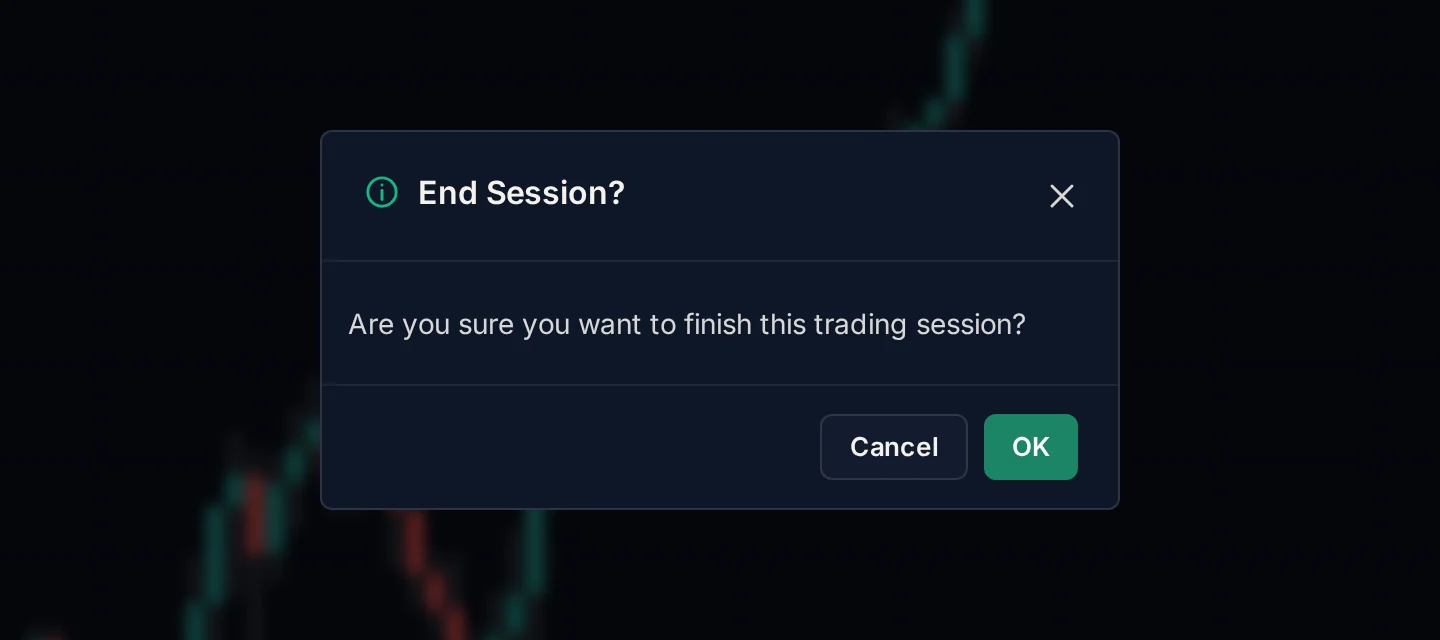
Every completed session goes to Session History (the clock icon at the top of the Trading Simulator panel), with its balance, number of trades, win rate and P&L. From there, Open Trading Journal lets you review, tag and analyze all your sessions.
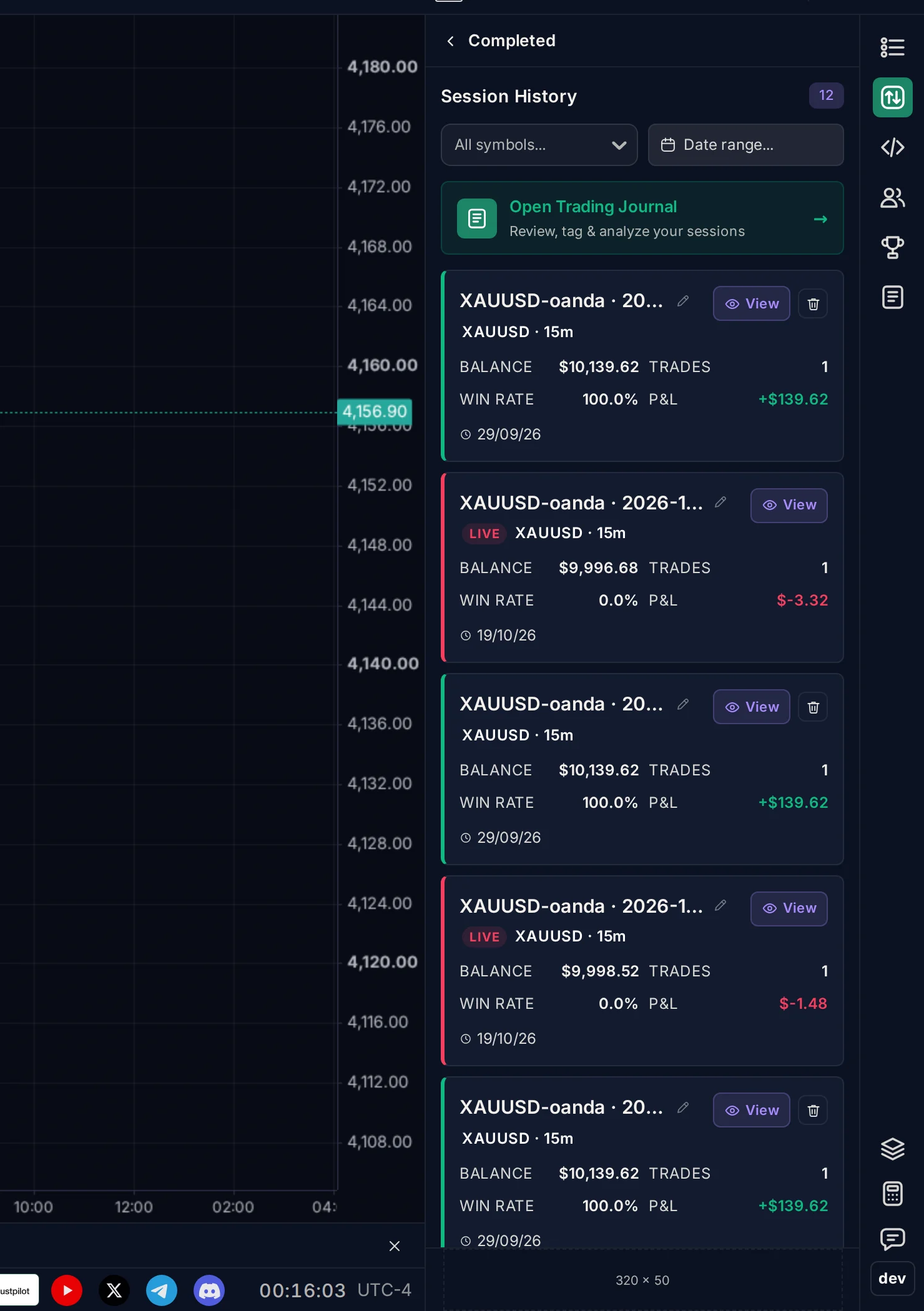
Not finished yet? Leave the session open. It stays in the list with a Resume button, so you can continue another day from the same candle.
Part 2: Practice on the live market
Live mode is paper trading on real-time prices. It sits between replay practice and real money: the same order panel, but you can't skip ahead. You wait for the market, exactly as you would with a real account.
Step 1. Start a live session
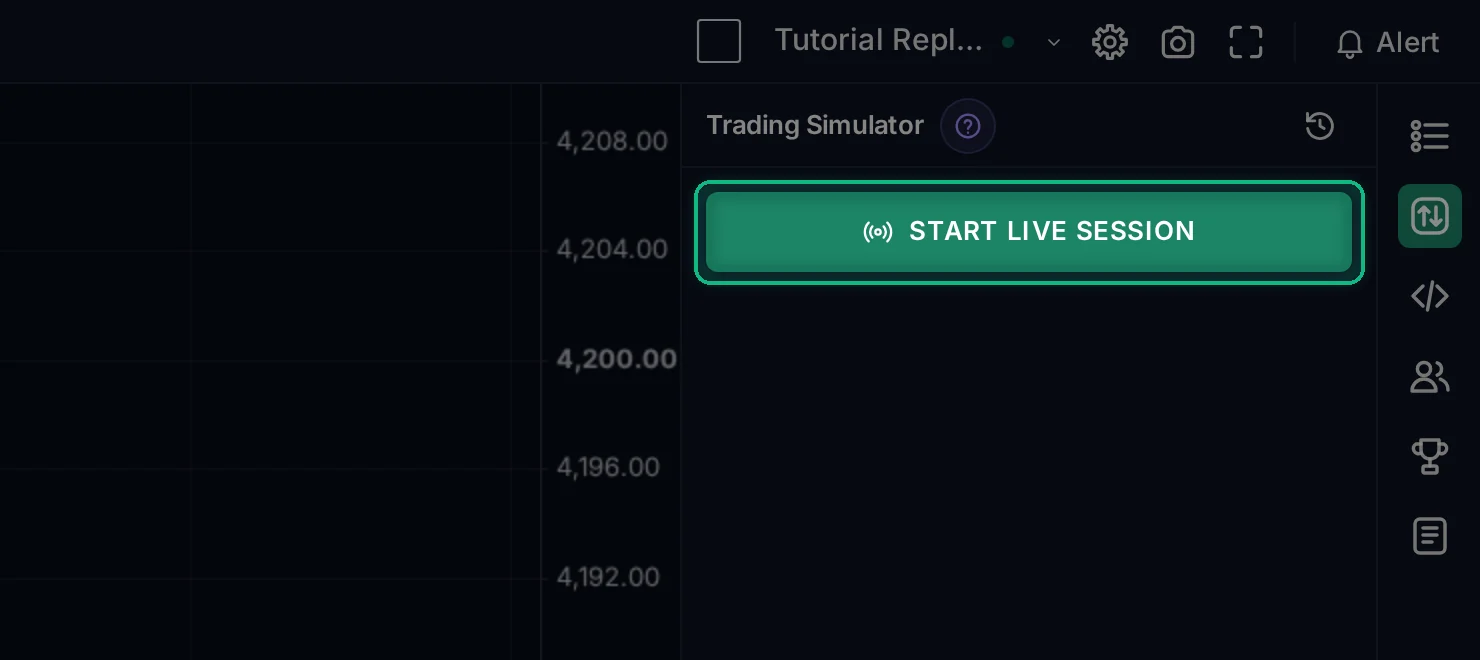
Exit Bar Replay first (the × at the right end of the replay bar). Outside replay, the button in the Trade panel becomes Start Live Session.
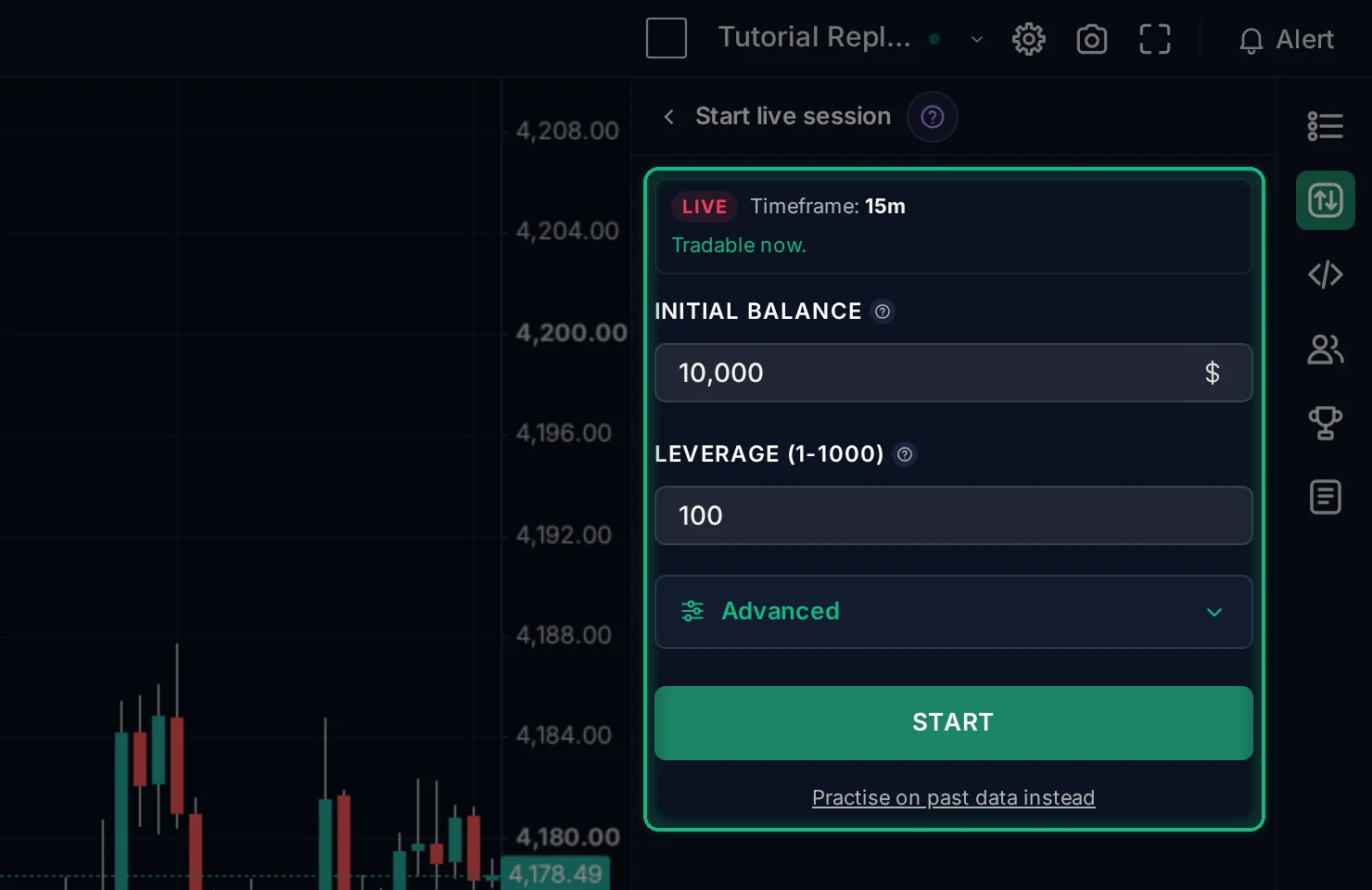
The form first checks the market for the symbol on your chart. Tradable now means the market is open and prices are fresh. Set your initial balance and leverage and click Start. Spread and costs come from the symbol itself, so there is nothing to fill in for them.
The Practise on past data instead link takes you back to Replay.
Step 2. Trade as usual
Placing orders works exactly as in Replay: side, order type, size, TP / SL, then Buy Market or Sell Market. Your order fills at the live price.
To exit early, click Close Position on the position card.
Step 3. Your session keeps running when you leave
A live session runs on our servers, not in your browser. Your stop loss, take profit and pending orders still trigger after you close the tab, switch charts or turn off your computer.
Going back to the session list does not stop it either. Click Continue (or Open) to return to it.
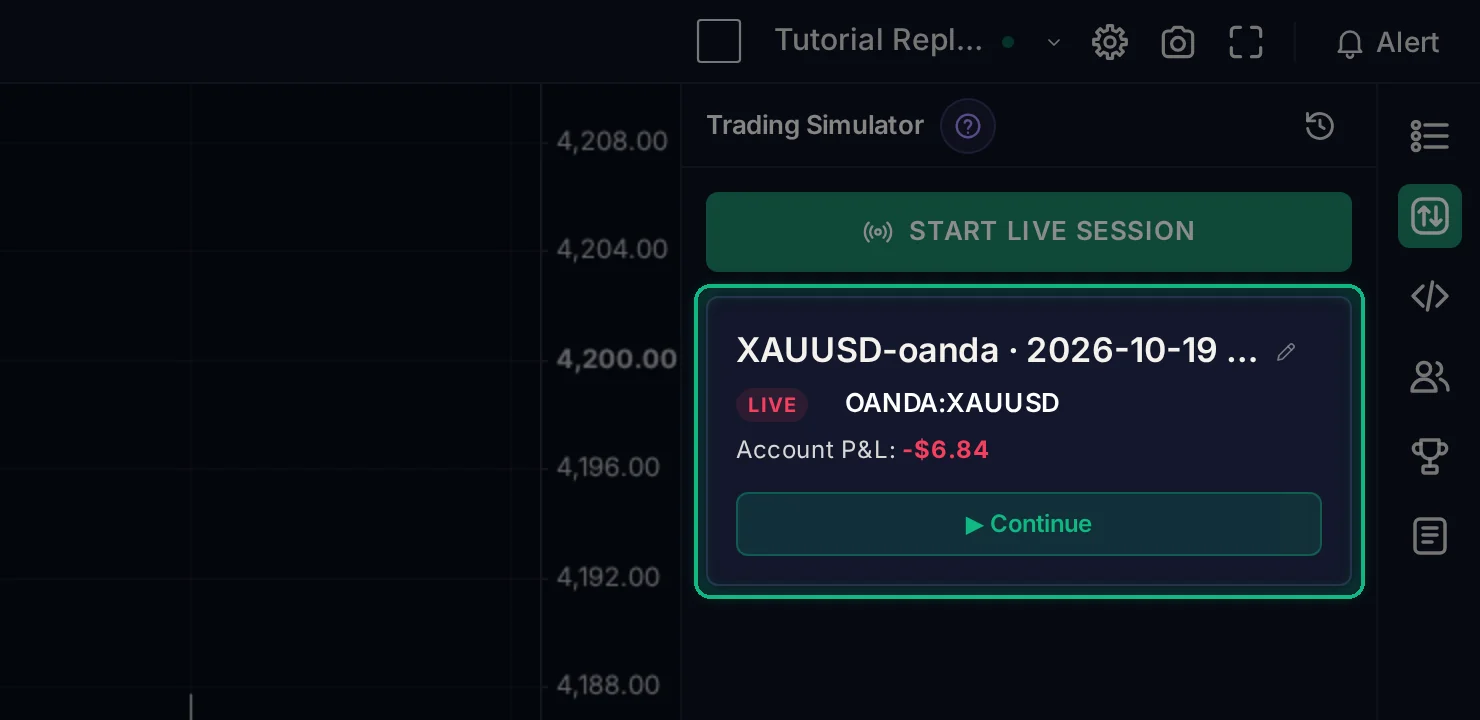
If you start a replay, the chart leaves the live session to show the past. The live session itself keeps running.
Step 4. Notifications, sharing and stopping
The buttons at the top of a live session:
- Bell: get a Telegram message when an order fills or hits its SL or TP. Connect Telegram first if you haven't yet.
- Lock: make the session public, so it appears in Public sessions where other traders can browse it, or keep it private.
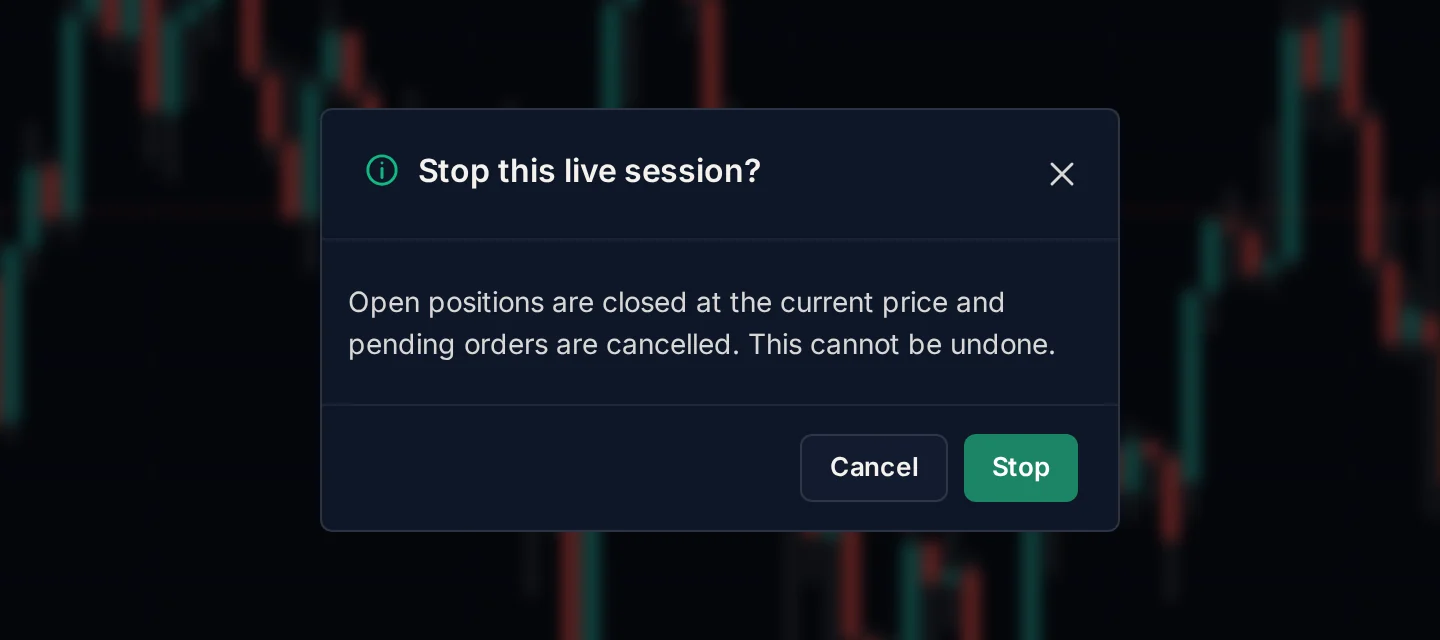
- Red square: stop the session.
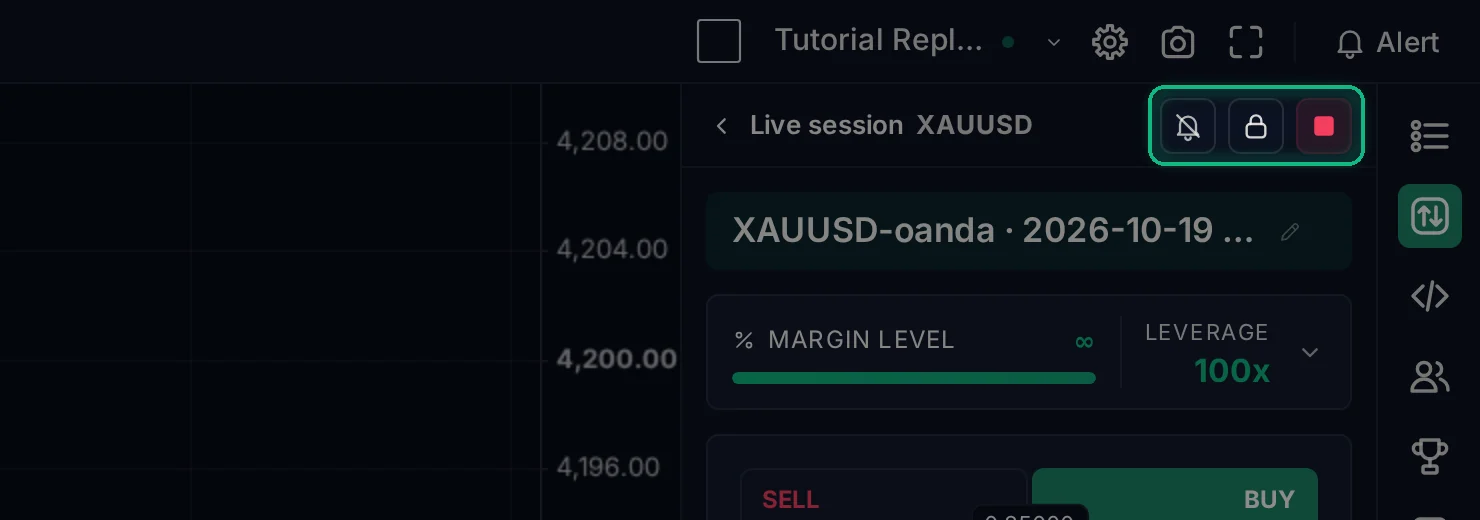
Stopping closes any open positions at the current price and cancels pending orders. It cannot be undone. The finished session then appears in Session History and your journal, labeled LIVE, next to your replay sessions.
When the market is closed
On weekends and outside trading hours, market orders and manual closes are paused, because there is no fresh price to fill them at. You can still place pending orders and set or edit your SL and TP. They trigger once the market opens again.
Quick tips
- Widen the side panel. Drag the left edge of the right panel to make the Trade panel wider and easier to read.
- Replay first, live second. Replay lets you practice a hundred setups in an evening. Live tests whether you can follow your plan without seeing the next candle.
- Use real costs. In Advanced, copy your broker's spread, commission and swap. A strategy that only works with zero costs won't work with real money.
- Tag your setups. A + Setup tag on every trade turns your journal into statistics per setup, so you can see which one actually makes money.
The Trading Simulator is free. Open a chart and start your first session.
No comments yet. Login to start a new discussion Start a new discussion