How to Add The Free Chart to Your Home Screen on iPhone and Android
You don't need an app store to get The Free Chart on your phone. Add the site to your home screen and it gets its own icon. One tap opens the chart, full screen, without the browser's address bar a
You don't need an app store to get The Free Chart on your phone. Add the site to your home screen and it gets its own icon. One tap opens the chart, full screen, without the browser's address bar and toolbars taking up space.
It takes under a minute. This guide covers iPhone (Safari, Chrome and Brave) and Android (Chrome and Samsung Internet).
Why add it to your home screen
- More room for the chart. It opens without the address bar and browser buttons, so the candles get that space back.
- One tap. The icon opens straight into the chart. No typing the address, no hunting through tabs.
- Nothing to download. It takes almost no storage and always runs the latest version. When we update the site, the app on your home screen updates with it.
Before you start
- Use a supported browser. On iPhone, Safari works best. Chrome works too on iOS 16.4 or later. Brave on iPhone can't do it yet (see below).
- Open the site in the browser itself, not inside another app. A link tapped in Telegram, Facebook, Instagram or X often opens in that app's own built-in browser, which has no "Add to Home Screen". Use its "Open in browser" option first.
- Go to thefreechart.com/chart and let the page load before you start the steps.
- On iPhone, you may need to sign in once more. The home screen app keeps its own sign-in, separate from Safari. Sign in once after you open it and it remembers you.
iPhone: Safari
Step 1. Open the menu
Tap the ••• button next to the address bar.
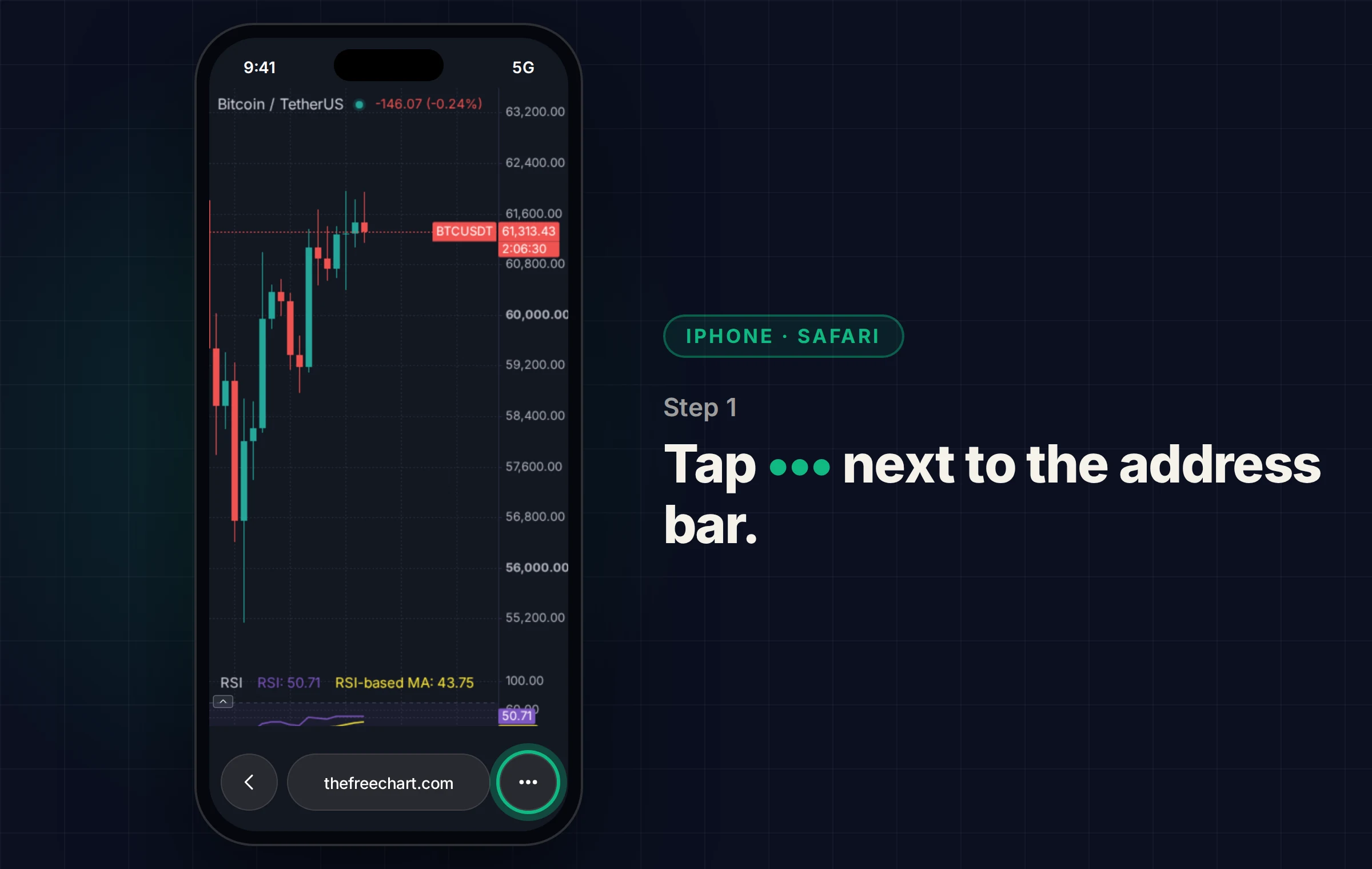
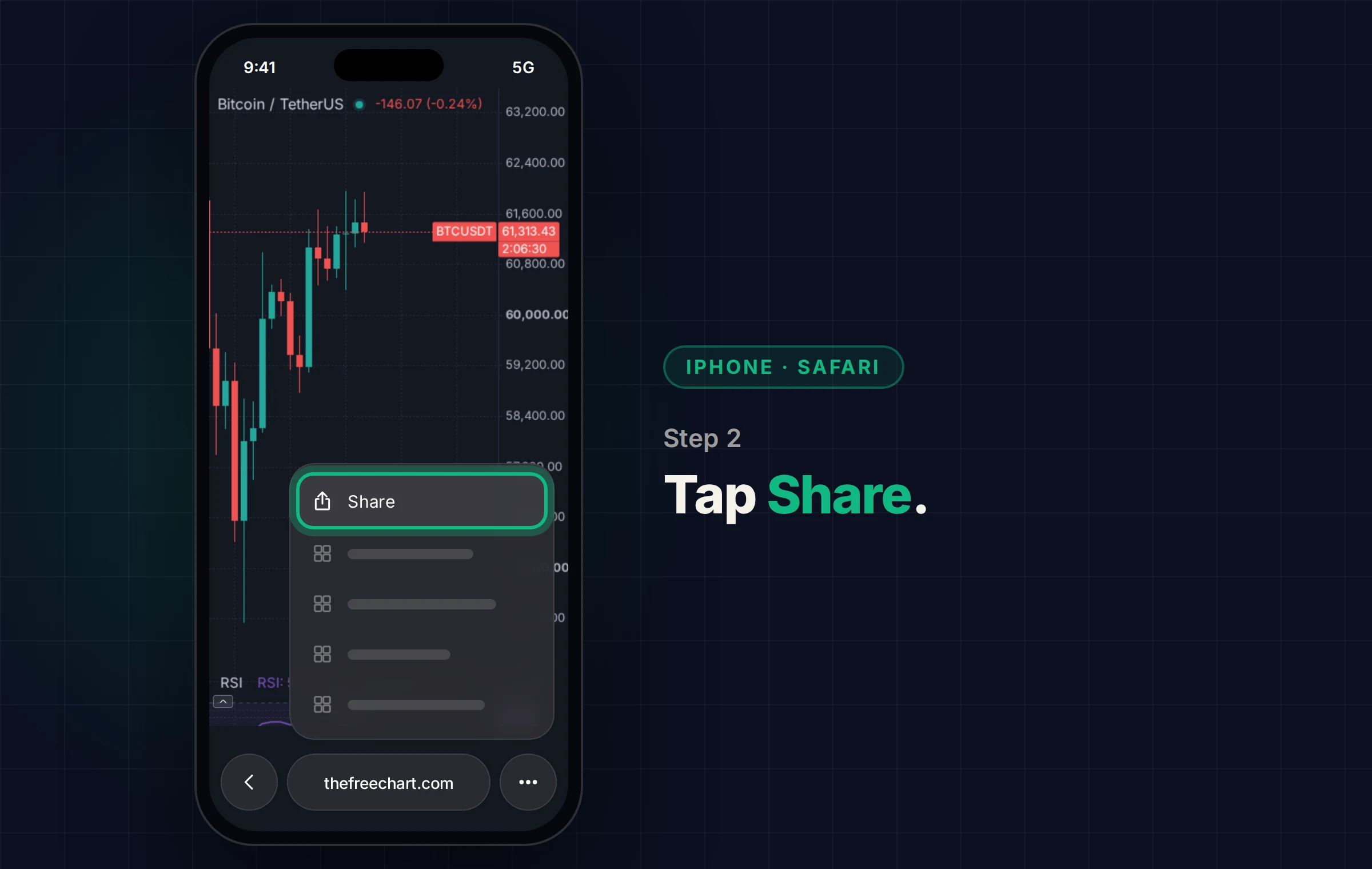
If you see a Share button directly on Safari's toolbar (older iOS versions, or the Top / Bottom tab layout), tap it and go straight to Step 3.
Step 2. Tap Share
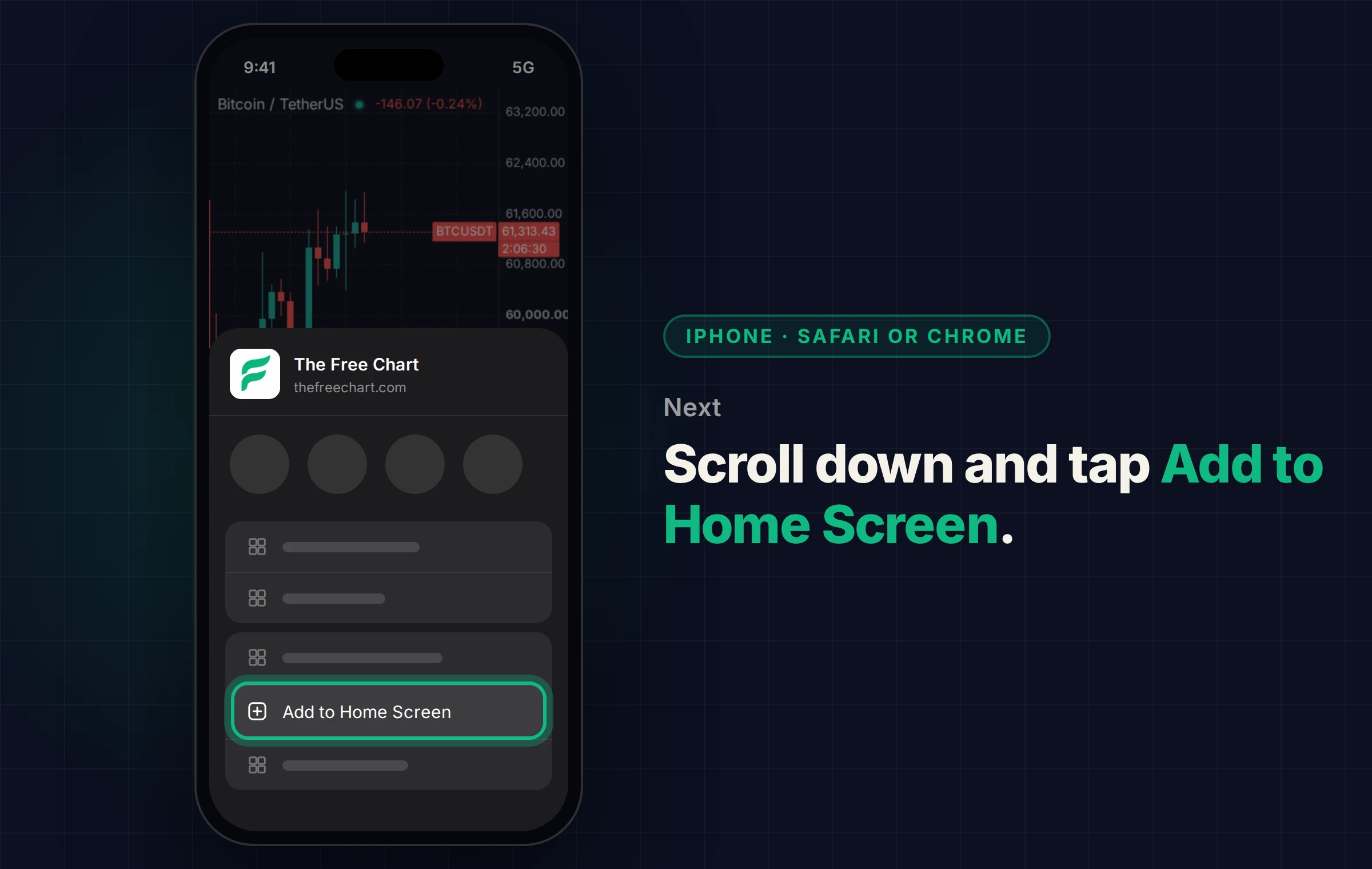
Step 3. Tap Add to Home Screen
Scroll down the list and tap Add to Home Screen. If it isn't there, tap Edit Actions at the bottom of the list and add it.
Step 4. Keep Open as Web App on, then tap Add
Leave Open as Web App switched on. That is what makes it open full screen, like an app. Then tap Add in the top right corner.
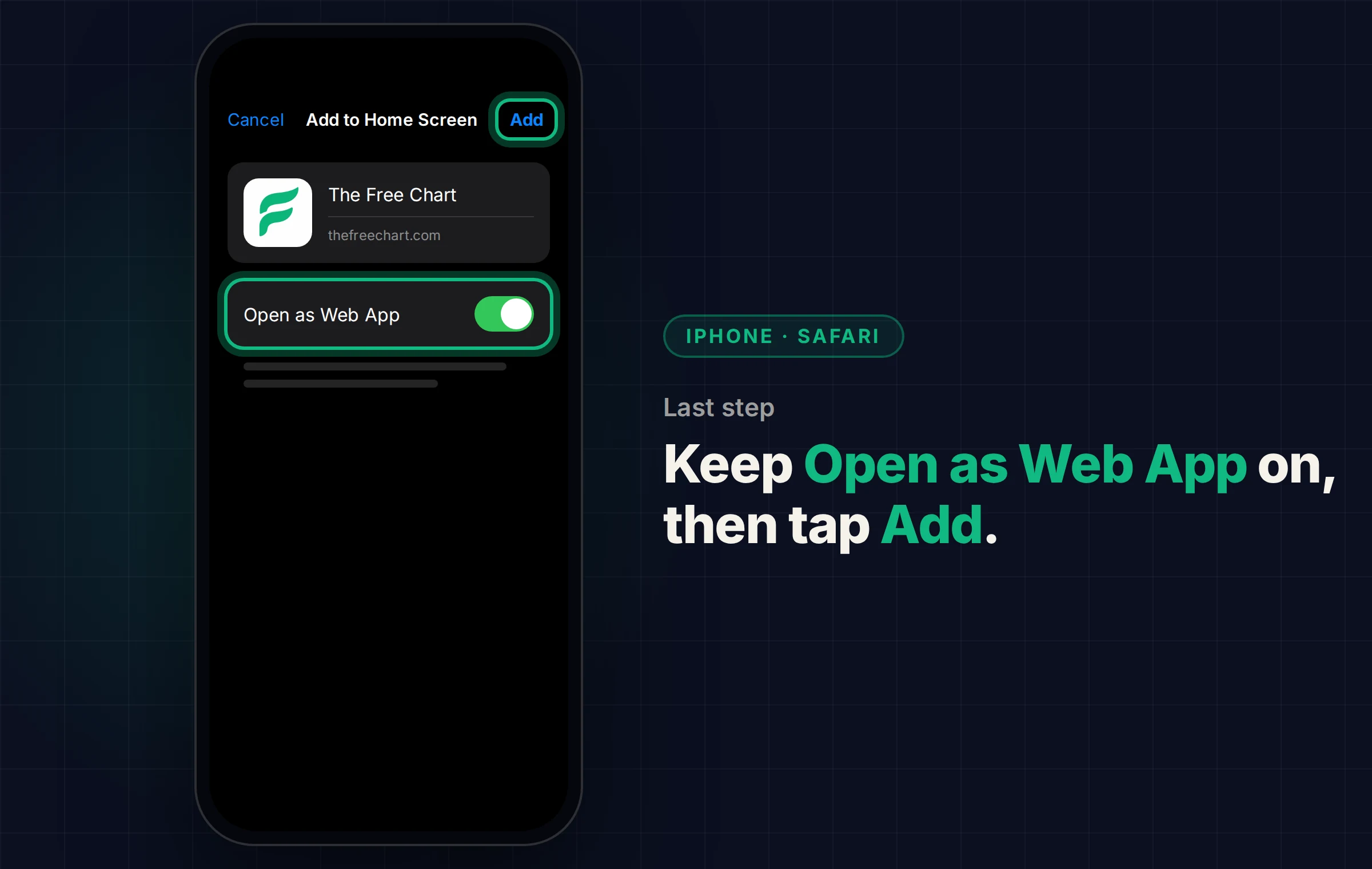
On iOS versions before 26 there is no switch. Just tap Add.
iPhone: Chrome
You need iOS 16.4 or later and an up-to-date Chrome.
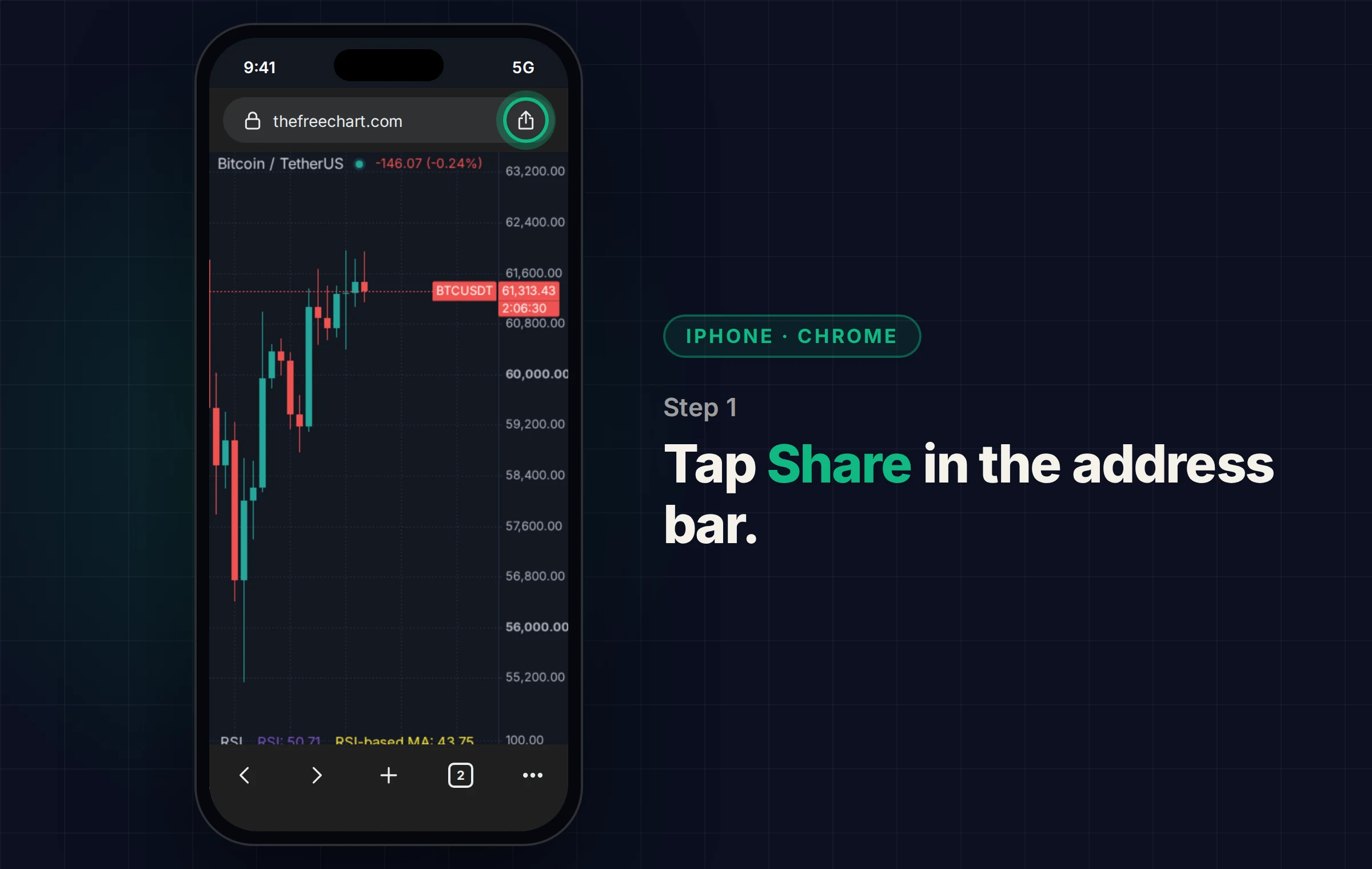
Step 1. Tap Share
Tap the Share icon in the address bar. If you don't see it, tap ••• at the bottom of the screen and choose Share.
Step 2. Tap Add to Home Screen, then Add
The same share sheet as in Safari opens. Scroll down, tap Add to Home Screen (see the Safari Step 3 picture above), then tap Add. If you see Open as Web App, keep it on.
iPhone: Brave
Brave on iPhone doesn't have "Add to Home Screen" yet. The workaround is quick:
- Copy the address thefreechart.com/chart.
- Paste it into Safari and follow the Safari steps above.
You only need Safari for this one step. After that, the icon on your home screen opens The Free Chart on its own, whatever browser you normally use.
Android: Chrome
The quick way: the Install strip
When you open the chart on your phone, you may see a thin strip at the top: "Install the app for a bigger chart." Tap Install and go to the last step.
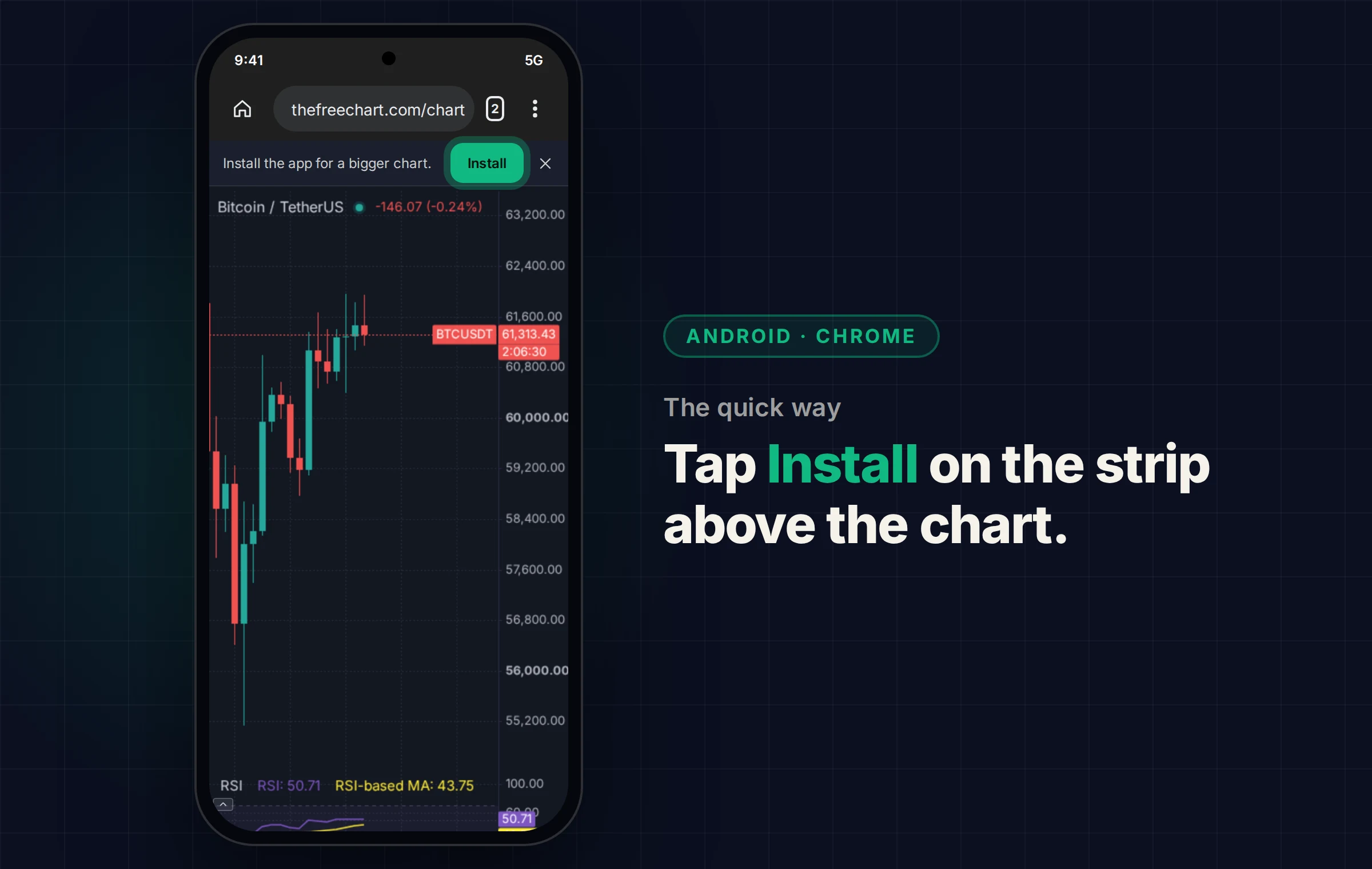
If you closed the strip, it comes back after a few days. You can also use the menu any time.
Or from the menu
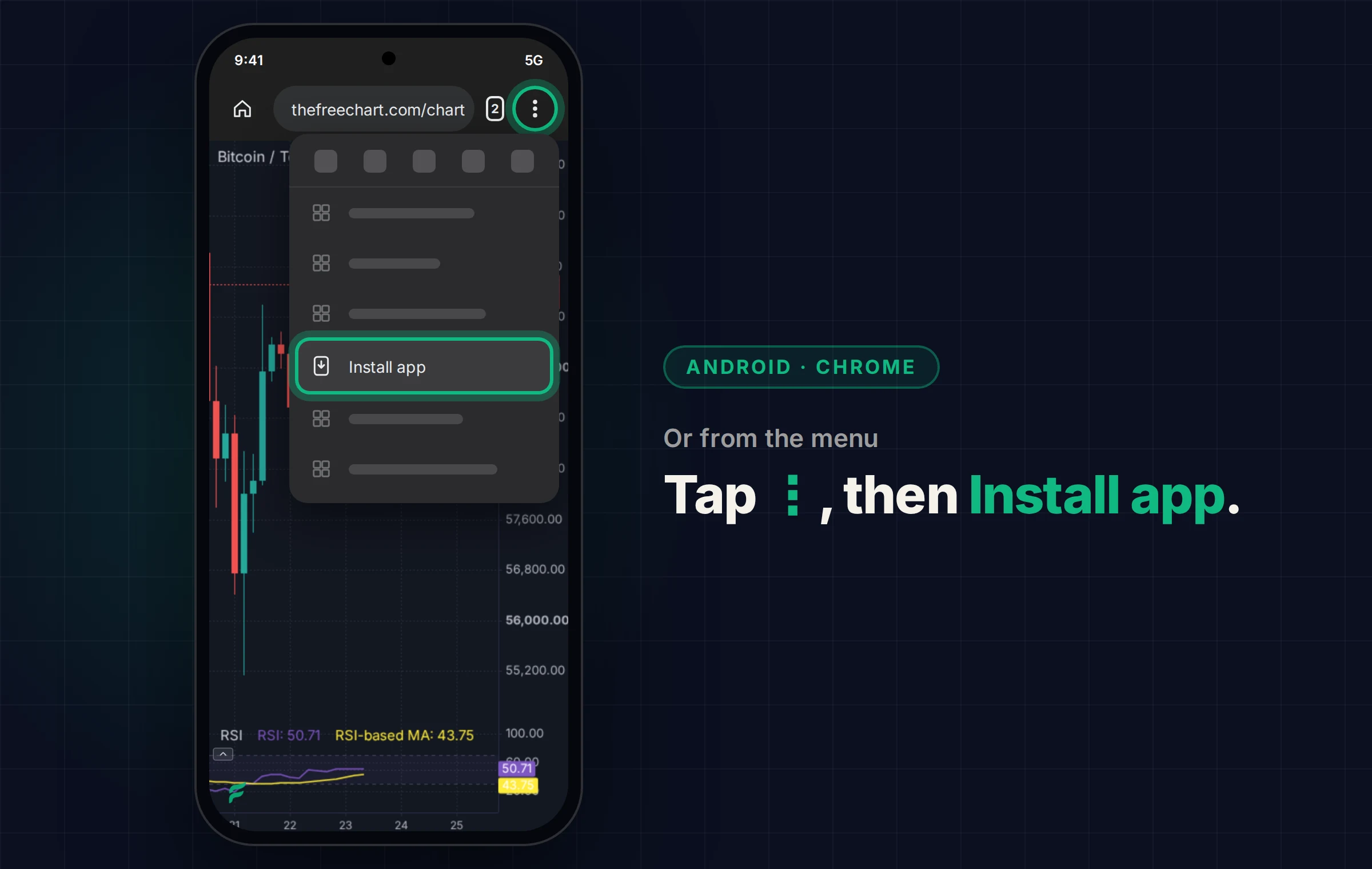
Tap ⋮ in the top right corner, then tap Install app. In some Chrome versions this item is called Add to Home screen.
Last step. Tap Install
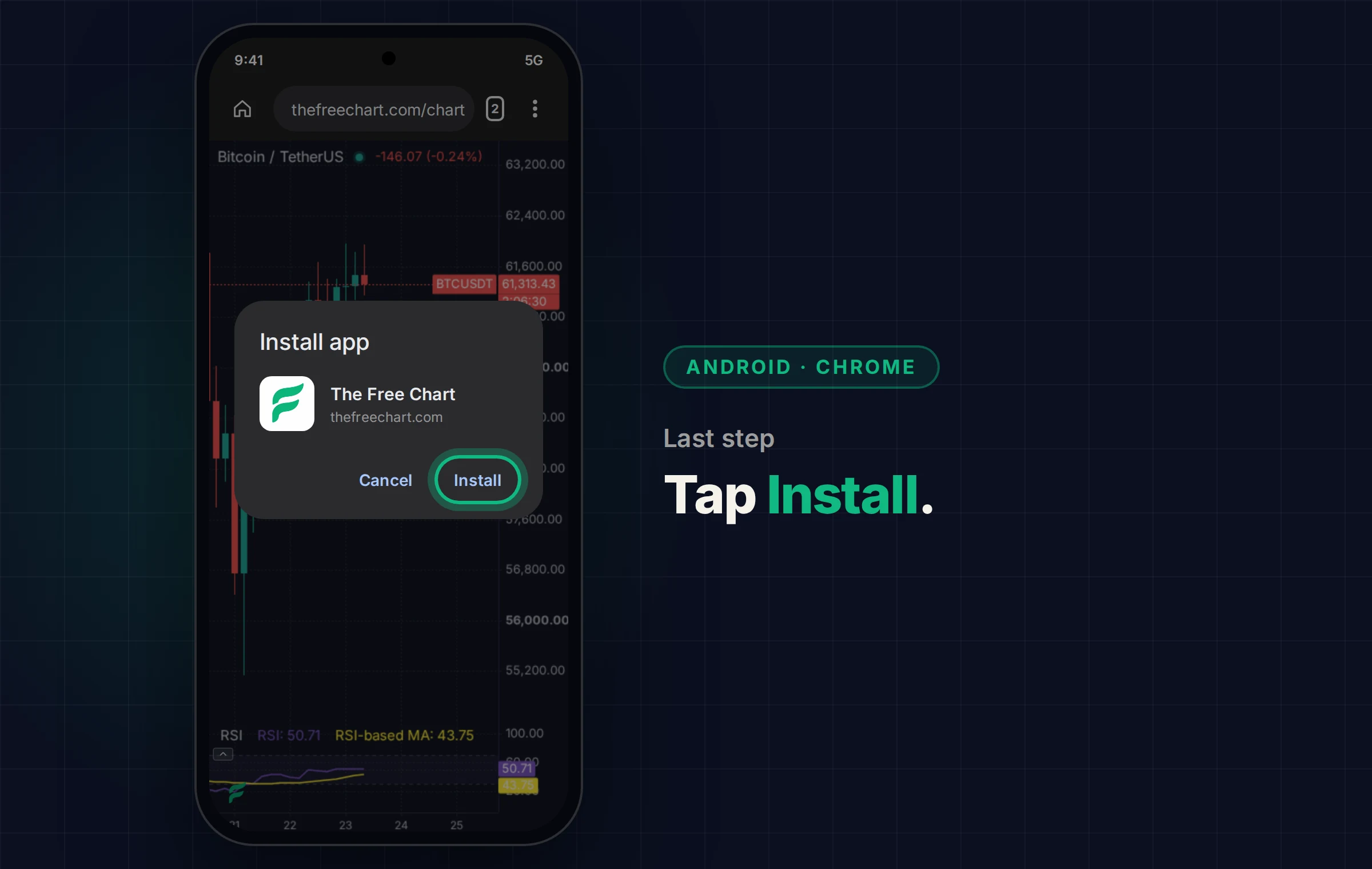
After a few seconds the icon appears on your home screen. On some phones it goes to the app drawer first. Press and hold it there to drag it to your home screen.
Android: Samsung Internet
Step 1. Open the menu and tap Add page to
Tap ☰ in the bottom right corner, then tap Add page to.
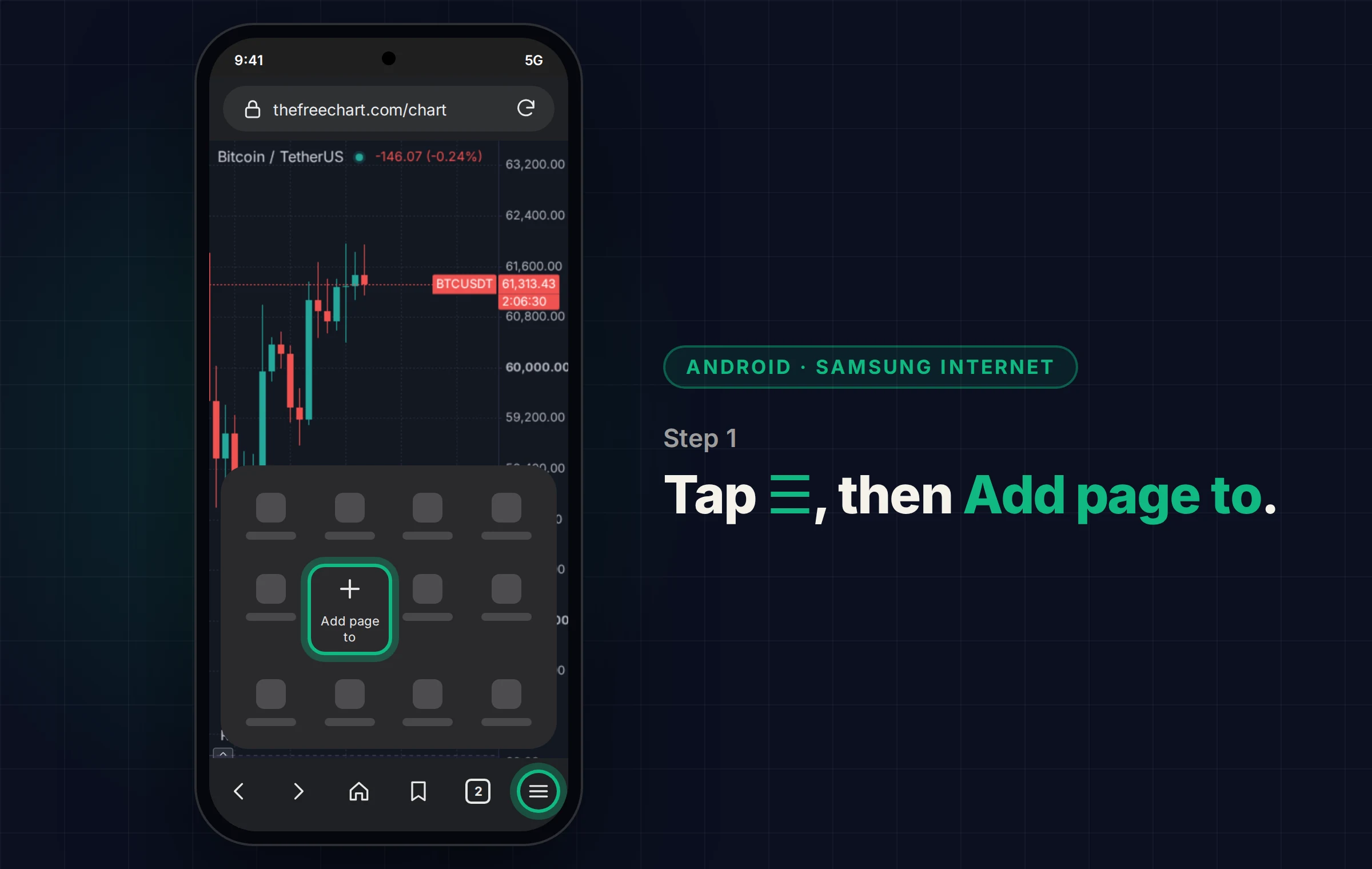
Step 2. Tap Home screen, then Add
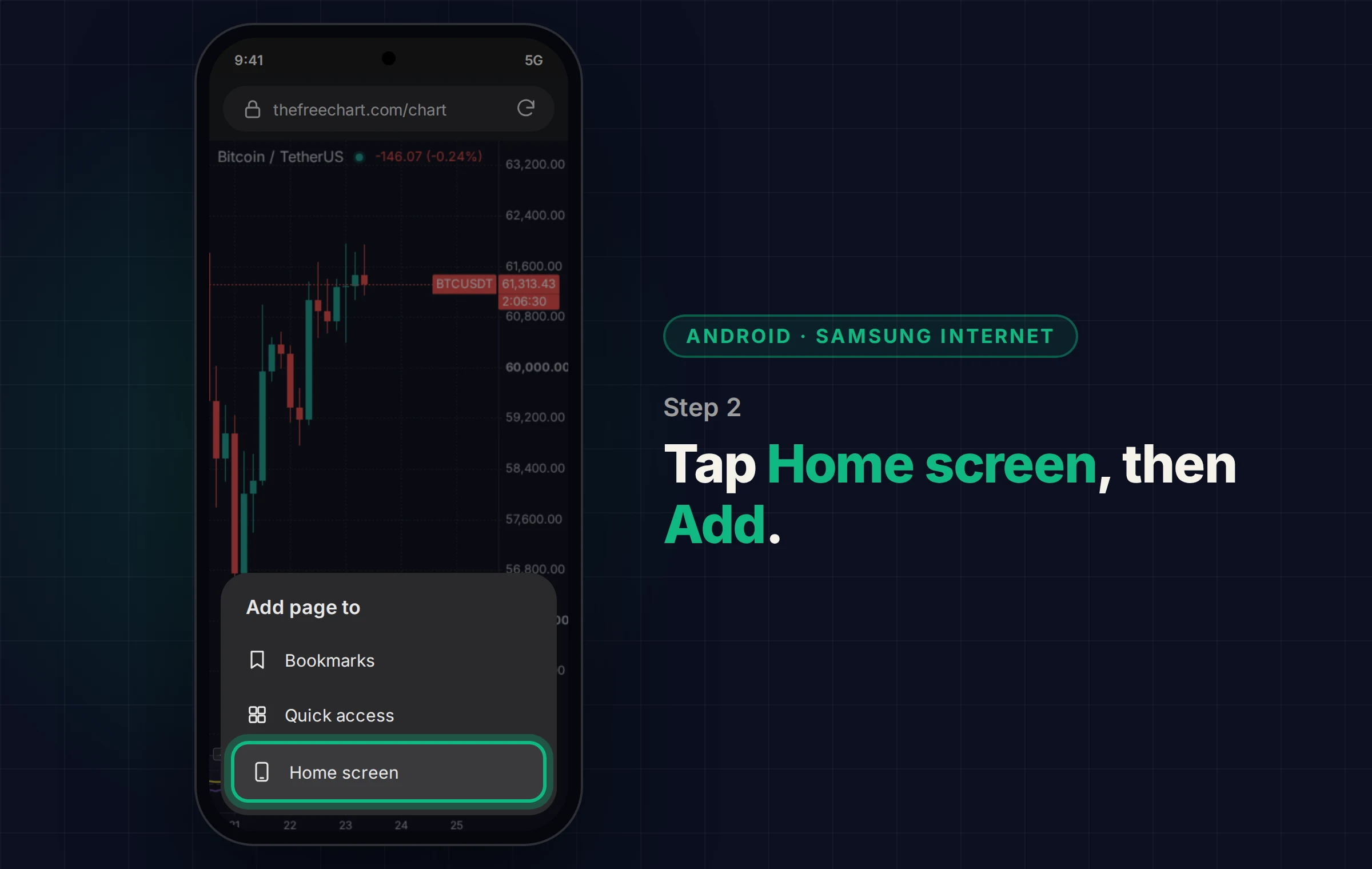
The menu looks a little different on each One UI version, but the names Add page to and Home screen stay the same.
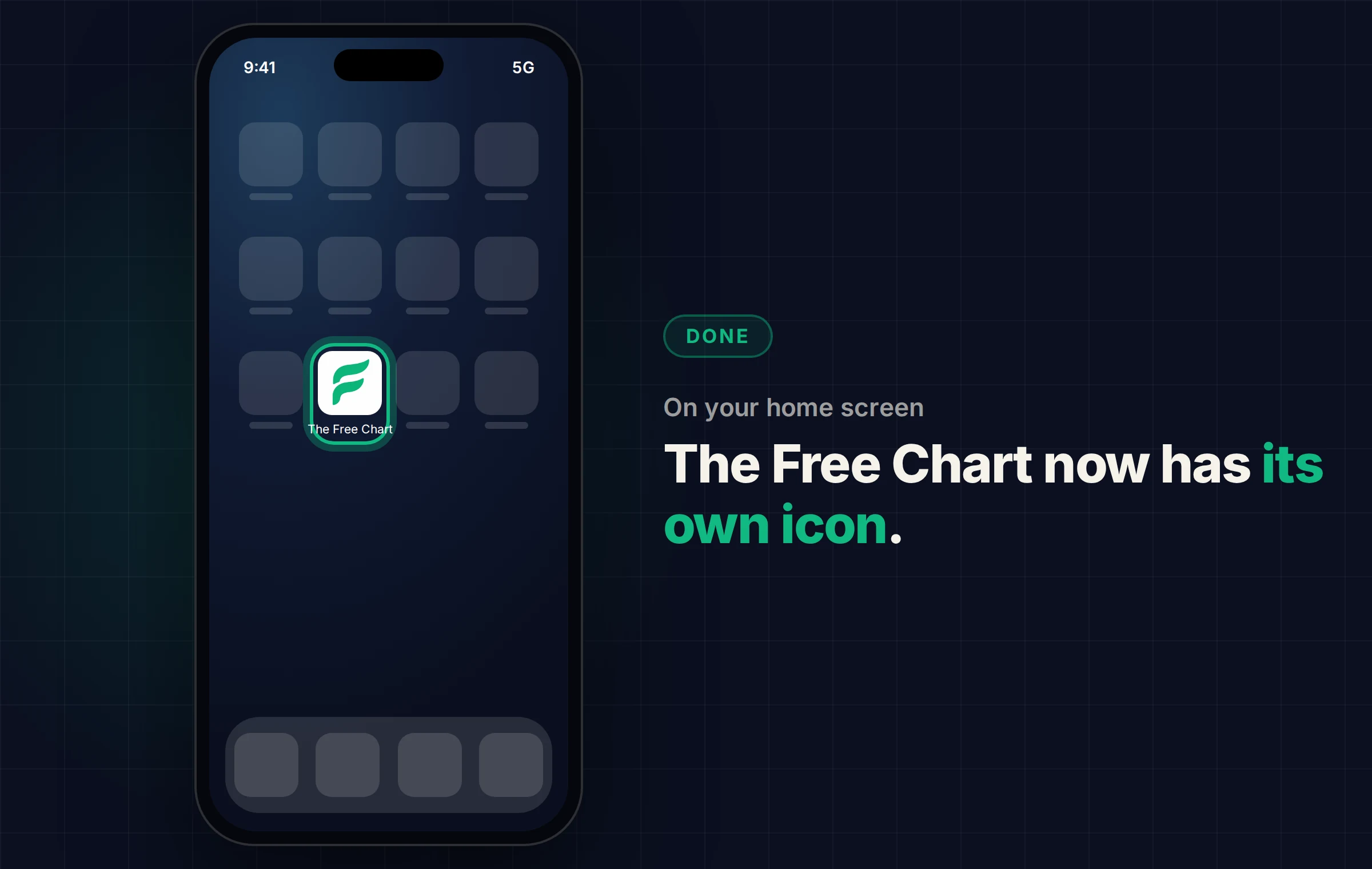
Open it
The Free Chart now has its own icon, next to your other apps.
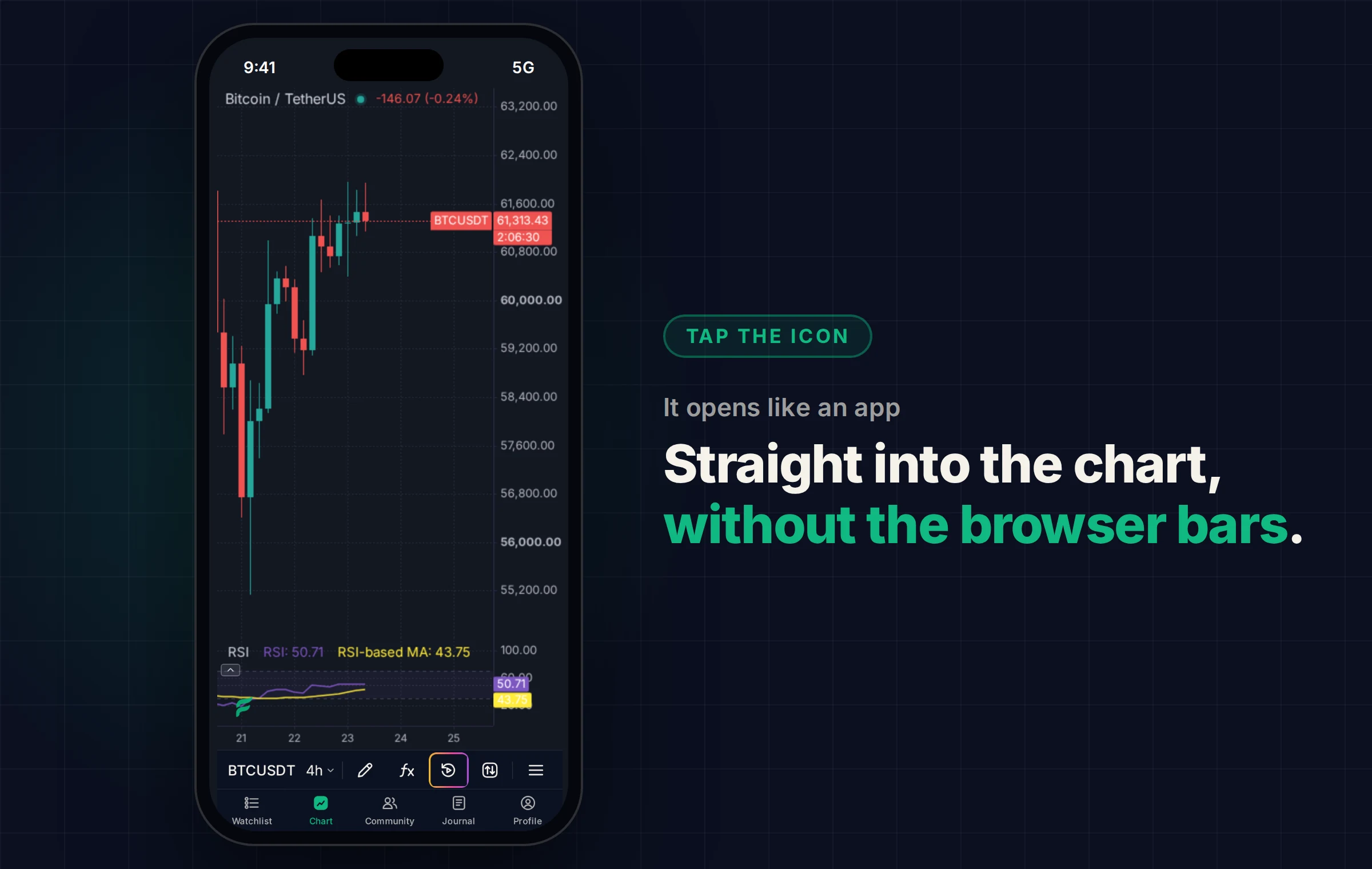
Tap it. The chart opens straight away, without the browser bars. Watchlist, Community, Journal and Profile are in the tabs at the bottom, just like in the browser.
If something doesn't work
- No "Add to Home Screen" on iPhone. Check that you are in Safari (or Chrome on iOS 16.4+), not inside another app's built-in browser. In Safari, look further down the share sheet, or tap Edit Actions to add it.
- No "Install app" on Android. Reload the page and wait for it to finish loading. Update Chrome from the Play Store. Add to Home screen in the same menu works too.
- You are signed out in the app on iPhone. That is normal the first time. Sign in once inside the app.
- You want to remove it. Press and hold the icon and remove it like any other app. Your account, layouts and journal stay safe. They are saved to your account, not to the icon.
Now that the chart is one tap away, it is a good time to try the Trading Simulator on your phone.
No comments yet. Login to start a new discussion Start a new discussion