How to Use Conference Rooms: Show Your Chart Live and Talk It Through
Explaining a trade idea with screenshots is slow. You send a picture, someone asks "which level?", you draw an arrow, send another picture, and the price has already moved. A conference roo
Explaining a trade idea with screenshots is slow. You send a picture, someone asks "which level?", you draw an arrow, send another picture, and the price has already moved. A conference room fixes that. You open a room, share the link, and everyone in it watches your chart live while you talk them through it.
Why use a conference room
The goal is simple: show people exactly what you see on your chart, at the moment you see it.
- Your chart, live. People in your room see your chart as it is on your screen: the symbol, the timeframe, your indicators and your drawings. When you scroll, zoom, switch symbol or draw a new line, they see it straight away. Even a line you are still drawing, or the Measure tool while you use it.
- They watch, they can't touch. Nobody in the room can change your chart. They only watch.
- Talk by voice. You speak, the room listens. When you want questions, let everyone speak.
- Chat. A chat that belongs to the room, for links you can't say out loud, questions, and "can you zoom in on that?".
- Nothing to install. It runs in the browser. People join from the link, on a computer or a phone.
Good uses: a weekly levels session with friends, a mentor going through a student's setup, a small group watching the London open together, or explaining a trade you just took.
Advice before you start
- Set up the chart first. Draw your levels and add your indicators before you open the room, so the first thing people see is ready. You can still draw while live.
- Give the room a clear name. "BTC weekly levels" or "Gold London session" tells people in the room list what they are joining. Add a one-line description of what you will go through.
- Keep the layout light. A layout with many charts and hundreds of drawings can be too large to share. If the room will not open, close a few charts or drawings and try again.
- Use a headset. Speakers next to a microphone cause echo for everyone in the room.
- Indicators that only you can use are not shown to others. Private indicators, or ones the other person does not have access to, can't be drawn on their screen. They see a short note about it. Built-in and public indicators show up normally.
- End the room when you are done. Ending the room takes everyone out of it.
Open a room on a computer
Rooms are opened on a computer. On a phone you can join a room, but not open one.
Step 1. Open Conference rooms
Sign in, open the chart, then click the phone icon in the icon bar on the right edge of the screen, just under Journal. Its tooltip says Conference rooms.
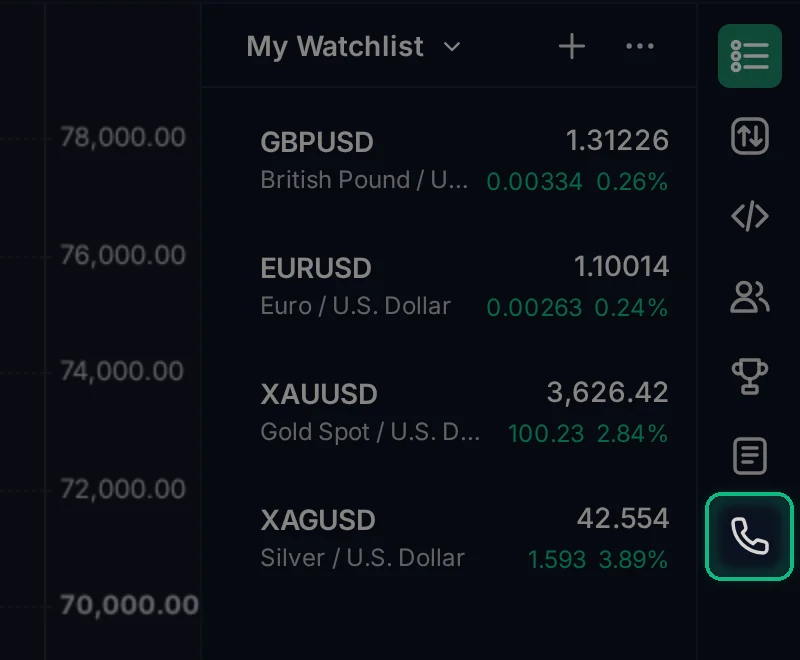
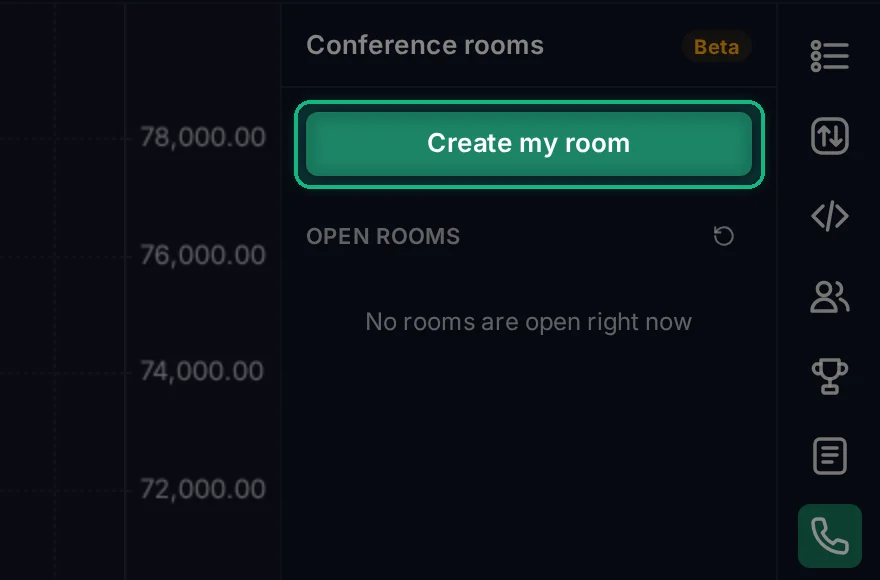
The Conference rooms panel opens. It lists the rooms that are open right now.
Step 2. Create your room
Click Create my room.
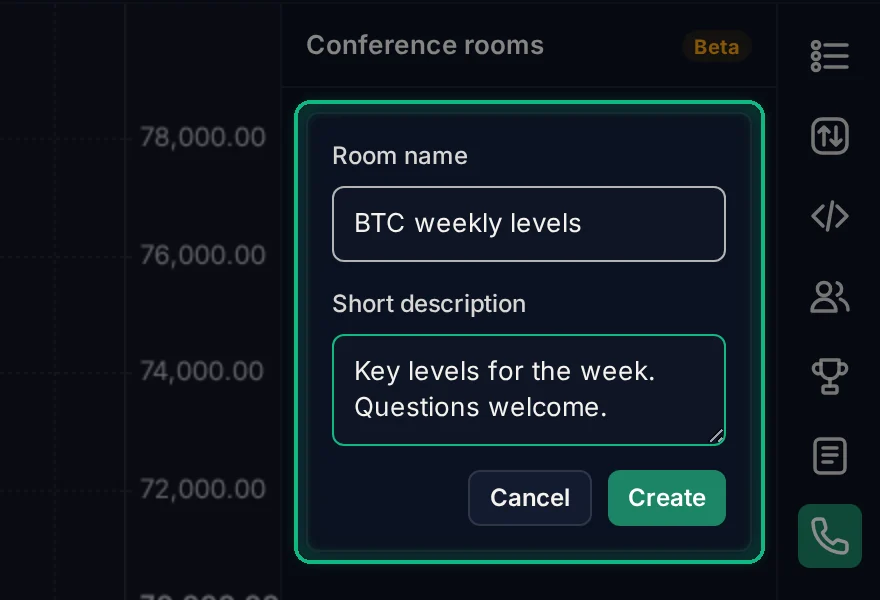
Type a Room name and, if you like, a Short description, then click Create.
Step 3. Share the link
Your room is live as soon as it is created, and its link is copied for you. Paste it anywhere: a chat, a group, a message to a friend. To copy it again later, click the share icon on your room card. The link looks like https://thefreechart.com/room/....
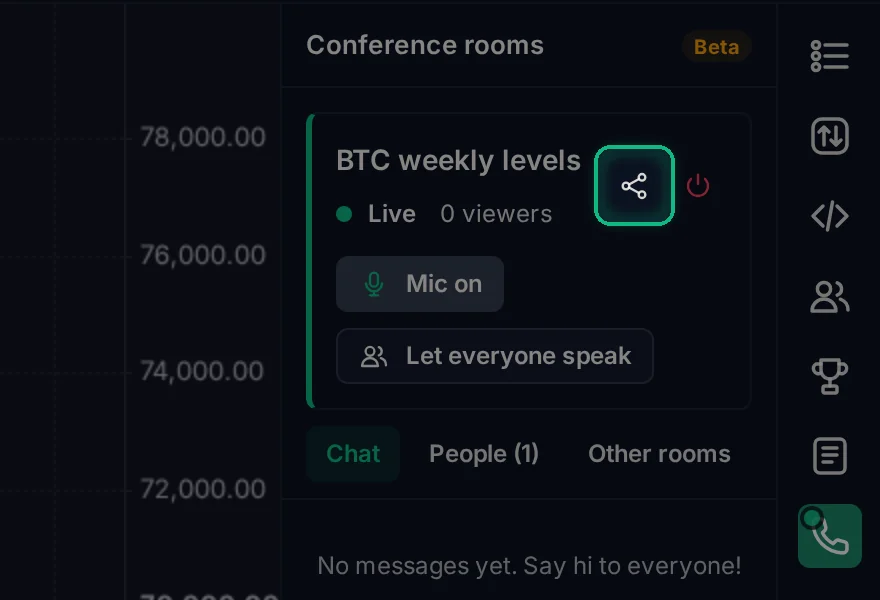
The card also shows how many people are watching.
Step 4. Talk by voice
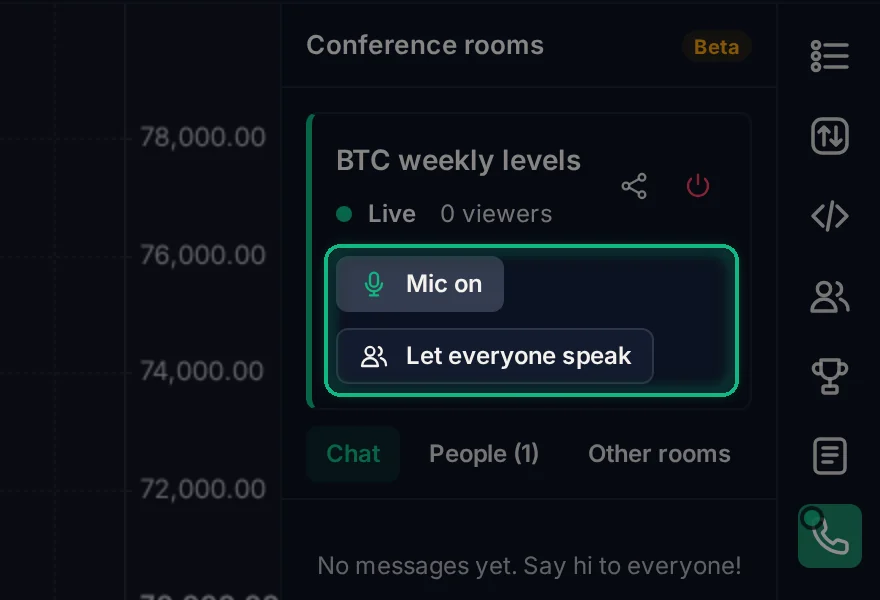
Click Mic on to start talking. Your browser asks for permission to use the microphone the first time. By default only you can speak. Click Let everyone speak when you want questions, and click it again to go back.
Step 5. Chat and manage the people in your room
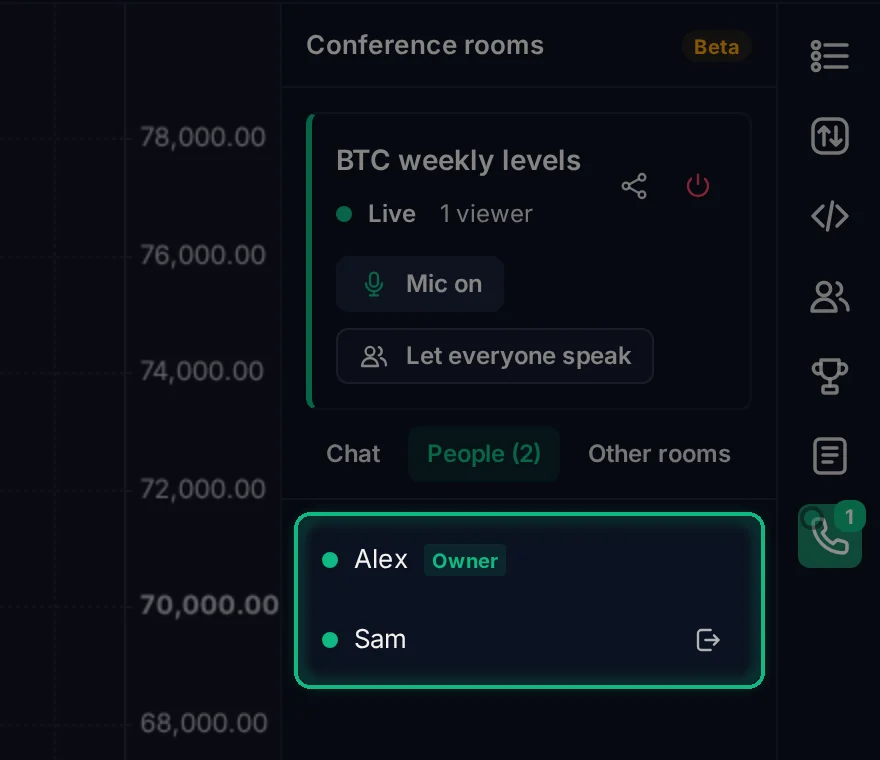
Under your room card, Chat is the room's chat and People lists who is in the room. The green dot shows who is online, and a small "speaking" mark shows who is talking. When someone is talking you can turn their mic off, and you can Remove anyone from the room. Someone you remove can't come back until the room ends.
Step 6. End the room
Click the power icon on your room card, then confirm. Everyone is taken out of the room.
Join a room on a computer
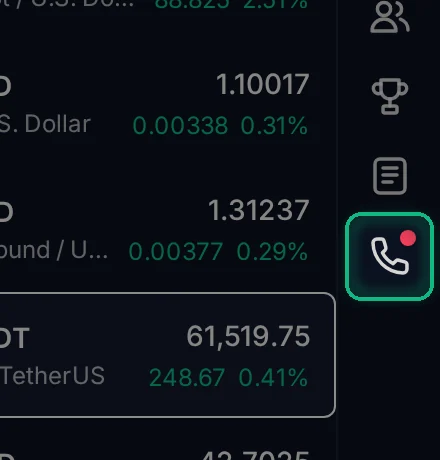
When someone opens a new room, a red dot appears on the phone icon for everyone who is signed in and has The Free Chart open.
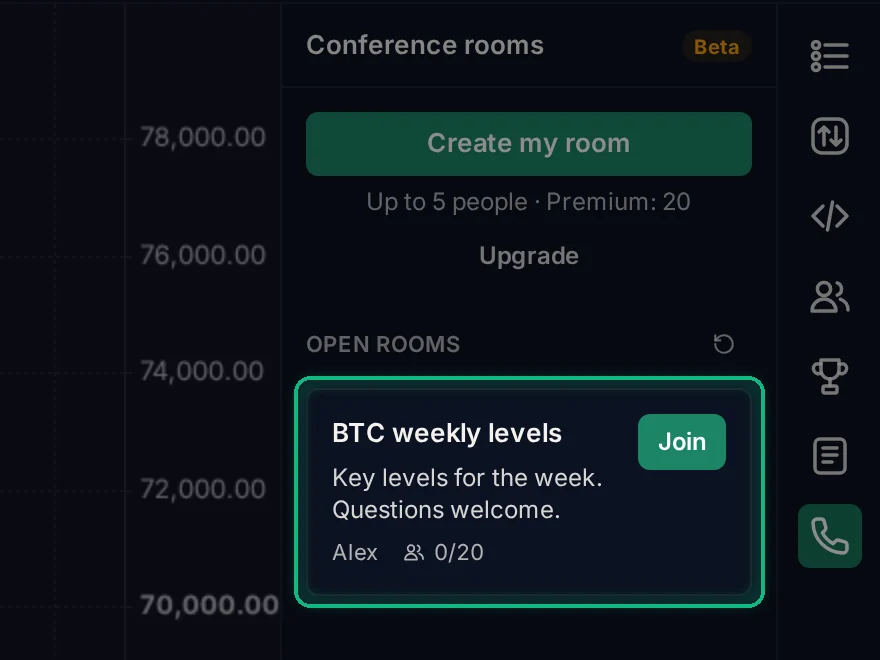
To join, open the link you were sent, or click the phone icon and click Join next to a room under Open rooms. You need to be signed in to join.
In the room you see the owner's chart, live. The bar at the top shows whose chart you are watching, whether the owner is online, your mic and how many people are watching. The room's chat is in the panel on the right. Click Back to my chart to leave the room and go back to your own chart.
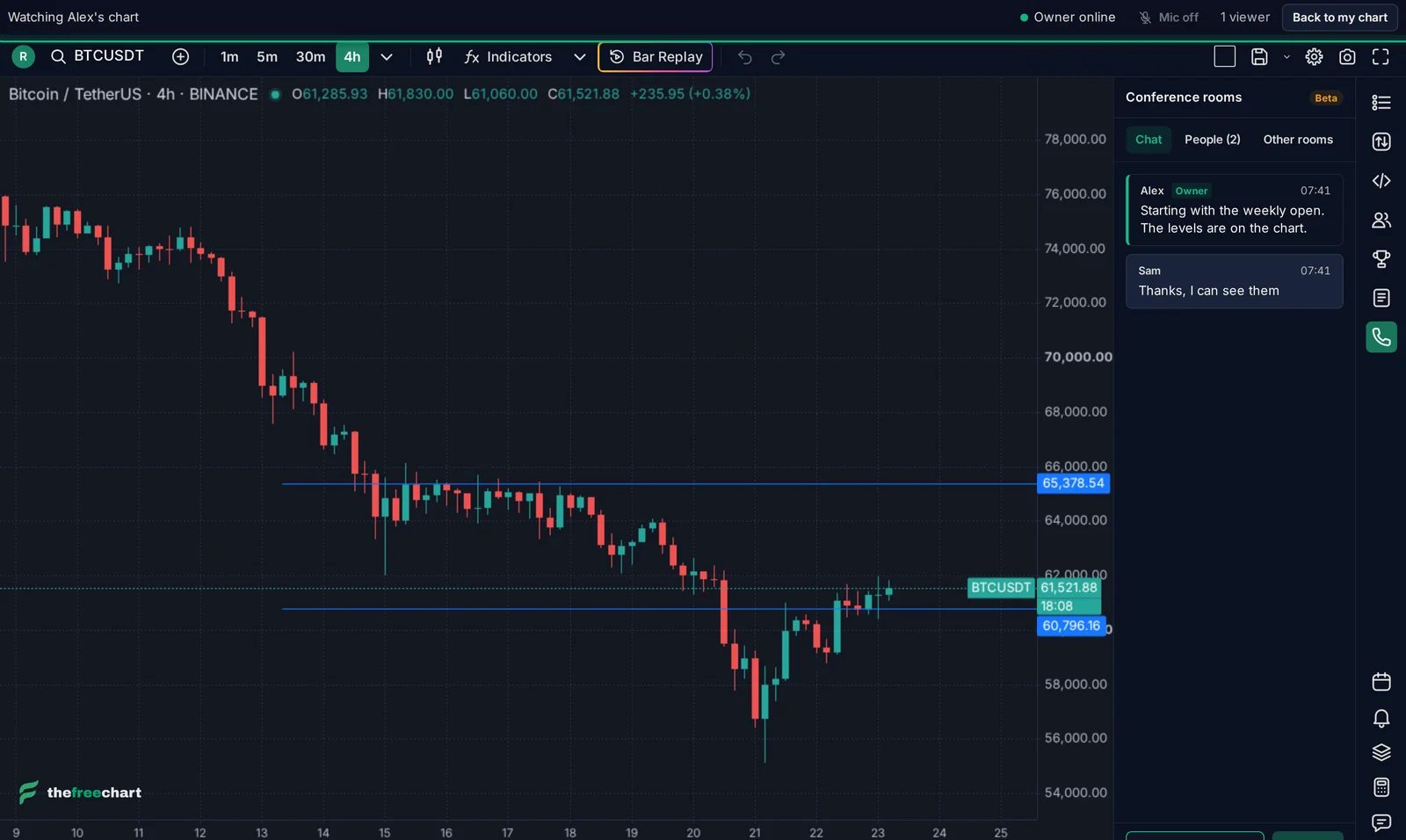
If you don't hear anything, click Turn on sound when it appears: some browsers only play sound after a click. You can turn on your own mic when the owner lets everyone speak.
Join a room on a phone
Tap Community in the tabs at the bottom of the screen.
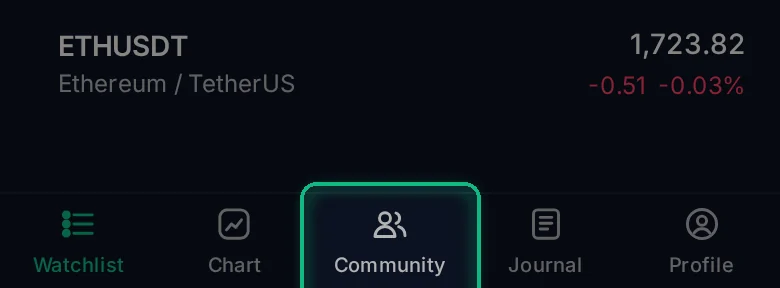
Then tap the phone icon at the top of Community, to the left of the chat icon. It shows a red dot when a new room opens.

Tap Join next to the room you want. Opening a room link on your phone works too.
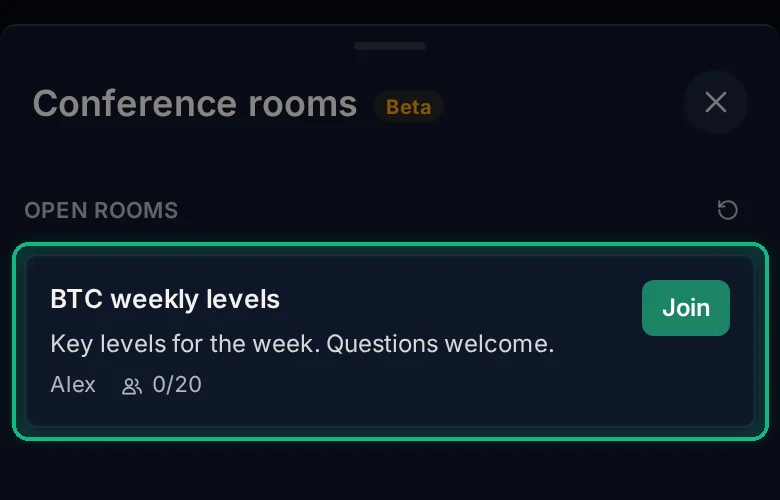
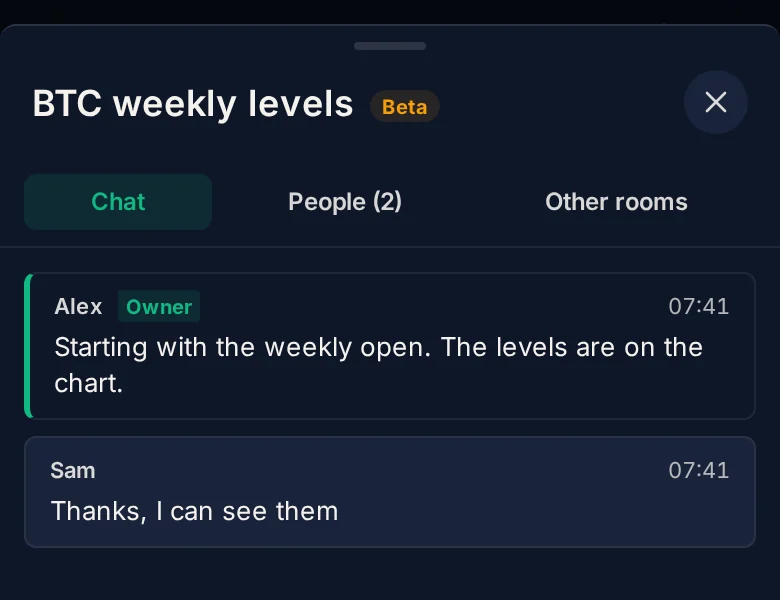
In the room, the bar at the top shows the room name, whether the owner is online and how many people are in the room. Its buttons open the chat, turn your mic on or off, and leave the room.

The chat opens over the chart. Close it to go back to the chart.
Room size
- Free account: your room holds up to 5 people.
- Premium: your room holds up to 20 people.
The size depends on the plan of the person who opens the room. Joining a room is free for everyone. When a room is full, the list shows Full and nobody else can join until someone leaves.
Conference rooms are in Beta
Conference rooms are new, and we are still improving them. A room closes on its own when the person who opened it has been offline for 30 minutes.
Read more
- How to Use the Trading Simulator: practice the setups you talk about, on past data or live prices.
- How to Use the Trading Journal: review every trade you take after the session.
No comments yet. Login to start a new discussion Start a new discussion